
Routing Rules
A complete reference for Settings → Routing, from triggers, conditions, and operators to chat distribution actions.
This page is a complete reference for Settings → Routing. For an overview and how to create Team inboxes, read Team Inbox and Routing first.
What it does
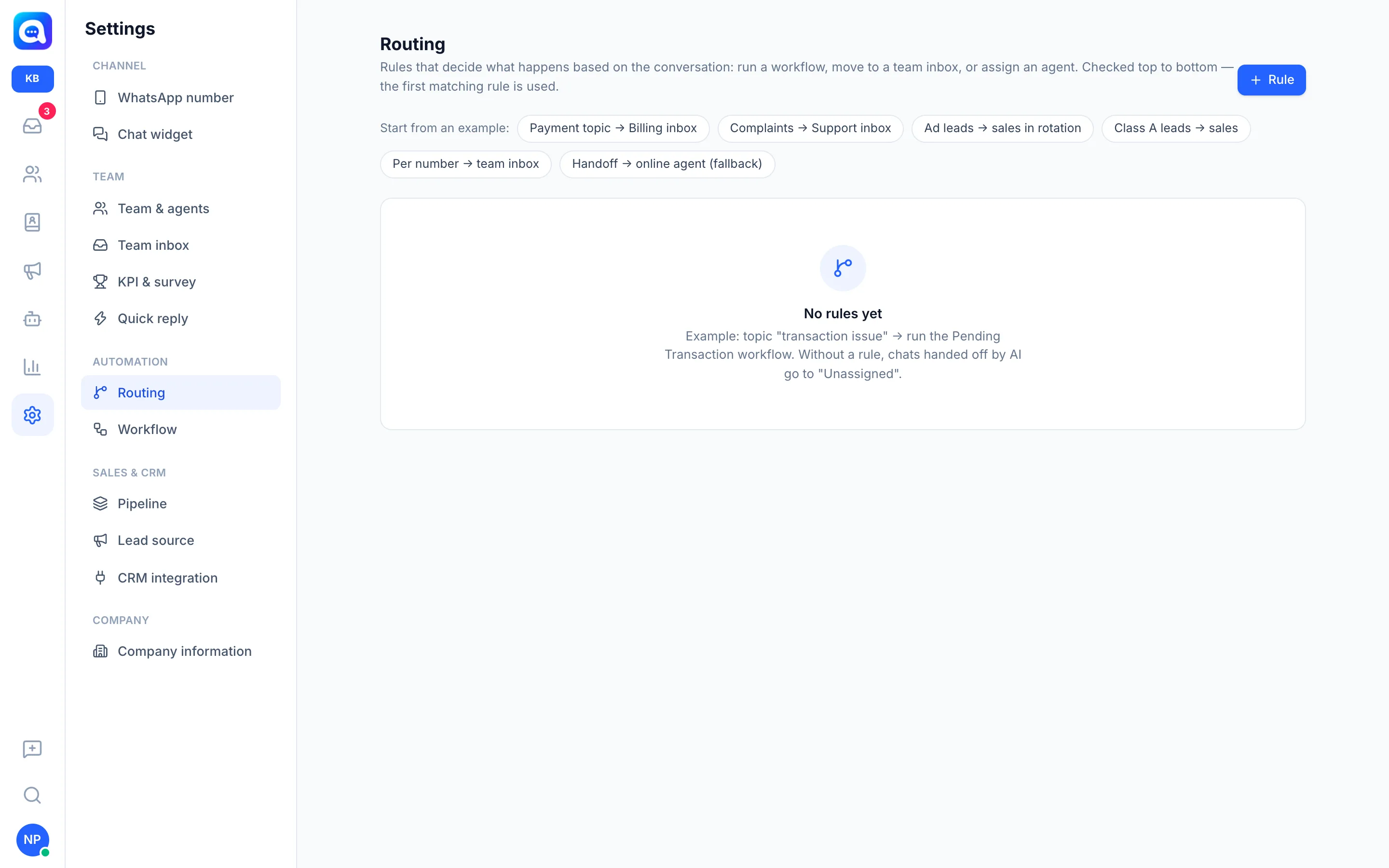
Routing decides what automatically happens to a conversation: a workflow runs, it is moved to a team inbox, or it is assigned to an agent. Rules are checked from top to bottom and the first matching rule is used. The rule list shows the order number, name, trigger label (Incoming messages or On handoff), condition summary, and destination. Inactive rules are shown struck through.
Routing exists in each workspace and depends on your plan. If the menu is locked, check Billing and plans.
Benefits
- Chats reach the right person or team directly without manual distribution.
- Workload is spread fairly through round-robin or the agent with the fewest chats.
- Important chats (complaints, class A leads, leads from ads) are prioritized.
- Chats that match no rule are still handled through a fallback rule.
Steps
- Open Routing. Choose Settings → Routing, then click Rule. Or pick one of the examples in the Start from an example: row (see the Fallback rule and examples section).
- Fill in the name and status. Fill in Rule name (e.g. "Custom cake orders → New Orders inbox"). The Active switch turns the rule on or off without deleting it.
- Choose the trigger. Under When it runs, choose one:
- Every incoming message: checked on each message until a rule matches, once per conversation.
- When the AI hands off to a human: decides the agent or inbox when the AI does a handoff. Also used for chats that go straight to agents when the AI is off and no one has been assigned yet.
- Set the matching. Under If, choose all conditions (all must be met) or any condition (one is enough), then are met.
- Add conditions. Click Condition, choose a field, operator, and value. Click X to remove a condition. With no conditions, the rule applies to all conversations.
- Choose the action. In the Then section, choose an action and its destination (see the table below).
- Save and set the order. Click Save. Use the up/down arrows next to a rule. The trash icon deletes a rule after confirmation.
Condition fields
| Field | Description |
|---|---|
| ✨ Conversation topic (judged by AI) | You write the topic in free-form text, then the AI judges whether the conversation matches. The operator is fixed, not chosen. |
| First message / Last message | The content of the customer's first or last message. |
| Customer message content | All incoming messages in the conversation combined. |
| Came from ads | Matches when the chat came from an ad. Use the operator exists / yes. |
| Ad title/text, Ad URL, Ad ID | Data of the ad that triggered the chat. |
| Pipeline status | The contact's stage in the pipeline, chosen from your list of stages. |
| Lead class (A/B/C) | Choose A, B, or C. |
| Lead source | Choose from the lead source list. |
| Channel (WA number / chat widget) | Choose a WhatsApp number or chat widget. |
| Lead score (points × 20) | The lead score number, works with the ≥ and ≤ operators. |
| Tag | Tags attached to the contact. |
| Lead qualification data | Qualification fields you created, shown as their own group in the field list. |
Operators
- contains: any one of the words matches. Separate multiple words with commas (e.g. "complaint, disappointed, refund").
- does not contain: none of the words match.
- equals: the value is exactly the same (upper/lower case is ignored).
- ≥ and ≤: greater or less than a number, for lead score.
- exists / yes: the field is filled (e.g. the chat came from an ad). Uses no value.
For Channel, the value is chosen from the list of numbers; several numbers can be matched using the any condition option.
Actions (Then)
| Action | Settings |
|---|---|
| Run workflow | Choose a workflow. It runs from its Event block. An inactive workflow can still be run from routing. See Workflow. |
| Move to team inbox | Choose an inbox, then Unassigned, Distribute to members in rotation, or To the member with the fewest chats. |
| Assign agent in rotation (round-robin) | Choose candidate agents. Turns alternate among them. |
| Assign agent with the fewest chats | The agent with the fewest open chats is chosen. |
| Assign first available agent | The first eligible agent in the list is chosen. |
For the three assign actions, click agent names to choose candidates (at least one). The Only agents who are currently online switch limits the choice to agents with online status. Automatic distribution only goes to agents who have access to that conversation's number. If no agent is eligible, the rule is skipped and the next rule is checked.
Fallback rule and examples
Ready-to-use examples in the Start from an example: row open a pre-filled form. Choose an inbox or agent before Save:
- Transaction topic → Billing inbox
- Complaint → Support inbox
- Ad leads → sales in rotation
- Class A leads → sales
- Per number → team inbox
- Handoff → online agent (fallback): handoff trigger, no conditions, assign to the online agent with the fewest chats.
Example for Kirana Bakery, order from the top:
- Trigger Every incoming message, Customer message content contains "complaint, disappointed, damaged" → Move to team inbox "Complaints & Help".
- Trigger Every incoming message, Customer message content contains "custom cake, tart, hampers" → inbox "New Orders", Distribute to members in rotation.
- Trigger When the AI hands off to a human, no conditions → Assign agent with the fewest chats, Only agents who are currently online on.
Tips
Put specific rules at the top and general or fallback rules at the bottom, because the first matching rule wins.
Every incoming message rules only run once per conversation (repeated if the conversation is reopened). Chats that already have an agent are not reassigned. Every routing result is recorded as a system note in the conversation.
If your role only has View permission, the page is shown read-only and you need to ask the workspace admin to change rules.