
Send Feedback
Send feature suggestions, complaints, or bug reports to the Kalea team straight from the app, with attachments.
The Send feedback button helps you share ideas or problems with the Kalea team without leaving the app. For example, the Kirana Bakery admin finds a missing feature or a screen with an error.
What it does
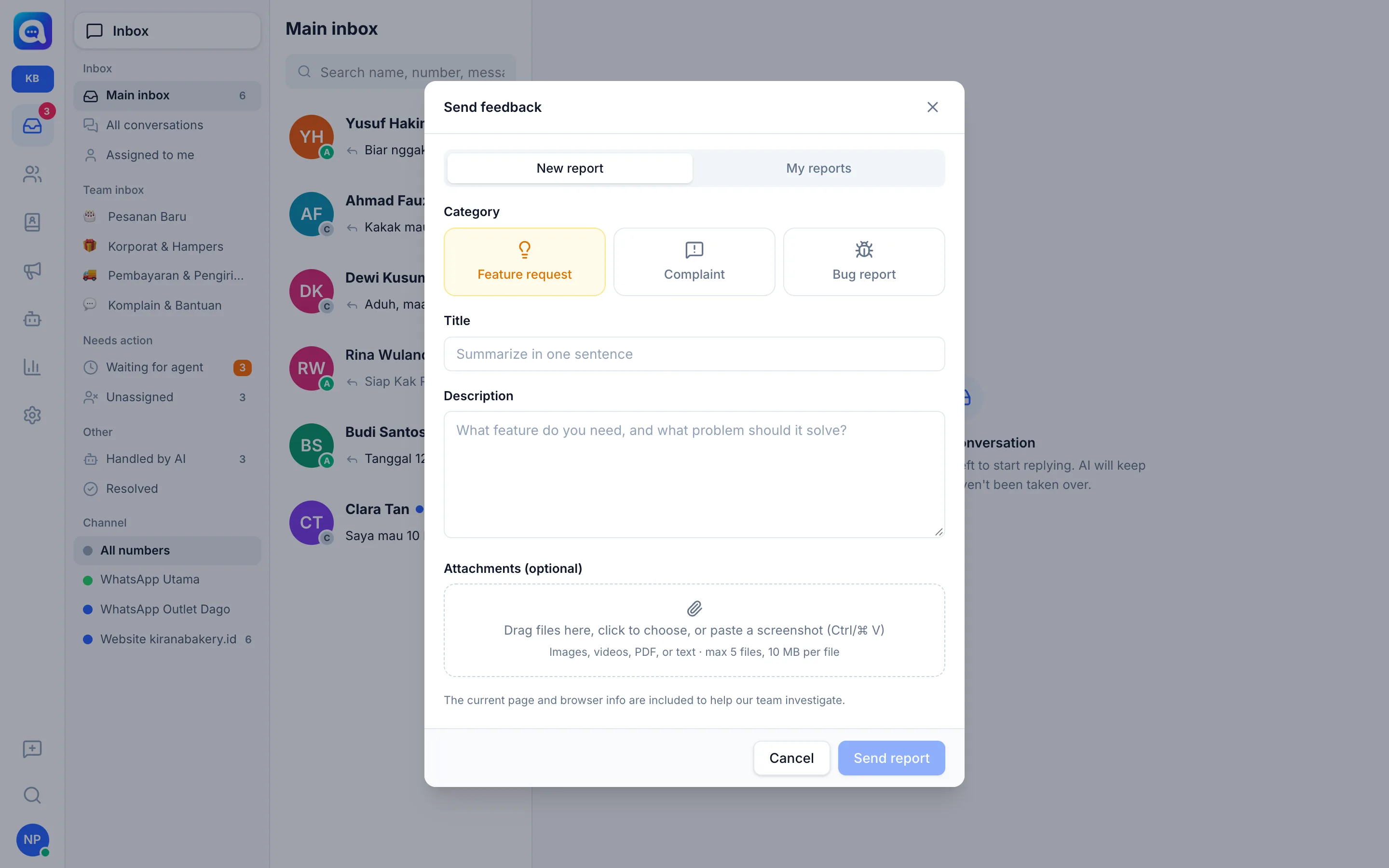
It sends a report to the Kalea team and lets you track its status. There are two tabs: New report for sending, and My reports to see the reports you've sent along with their status.
Benefits
- Your suggestions reach the product team directly.
- Technical problems are checked faster because the page and browser info are sent along.
- You can see the progress of your report and the team's replies.
Steps
- Open the form. Click the message icon with a plus sign at the bottom left (tooltip Send feedback). On mobile, open the avatar menu and choose Send feedback.
- Choose a category. Pick one of Feature request, Complaint, or Bug report. The hint in the description field adapts to the category.
- Fill in the Title. Summarize in one sentence (maximum 150 characters).
- Fill in the Description. Minimum 10 characters, maximum 5,000. For bugs, write the steps you took, the expected result, and what happened.
- Add attachments (optional). Drag files into the box, click to choose, or paste a screenshot with Ctrl/⌘ V. See the limits below.
- Send. Click Send report. The button becomes active once the title and description are filled in. You will see a thank-you message.
Attachments
- Images (PNG, JPG, WebP, GIF), videos (MP4, WebM, MOV), PDF, or text.
- Maximum 5 files, each 10 MB. Files that are too large or of an unsupported type are rejected with a message.
After sending
You are moved to the My reports tab. Each report shows its title, category, date, and status: New, In progress, Resolved, or Closed. If the team replies, the reply appears in the Kalea team: box. The page you currently have open and browser info are sent along to help with the investigation. Reports are only visible to you and the Kalea team.
Tips
For bug reports, attach a screenshot or screen recording and mention the number or conversation affected (without writing any passwords).
For urgent help such as a disconnected WhatsApp, check Troubleshooting first.