
Workflow
Build automatic flows in a visual editor: when a message arrives, what conditions are checked, and what actions run.
Use Workflow to automate repetitive things when customers contact you, for example routing price questions to the sales team or replying automatically outside working hours. Workflows are created per workspace.
What it does
A workflow is a flow built from blocks connected by lines:
- Event (trigger): New message, Message matches keyword, Customer sends image, Waiting for agent (when the AI hands off to a human), and Resolved conversations.
- Condition (Yes/No branching): Intent evaluation (the AI guesses the customer's intent), Keywords, Channel, Lead data, Working hours, Read result / variable, and Already have an agent?.
- Action: Send message, Move to inbox, Assign agent, Mention operator, Make lead, Change pipeline stage, Add tag, Set handling, and Resolve conversation.
- Agent: Read image (AI) to read receipts or payment proofs, and Reply with AI with additional instructions.
- Stop workflow to end the flow.
Benefits
- Important messages go straight to the right team without manual sorting.
- Customers still get a reply outside working hours.
- Payment proofs are read automatically and the finance team is notified.
- The team's working rules are documented in one easy-to-see flow.
Steps
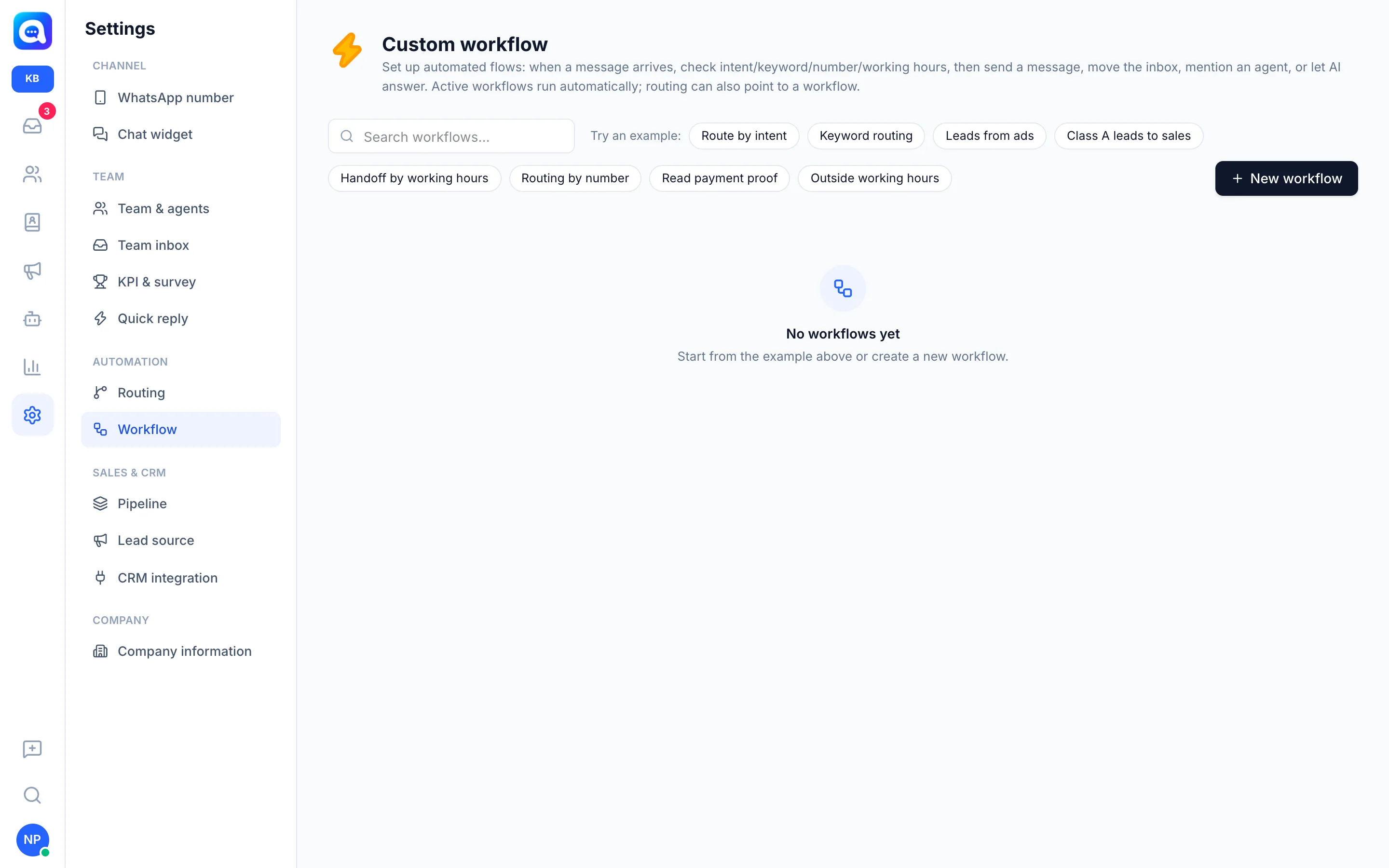
- Open Workflow. Choose Settings → Workflow. This menu appears inside a workspace, not in the Central view.
- Start from an example or create a new one. Click one of the examples under Try an example: or click New workflow. Available examples: Route by intent, Keyword routing, Leads from ads, Class A leads to sales, Handoff by working hours, Routing by number, Read payment proof, and Outside working hours.
- Add blocks. Drag blocks from the left panel onto the canvas (or click a block). Start with an Event block.
- Connect blocks. Drag the bottom dot of a block to the top dot of the next block. Condition blocks have two branches, Yes and No.
- Configure the blocks. Click a block to fill in its settings, e.g. the keywords "price, buy, order", the number choice, the destination inbox, or the message text. Text may use variables such as {nama}.
- Save and activate. Give it a name, click Save, then turn on Active. An active workflow needs at least one Event block. A workflow that is Inactive does not run.
Example for Kirana Bakery: Event Message matches keyword ("order, buy, price"), then Move to inbox Sales, then Reply with AI so it offers cake packages.
Tips
Start from the example closest to your needs, then modify it. For the Working hours condition, the time zone follows the Regional settings.
The Intent evaluation block uses the classification model chosen in AI Agent → AI model.