
Settings/Subscription & safety
Backup
Automatically back up company data to Google Drive with encryption, and restore it any time.
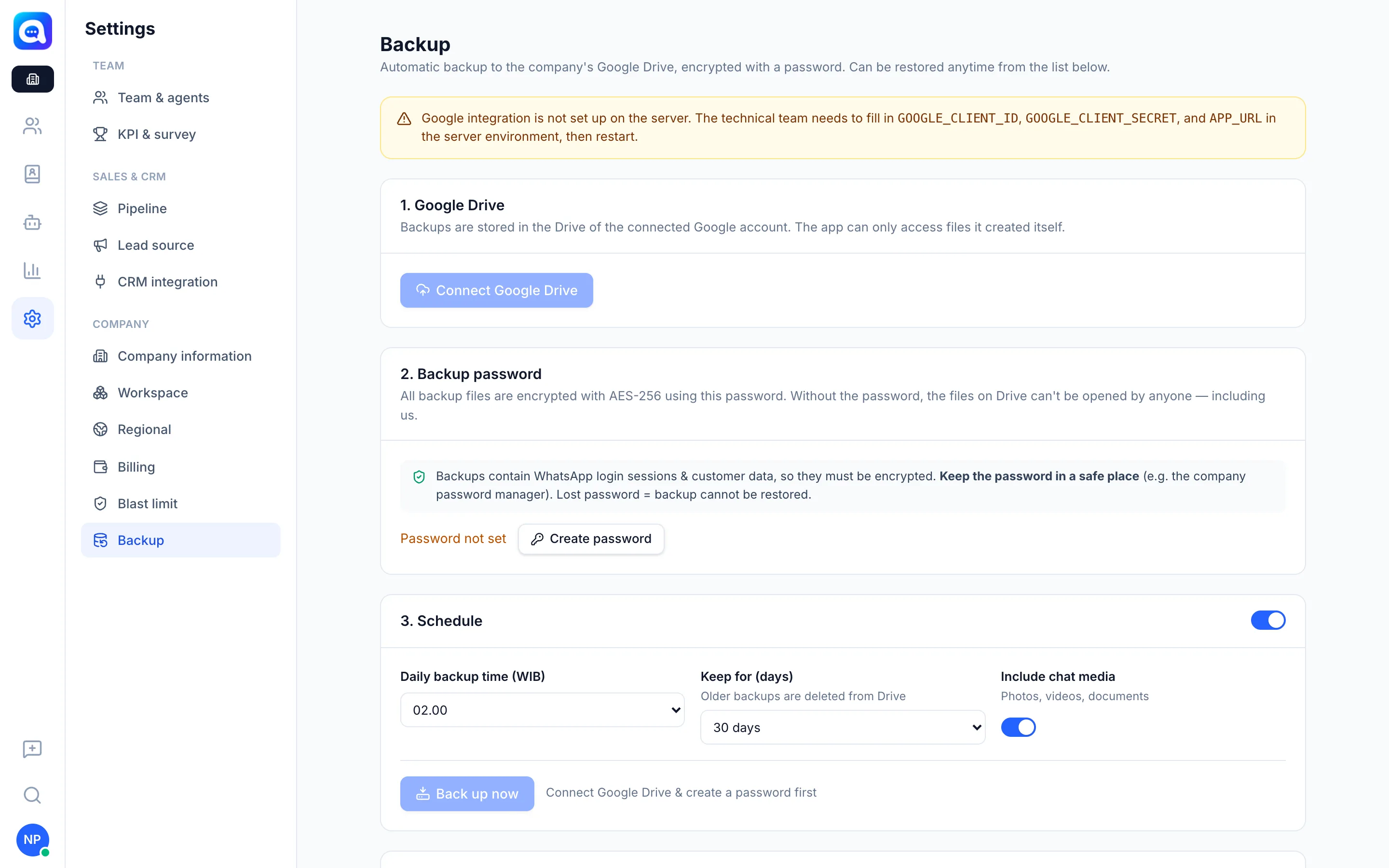
The Backup page automatically saves a copy of your company data to Google Drive. This menu is only available at the Company level and is managed by admins.
What it does
- Connect Google Drive: backups are stored in the Drive of the connected Google account. The app can only access files it created itself.
- Backup password: all files are encrypted with AES-256. Without the password, no one can open them.
- Schedule: Daily backup time, Keep for (days), and Include chat media (photos, videos, documents). The Back up now button runs a manual backup.
- Backups in Google Drive: each file can be checked with Check backup or restored with Restore.
Benefits
- Customer and conversation data stays safe if something goes wrong.
- Daily backups run without you having to remember.
- Old backups are deleted automatically according to the retention period.
Steps
- Open Backup. Choose Settings → Backup in the Company view.
- Connect Google Drive. Click Connect Google Drive and grant permission.
- Create a password. Click Create password, enter at least 10 characters, repeat it, then store the password in your company password manager. If the password is lost, backups cannot be restored.
- Set the schedule. Turn the schedule on, choose a daily time (e.g. 02:00 for Kirana Bakery), the retention period, and whether media is included in the backup.
- Try a backup. Click Back up now, then make sure it appears in the list.
- Restore (if needed). Click Check backup to inspect a file without changing any data. To restore, click Restore, type the confirmation, then enter your account password.
Tips
Warning
Restoring replaces all current data (workspaces, contacts, conversations, settings) with the contents of the backup, and all users will be logged out. Current data is automatically set aside as a safety net, but only do this when truly necessary.
Note
If a message appears saying the Google integration has not been set up, contact the technical team or the platform admin.