
Team and Agents
Manage members in Settings → Team & agents: add, edit, role, photo, number access, status, and plan limits.
A reference for the Members tab in Settings → Team & agents. For a getting-started guide, see Invite your team.
What it does
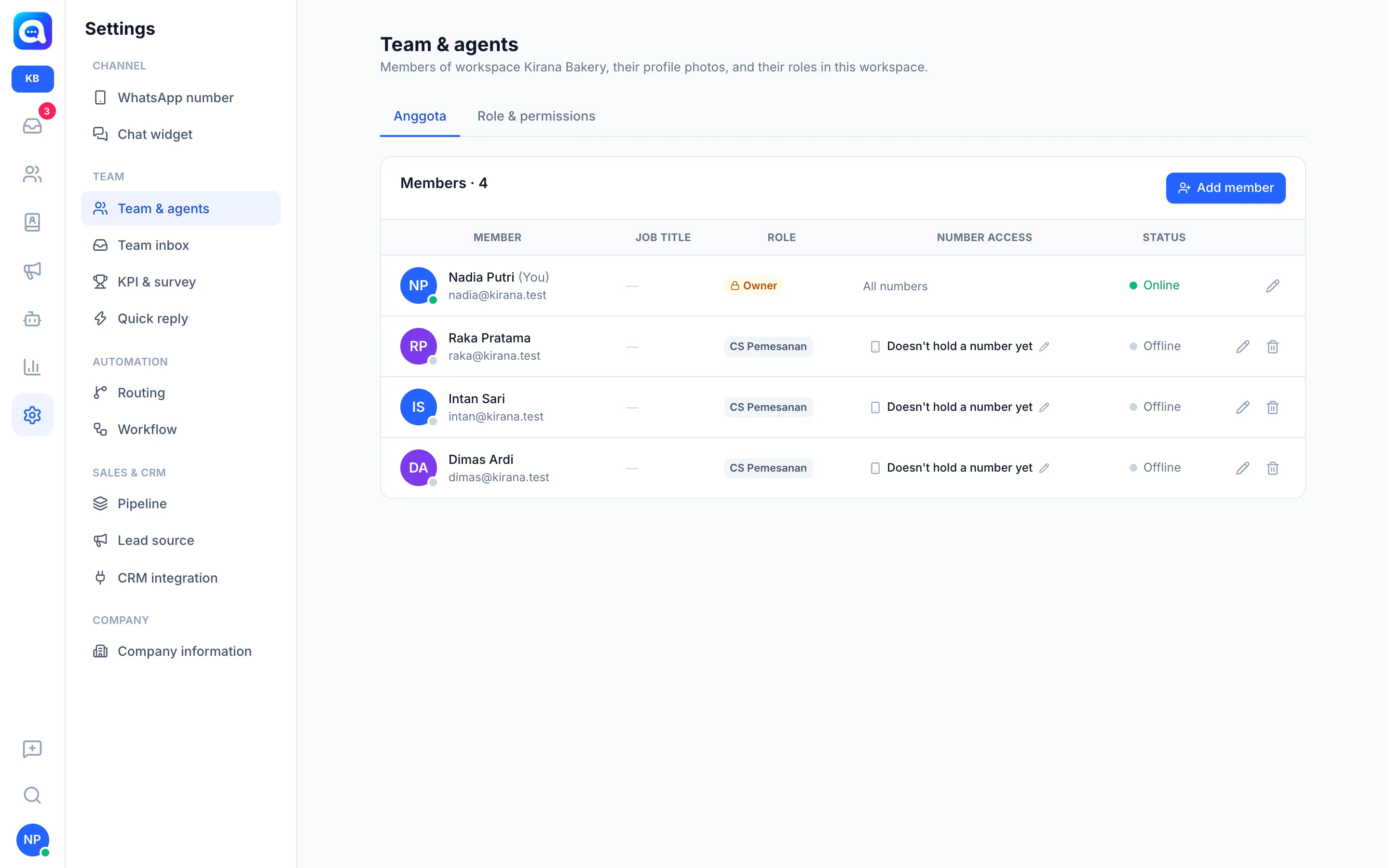
The Members tab shows all workspace members with the columns Member, Job title, Role, Number access, and Status (Online, Away, Offline). From here you add, edit, and remove members.
Benefits
- Everyone has a role that fits their tasks.
- Number access limits agents to specific numbers.
- One account can be a member of several workspaces.
Steps
- Add a member. Click Add member. Fill in Name, Job title (e.g. Sales Executive), Email, Phone, and Password (at least 8 characters; give it to the member to log in). If the email is already registered in another workspace, that person is simply added; name and password don't need to be filled in.
- Choose a Role. The Role dropdown shows roles along with their number of permissions. Default roles: Owner, Admin, and Agent, plus custom roles such as Order CS in the Kirana Bakery example. The Owner role always has all access. A full explanation is in Roles and permissions.
- Upload a photo. After the member is saved, the form switches to edit mode so the Profile photo can be uploaded right away.
- Set Number access. Owners and Admins are always All numbers. For other roles, click the Number access column or Set, then choose Numbers held + extras (the numbers they hold as owner plus the numbers ticked) or All numbers (including new numbers and widgets). If they don't hold a number, Doesn't hold a number yet is shown: they only see chats assigned to them or that mention them.
- Edit a member. Click the pencil icon. Email can't be changed. New password (optional) replaces the password.
- Remove a member. Click the trash icon. In a workspace, the member is only removed from this workspace; their account remains if they are a member of another workspace. The Owner and your own account can't be deleted.
Plan limits
The number of members follows the plan. Adding members above the limit is rejected. If the count exceeds the limit (for example because the plan was downgraded), the newest members get the status Inactive — over plan limit and can't log in until the quota is enough again. Company admins are never deactivated.
Notes
My account (name, photo, password) can always be changed by every member through the My account menu. In the Company view there is a Company admin option and adding to workspaces; see Workspace.
Tips
Ask members to change their password after their first login through My account.