
Chat Widget Reference
An explanation of every option in Settings → Chat widget: appearance, form, behavior, AI, install code, and multiple widgets.
A complete reference for the Settings → Chat widget menu. For quick installation steps, see Install the website widget.
What it does
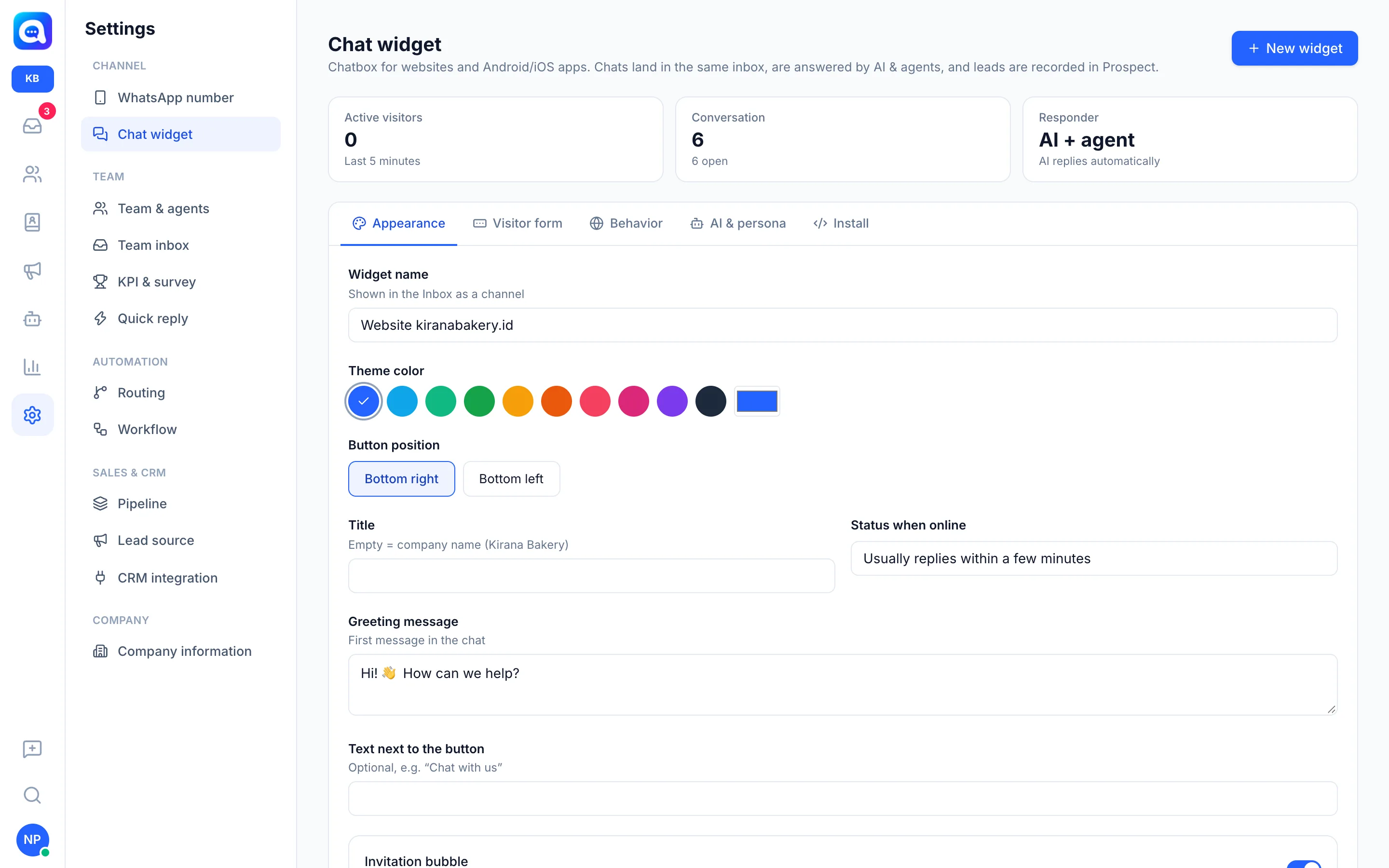
The chat widget is a chatbox for websites and Android/iOS apps. Chats land in the same Inbox, are answered by AI and agents, and the leads are recorded in Prospect. The top of the page shows three summaries: Active visitors (last 5 minutes), Conversation, and Responder (AI + agent or Agent).
Benefits
- One widget per site or campaign, each with its own appearance and AI.
- Live preview (Form, Chat, Closed) before saving.
- Domain restriction prevents the code from being used on other sites.
Steps
- Create or choose a widget. Click New widget (or Create widget if the list is empty), fill in Widget name, then Create. You can create multiple widgets, for example "Website kiranabakery.id" and "Lebaran promo landing page"; pick from the widget list. The name appears in the Inbox as a channel.
- Appearance tab. Fill in Theme color (preset colors or another color), Button position (Bottom right / Bottom left), Title (empty = company name), Status when online, Greeting message, and Text beside the button (optional). Two switches: Invitation bubble (appears above the button after a few seconds, once per visit, with a delay setting in seconds) and Show online agents' photos.
- Visitor form tab. The Ask for details before chat switch enables a short form. Fill in Form title, then set Name, WhatsApp number, and Email to Required, Optional, or Hide. The name becomes the lead's name; leads with the same number are merged with their WhatsApp chat. Consent text is optional. Apps that already know the user's identity can skip the form by sending the name and number.
- Behavior tab. Switches: "Continue on WhatsApp" button (uses the WhatsApp number in Company information), Allow attachments (images or PDF, max 10 MB), New message sound, Hide on mobile. Fields: Offline text (shown when AI is off and no agent is online) and Lock to domain (one domain per line, subdomains are allowed too, empty = all domains).
- AI & persona tab. Channel purpose: Sales — visitors become leads or Customer service — visitors become contacts. The AI replies automatically switch. When on: AI name, Business name, and Instructions (empty = uses the main AI Agent instructions; you can Copy from… other instructions and then Back to main instructions). The AI model, knowledge, routing, and workflows come from the AI Agent menu and apply to all channels.
- Install tab. Shows the Widget ID and a Regenerate button. Choose a platform: Website (paste the Install code before
</body>, with guides for WordPress, Google Tag Manager, Shopify, Next.js / React), Direct link (a full chat page, can skip the form with the parameters name, phone, email), JavaScript API, Android, iOS, Flutter, or React Native. - Save. Click Save. A Not saved status appears when there are changes; Cancel discards the changes. Delete widget removes the widget (installed code stops working, chat history stays).
Powered by
The Powered by kalea.chat brand is always shown at the bottom of the widget and cannot be turned off in the settings.
Notes
Regenerate the widget ID makes the old code on your website and apps stop working.
This menu depends on your plan (widget feature) and role permissions. Without Edit access, all fields are view-only.