
Roles and Permissions
Set access per menu and tab with None, View, or Edit, including default roles and custom roles.
A reference for the Role & permissions tab in Settings → Team & agents.
What it does
Each role determines which menus and tabs a member can open, and whether they may change them. Each menu or tab has three levels:
- None: hidden.
- View: open without being able to change anything.
- Edit: can make changes.
Benefits
- Sensitive data is only seen by those authorized.
- Custom roles (e.g. Outlet Supervisor) fit your team structure.
- Rules are also enforced on the server, not just hidden in the interface.
Steps
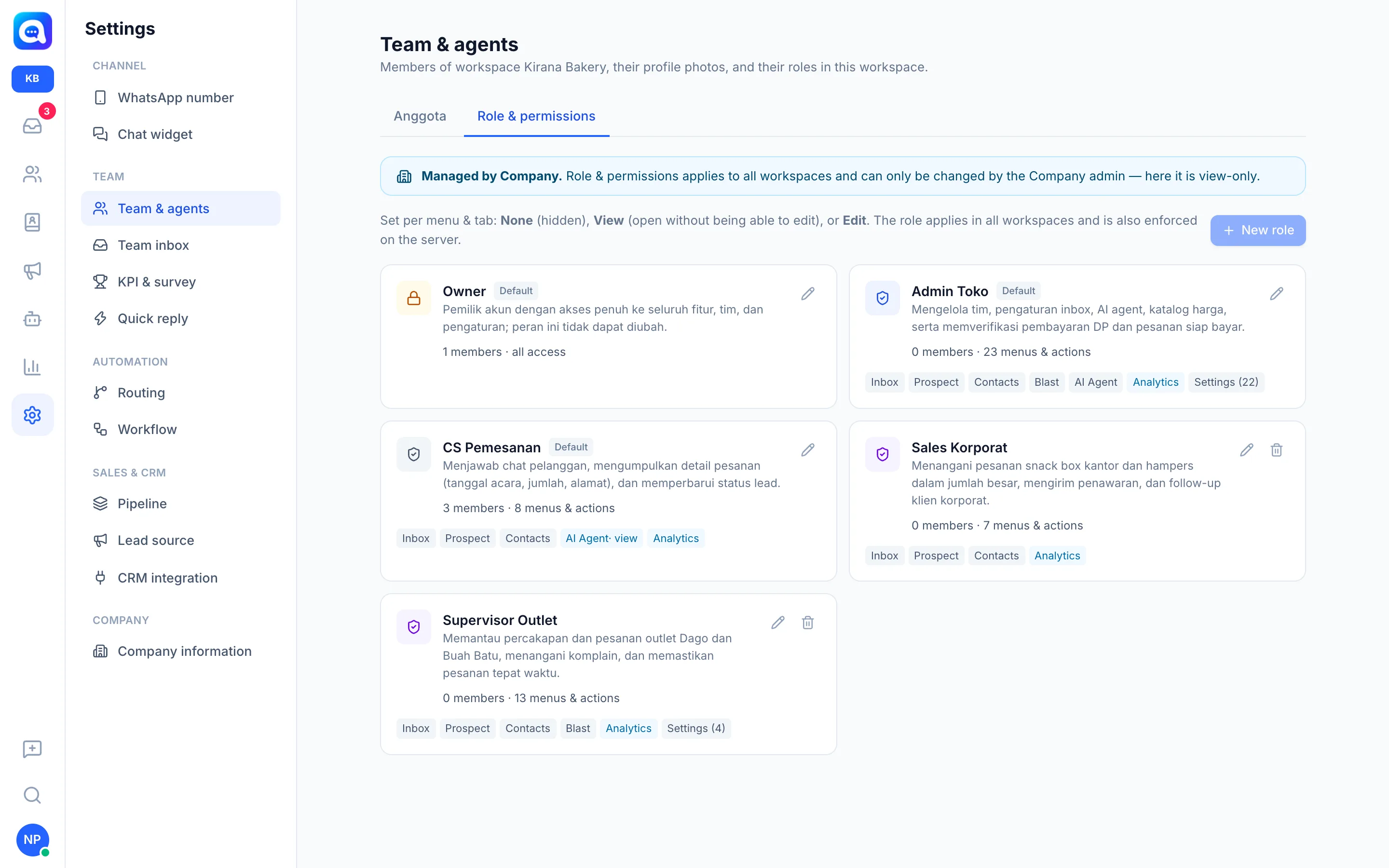
- Open the tab. Settings → Team & agents → Role & permissions. Each role card shows a Default badge (for default roles), a description, the number of members, and a summary of menus and actions.
- Know the default roles. Owner: all access, cannot be changed. Admin: manages the team and all settings. Agent: serves chats and leads (Inbox, Prospect, Contact, AI Agent, Analytics, plus bulk lead actions, send to CRM, and export), without the Settings or Blast menus.
- Create a role. Click New role. Fill in Role name (e.g. Supervisor) and Notes, then set three groups:
- Menu: Inbox, Prospect, Contact, Blast, AI Agent (None, View, Edit), and Analytics (View only; all reports and KPIs).
- Settings: WhatsApp number, Chat widget, Team & agents, Team inbox, Routing, Quick reply, Company information, Pipeline, Lead source, CRM integration, KPI & survey.
- Actions: checkboxes for View all conversations, Block & delete conversations, Bulk lead actions, Send to CRM, Export data, and Manage contacts. The All: buttons (None / View / Edit) set a whole group at once.
- Save. Click Save. The role is created with Inbox and Prospect access to start with.
- Edit or delete. Click the pencil to edit. The default roles Admin and Agent can be edited; Owner can only be viewed. Custom roles have a delete icon: you choose a replacement role for the members who use it.
Company control and server enforcement
Roles apply to all workspaces and are created or changed by company admins; in the workspace view it says Managed by the Company and the page is view-only. Some menus (Company information, Pipeline, Lead source, CRM integration, KPI & survey) are also changed in the Company. The server rejects any change without Edit permission with a message that you only have view access, even if the button is tampered with in the browser.
Notes
Without the View all conversations permission, a member only sees the Main inbox, the team inboxes they are a member of, and chats assigned to them. My account is always accessible to all members.
Team & agents access cannot be removed from your own role while you are editing that role.