
Settings/Company
Workspace
Separate branches or brands into their own workspaces, and understand the difference between the Company and a workspace.
Kalea has two levels: the Company (company level) and workspaces. Kirana Bakery, for example, can create separate workspaces for each branch or brand.
What it does
- Company: the company admin view. Here you manage general things: Company information, Workspace, Regional, Billing, Blast limit, Backup, and KPI & survey.
- Workspace: a separate workspace with its own WhatsApp numbers, contacts, conversations, team, and blasts. A workspace admin manages WhatsApp numbers, team, inboxes, routing, workflows, and blasts in that workspace.
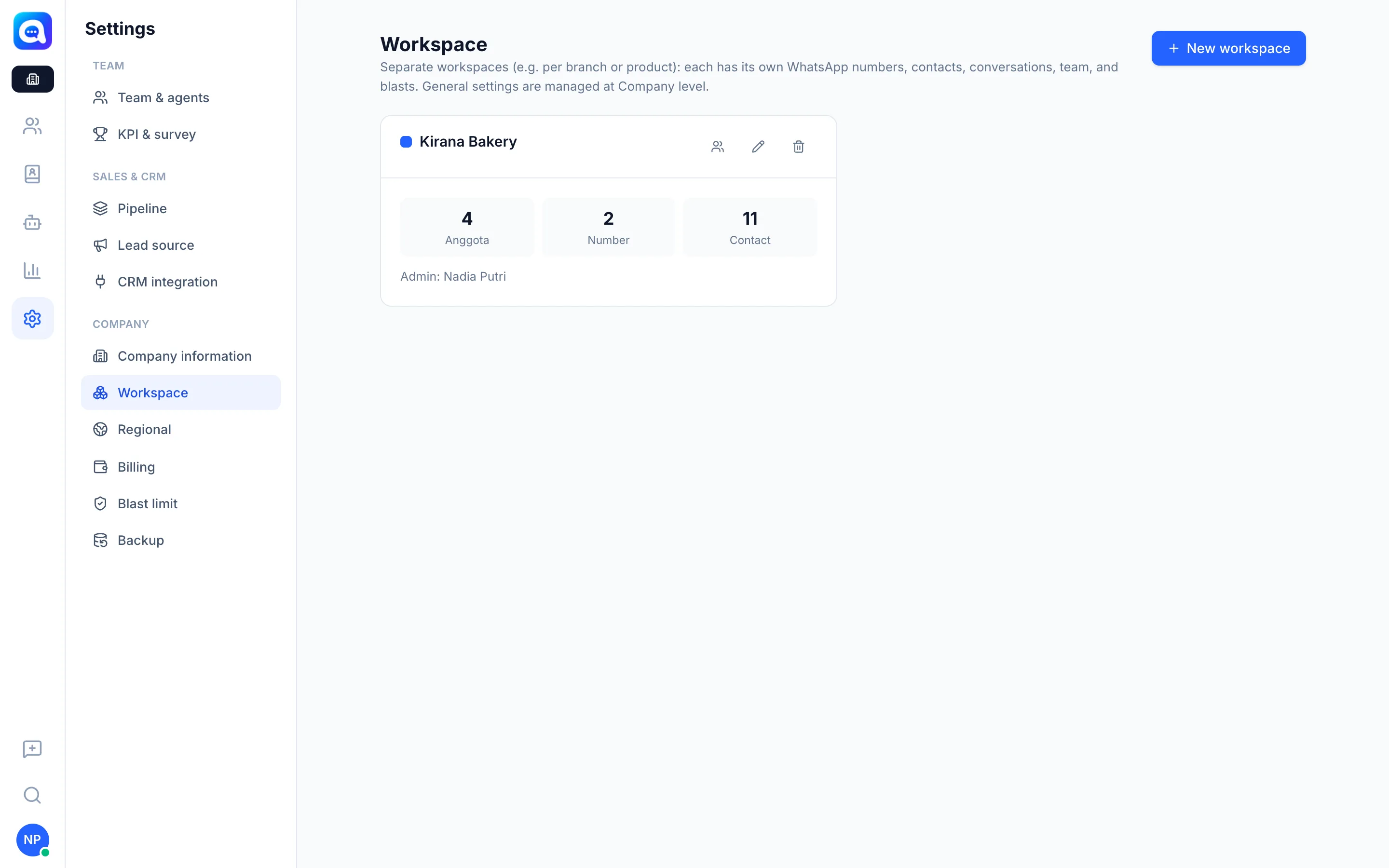
- Each workspace card shows the number of Members, Numbers, and Contacts, along with its admin.
Benefits
- Each branch's or brand's data doesn't get mixed.
- Branch admins can work independently without accessing other branches' data.
- Billing and security settings stay with the Company.
Steps
- Open the workspace list. In the Company view choose Settings → Workspace.
- Add a workspace. Click New workspace. Fill in Workspace name (e.g. "Bandung Branch"), an optional description, and Color.
- Set the admin. Choose the main admin from Existing users or create a New account (name, email, password of at least 8 characters).
- Save. Click Save. Use the icons on the card to manage members, edit, or delete the workspace.
- Switch workspace. Click the workspace button at the top of the sidebar, then choose Company dashboard to go to the Company or pick a workspace name.
Tips
Note
The number of workspaces is limited by the plan. When the limit is reached, upgrade the plan to add more. A workspace that exceeds the plan shows Inactive — over plan limit.
Tip
Workflow only appears inside a workspace, while Billing, Regional, and Backup only exist in the Company.