
Blast
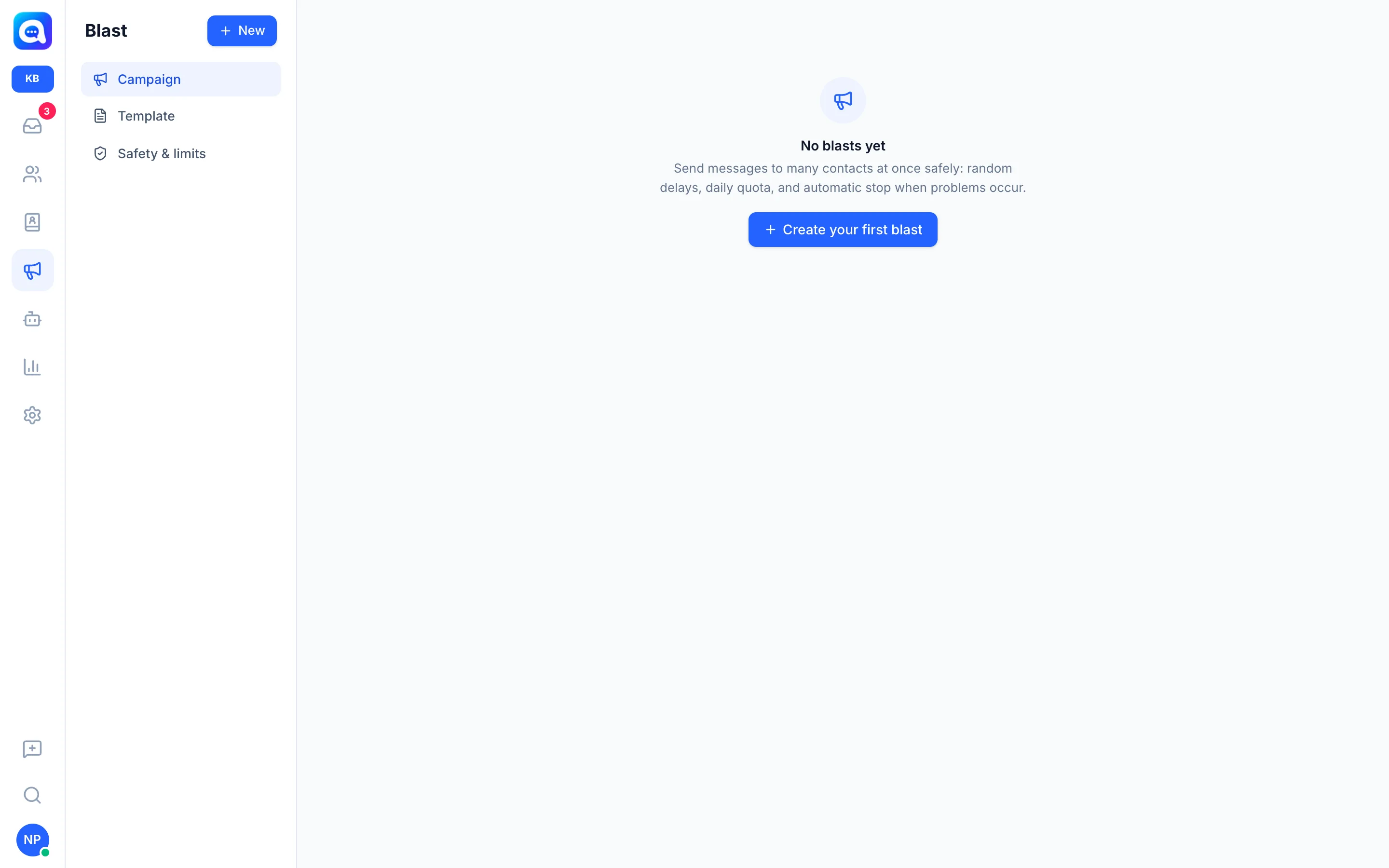
Send WhatsApp messages to many contacts at once with random delays, daily quotas, and automatic protection.
Use Blast when you want to announce a promo, a new menu, or an invitation to many customers. For example, Kirana Bakery wants to tell customers about its Christmas cake packages. Messages are sent one by one from your WhatsApp number, not all at once, to keep the number safer.
What it does
- Creates mass-message campaigns to contacts selected with contact data filters.
- Sends text, complete with images or video.
- Uses the customer's name, sentence variations, send schedule, and templates.
- Tracks results: sent, read, failed, skipped, and how many replied.
The Blast menu has three sections: Campaign (the blast list), Template (saved messages), and Safety & limits (send limit settings, Central level only).
Benefits
- Reach many customers without sending one by one.
- The number is better protected thanks to random delays, daily quotas, and automatic stop.
- Customers who reply go to the Inbox and are answered by the AI Agent.
- The report for each blast can be downloaded as Excel.
Steps
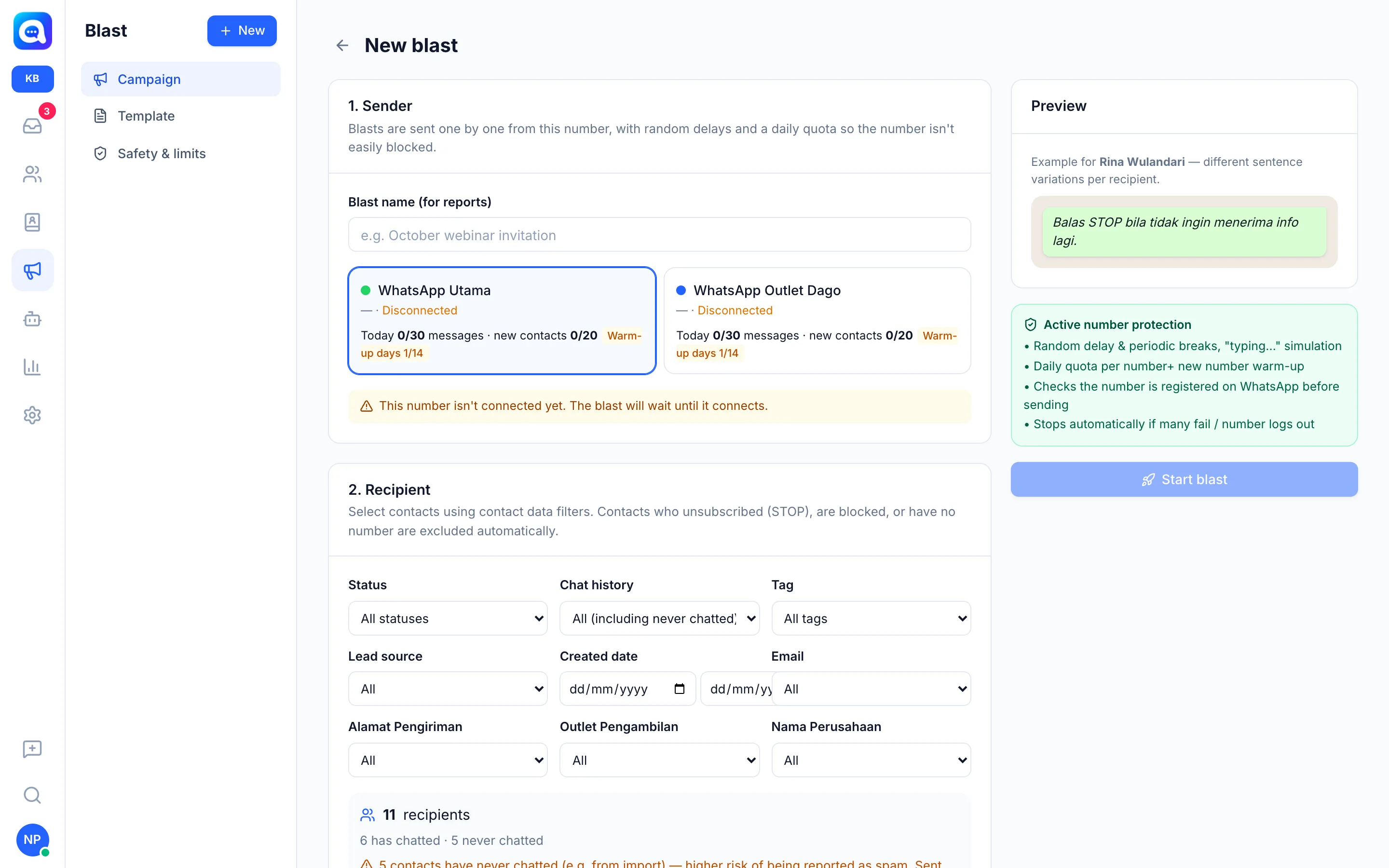
- Open Blast. Choose the Blast menu, then click New (or Create your first blast if there are none yet).
- Sender. Fill in Blast name (for reports), e.g. "Christmas Cake Promo", then choose the sending WhatsApp number. The number card shows its status, today's quota, and warm-up stage. If the number isn't connected, the blast waits until it is.
- Recipient. Choose contacts with filters such as Status, Chat history, Tag, Lead source, and Created date. Contacts who unsubscribed (STOP), are blocked, have no number, or have duplicate numbers are excluded automatically. The recipient count appears below the filters, split between those who have chatted and those who haven't.
- Message. Write a message or choose Use template…. Insert names with the Insert: button (e.g. first name) and variations such as
{Hello|Hi}so the wording differs per recipient. Attach an image or video if needed. The Preview box shows an example for one recipient. You can also choose Save as template. - Unsubscribe hint. Keep Add unsubscribe hint on. This is recommended to reduce spam reports.
- Schedule. Choose Send now or Schedule. Kirana will see an estimate of how long sending will take.
- Start. Click Start blast (or Schedule blast), then confirm.
Speed and safety limits
Sending follows the Blast limit (menu Settings → Blast limit, Central level only). Default values:
- Random delay between messages of 20 to 60 seconds (minimum 8 seconds), with a rest of a few minutes every 30 messages.
- A maximum of 200 messages per number per day, and 20 per day for contacts who have never chatted.
- Sending hours 08:00 to 20:00 in the workspace time zone.
- New number warm-up: a new number starts with a small quota and then increases gradually. Older numbers can skip the warm-up.
- Check the number is registered on WhatsApp before sending and a "typing" simulation.
- Automatic stop if many recent sends failed, or the number logs out.
- Unsubscribe keywords (e.g. "stop") and their confirmation reply can be changed.
Monitoring results
Open a blast from the Campaign list. You will see its status (Scheduled, Running, Paused, Resolved, Canceled), the number sent, read, replied, failed, and Failure / skip reason. Use Pause, Continue, or Cancel blast at any time. Messages already sent cannot be recalled. Click Excel report to download the report.
Responsible use
WhatsApp in Kalea uses an unofficial connection. A number can be restricted or banned if it sends too fast, too much, or is reported as spam often. Send only to customers who reasonably expect to receive your messages, follow WhatsApp's policies, and raise limits slowly.
Tips
Start with contacts who have chatted with you, write a relevant message, and don't forget the unsubscribe hint. Avoid sending to an imported list all at once.