
Getting to Know the Inbox
Get familiar with the Kalea Inbox layout, conversation folders, indicators in the chat list, and the lead profile panel.
The Inbox is where all WhatsApp and website chat widget conversations arrive on one screen. This page is for you and your team if you are new to Kalea.
What it does
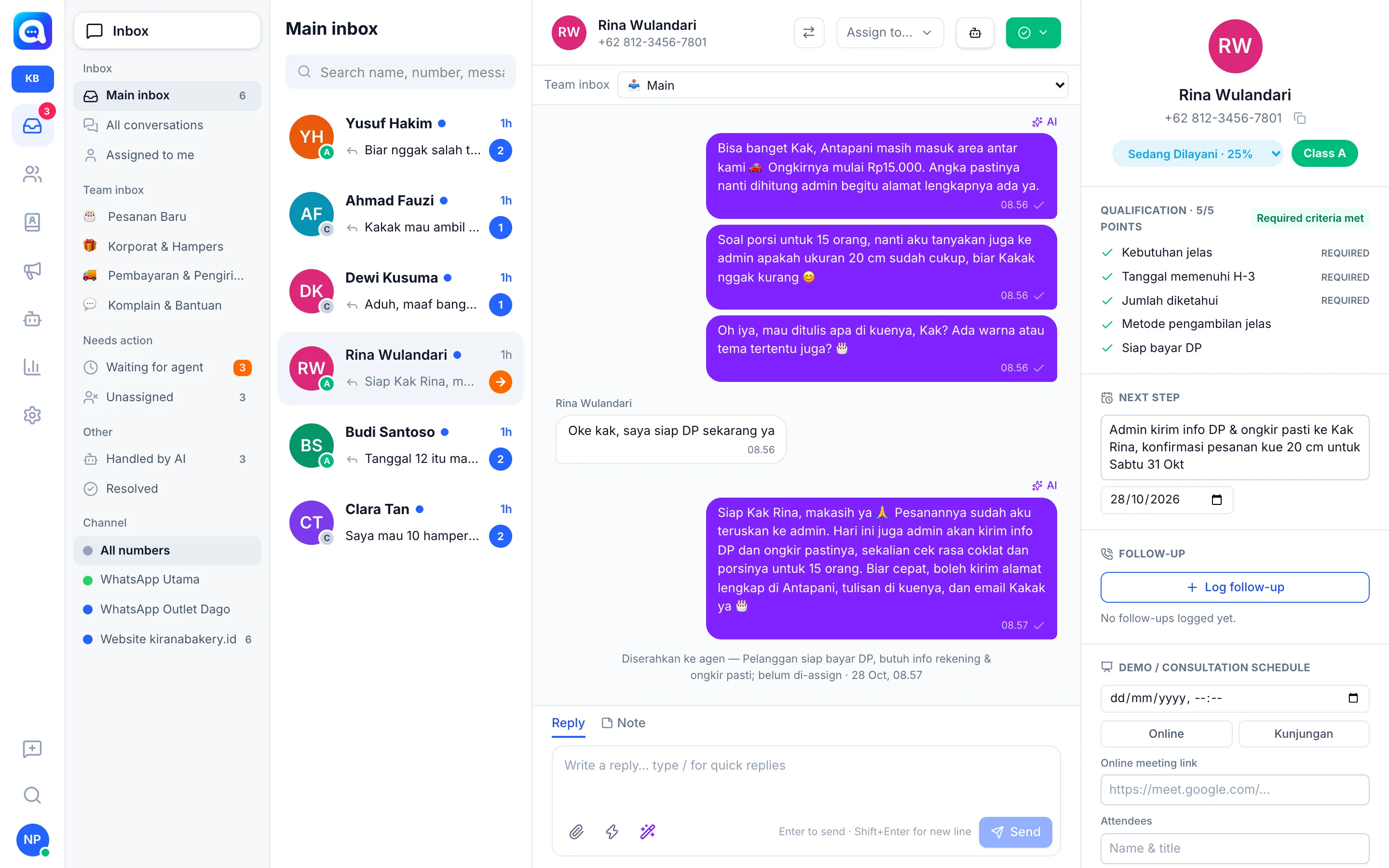
The Inbox screen is divided into three columns:
- Folder column (left) for choosing a group of conversations.
- Conversation list (middle) with the Search name, number, message… field.
- Conversation and profile (right): the chat content, then the lead profile panel on the right side.
Folders in the left column:
- Inbox: Main inbox (open conversations not yet in a team inbox), All conversations (all inboxes, including resolved ones), and Assigned to me.
- Team inbox: one folder per team inbox you belong to.
- Needs action: Waiting for agent (handed off by the AI, not yet answered by a human) and Unassigned.
- Other: Handled by AI and Resolved.
- Channel: filter by WhatsApp number or chat widget (shown if you have more than one channel). Choose All numbers to see everything.
The number beside a folder shows the number of conversations. An orange number on Waiting for agent means a customer needs a human reply.
Indicators in the conversation list
- Letter A / B / C at the corner of the photo: the customer's lead class.
- Blue number: the count of unread messages.
- Orange arrow icon: a conversation that is Waiting for agent.
- Purple robot icon: Handled by AI.
- Small agent photo: the conversation has been assigned to that agent.
- Green checkmark: the conversation is Resolved.
- Colored dot: the channel the chat came from.
Profile panel on the right
Shows the customer's name and number, pipeline stage, lead Class, then the Qualification block (points and required criteria), Next step, Follow-up, and Demo / consultation schedule.
Benefits
- All chats from all channels gathered in one place.
- Easy to separate chats that need a human from those handled by the AI.
- Lead data is visible without switching pages.
- The team can share the load through folders, assignment, and team inboxes.
Steps
- Open the Inbox. Click the Inbox icon in the app's left menu.
- Choose a folder. Start with Waiting for agent for the most urgent chats, or Main inbox for an overview.
- Search for a conversation. Type a name, number, or part of a message in the search field.
- Open a conversation. Click a chat to see the content and the customer's profile on the right.
- Check the lead profile. Look at the class, stage, qualification, and Next step before replying.
Tips
Make it a habit to check the Waiting for agent folder every morning. Customers there have been handed off by the AI and are waiting for your reply.