
Team Inbox Reference
Create team inboxes with a name, icon, and members, and understand how chats get into them and who sees them.
A reference for the Settings → Team inbox menu. For automatic distribution through rules, read Team inbox and routing.
What it does
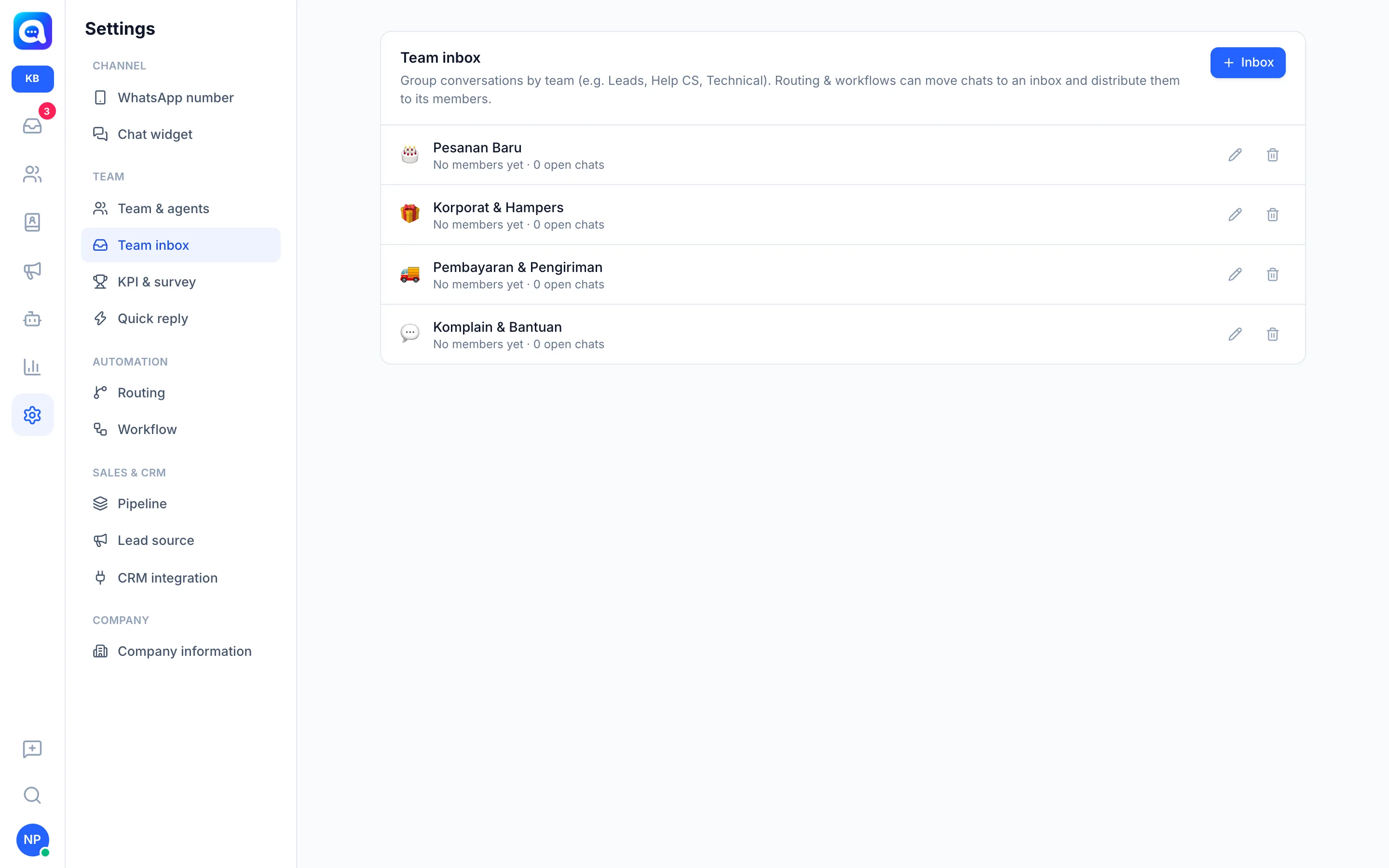
Team inboxes group conversations by team, for example New Orders, Corporate & Hampers, Payment & Delivery, and Complaints & Help at Kirana Bakery. Each inbox shows its list of members and the number of open chats.
Benefits
- Teams focus only on relevant chats.
- Chats can be distributed to inbox members in rotation or to whoever has the lightest load.
- Deleting an inbox does not delete conversations.
Steps
- Create an inbox. Click Inbox. In the New team inbox window fill in Inbox name (e.g. Inbox - Leads).
- Choose an Icon. Pick an icon; it appears in the left column of the Inbox and in the chat list.
- Choose Members. Click the names of agents who receive chats if the inbox distributes conversations to its members. Click Save.
- Edit or delete. The pencil icon opens Edit inbox. The trash icon deletes the inbox; the conversations inside return to the Main inbox.
How chats get into an inbox
- Routing: the Move to team inbox rule, with the options Unassigned, Distribute to members in rotation, or To the member with the fewest chats. Rules can run on incoming messages or when the AI hands off to a human.
- Workflow: can move chats to an inbox.
- Manual: in a conversation, the Move to inbox menu lets you choose Main inbox or one of the inboxes; there is also an inbox picker in the chat panel. Every move is recorded as a note in the conversation.
Who sees what
Chats not yet in an inbox are in the Main inbox. Users with the Agent role only see chats in inboxes where they are a member, or chats assigned to them. The View all conversations permission removes this restriction. Editing inboxes requires Edit access for Team inbox.
Notes
This menu depends on your plan. If it is locked, check your plan in Settings → Billing.