
WhatsApp Number Reference
A complete explanation of every option in Settings → WhatsApp number: status, owner, AI mode, purpose, persona, and plan limits.
This page is a complete reference for the Settings → WhatsApp number menu. For a short guide to connecting your first number, read Connect WhatsApp.
What it does
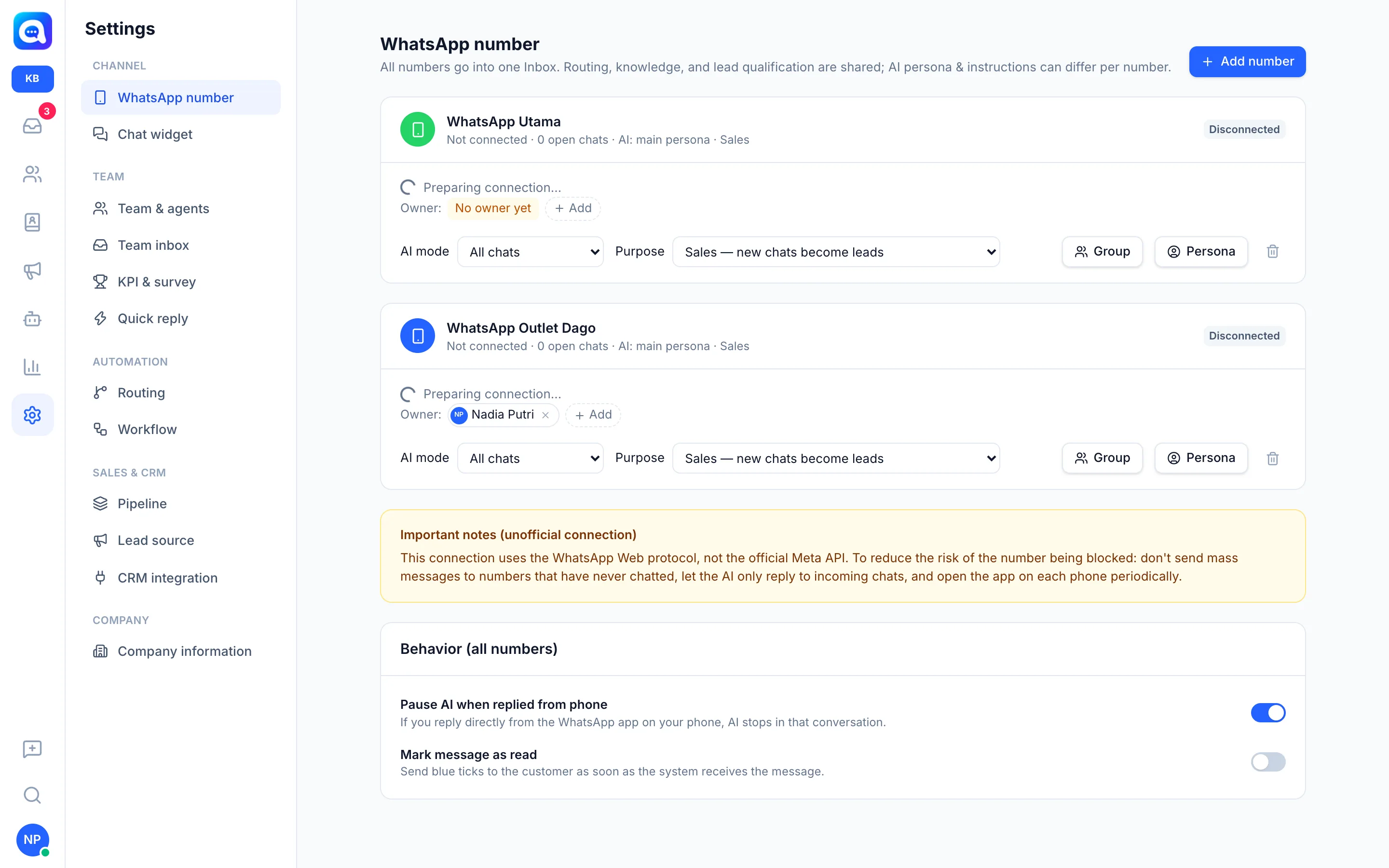
This menu manages all WhatsApp numbers in one workspace. All numbers go into one Inbox, while routing, knowledge, and lead qualification are shared. What can differ per number is the owner, AI mode, purpose, persona, and monitored groups.
Benefits
- One screen for all numbers, for example Main CS, Sales, and Finance.
- Clear responsibility through number owners.
- AI behavior is adjusted per number without changing other numbers.
Steps
- Add a number. Click Add number. Fill in WhatsApp account name (tells numbers apart in the Inbox, routing, and workflows, e.g. "Kirana Bakery Order CS"), choose a Label color, and set the Number owner. Click Continue to QR scan; the QR appears on the number card.
- Understand the status on the card. The card shows the phone number (or Not connected), the number of open chats, AI mode, and purpose. A status badge sits at the top right:
- Waiting for scan: the QR is shown, waiting to be scanned (the hint: open WhatsApp Business, tap ⋮ / Settings → Linked devices → Link a device).
- Connecting…: connecting.
- Connected: ready to use.
- Disconnected: the session is not or no longer connected.
- Paused — over plan limit: the number exceeds the plan limit (see the section below).
- Set the number owner. The Owner: row shows name chips. Owners can automatically see and reply to chats on that number. Click Add to add an owner, or the x on a chip to remove one (if it's your own name, the button means stepping down yourself). When empty, No owner yet is shown. Per-member number access can also be set in Team and agents.
- Choose the AI mode. The options:
- All chats: the AI answers every incoming chat.
- Blast replies only: the AI only answers contacts who reply to a blast from this number; other chats go straight to agents. A field within ... days after the blast appears; replies that arrive later than that are treated as regular chats and passed to agents.
- Off — all to agents: the AI does not reply on this number.
- Choose the Purpose. Sales — new chats become leads (enter Prospect and the pipeline) or Customer service — new chats become contacts (only become contacts).
- Set the Persona. Click Persona to open Persona & instructions: Bot name, Business name (empty means the main name is used), Color, and AI instructions for this number. Instructions you fill in replace the main instructions (AI Agent → Persona); leave empty to use the main ones. There are Copy from main instructions and Clear (use main) buttons. Knowledge, routing, and qualification fields are still shared. Changing the persona requires AI Agent access.
- Choose groups. The Group button (with a number if any are selected) sets which groups appear in the Group tab of the Inbox. See WhatsApp groups.
- Set Behavior (all numbers). The card below the list applies to all numbers:
- Pause AI when replied from phone: if you reply directly from the WhatsApp app, the AI stops in that conversation.
- Mark message as read: sends blue ticks to the customer as soon as the system receives the message.
- Disconnect or delete. Disconnect (admin only, when Connected) ends the session and requires a new QR scan. The trash icon (Delete number) deletes the number: the WhatsApp session is disconnected but chat history is kept.
Plan limits
The number of numbers follows the plan. When the limit is reached, the Add number button is disabled. If the plan is downgraded and the number count exceeds the limit, the newest numbers get the status Paused — over plan limit. Their session stays saved and becomes active again automatically after an upgrade or after another number is deleted.
Important notes
The connection uses the WhatsApp Web protocol, not Meta's official API. Don't send mass messages to numbers that have never chatted, let the AI only reply to incoming chats, and open the WhatsApp app on each phone regularly.
This menu is subject to role permissions: View is read-only, Edit is required to add or edit numbers.
Tips
For a number dedicated to promo announcements, choose the Blast replies only mode so the AI only answers customers who reply to Kirana Bakery's blasts.