
Settings/Channels
WhatsApp Groups
Choose which WhatsApp groups appear in the Inbox Group tab and understand how they work.
For teams that want to monitor and reply to WhatsApp groups, such as corporate customer groups or courier groups, directly from the Inbox.
What it does
Each connected number can monitor specific groups. Messages from the selected groups appear in the Group tab of the Inbox and can be answered by the team.
Benefits
- Important groups don't get buried on a phone.
- The team replies from one place, without opening the WhatsApp app on a phone.
- Groups are separate from leads and customer contacts, so data stays clean.
How groups work
- The AI does not reply in groups.
- Groups don't enter Prospect, Contact, Blast, or Analytics.
- Group messages from before a group was selected are not retrieved; only messages after the group is selected are recorded.
- Groups that are not selected are ignored entirely.
- A new message in a group that was resolved reopens its conversation.
- Messages you send from your phone are recorded too.
Steps
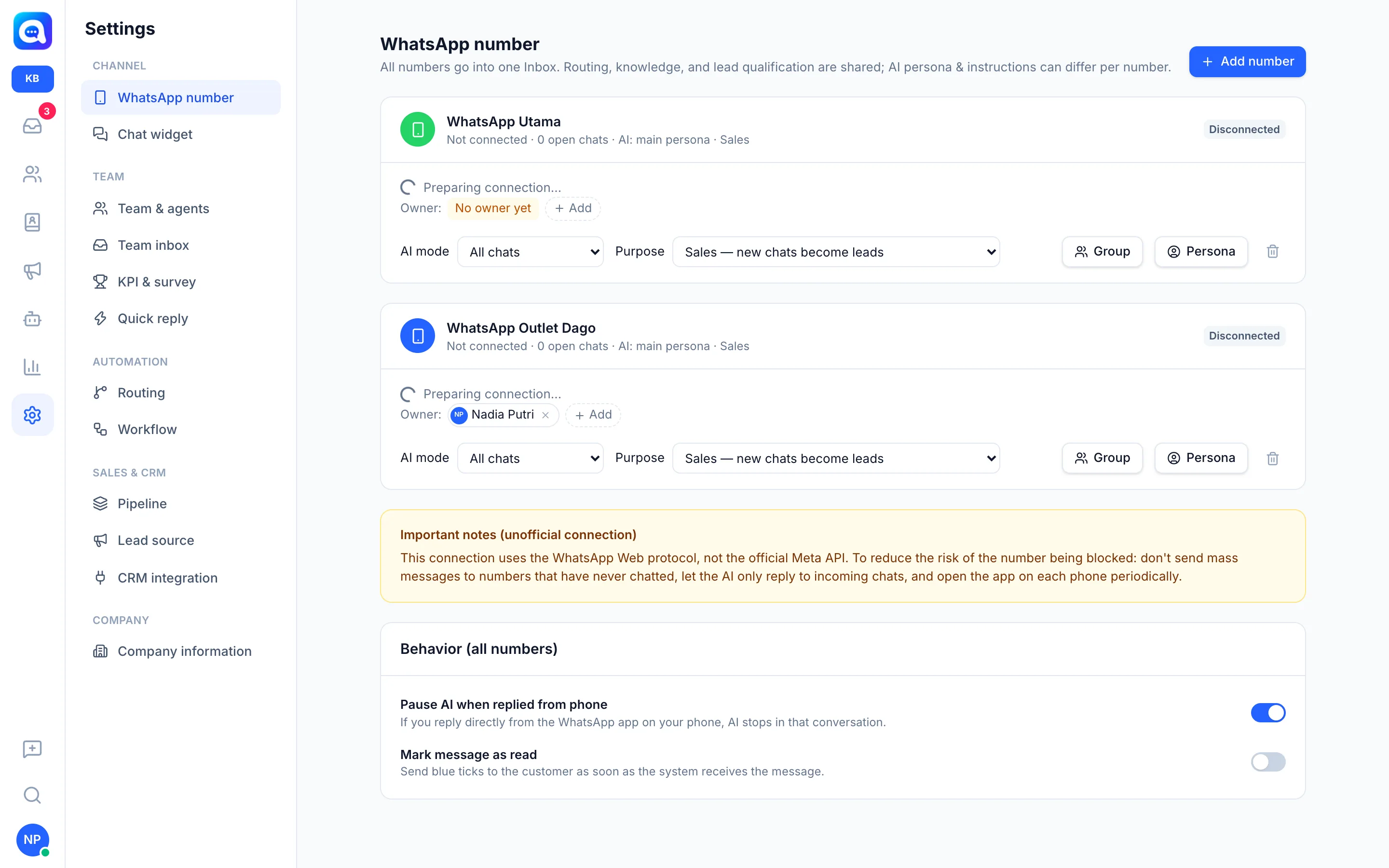
- Make sure the number is connected. Open Settings → WhatsApp number. If it is not connected, the group list can't be loaded and the message "This number is not connected yet" appears.
- Open the group picker. Click the Group button on the number card. The WhatsApp group window opens with all groups that number has joined, along with member counts (and a note when only admins can send messages).
- Search and tick. Type in the Search groups… field, then tick the groups you want to monitor. Groups already selected appear at the top.
- Save. Click Save (n), where n is the number of selected groups. The number card then shows Group (n). Untick everything to stop monitoring.
- Reply from the Inbox. Open the Group tab in the Inbox.
Tips
Tip
Only choose groups that need a team response, for example "Kirana Bakery Corporate Hampers Group". Busy, irrelevant groups only add to the inbox load.
Note
If the number has left a group, that group is marked The number has left this group. Members with View access can see the list but can't change the selection.