
Analytics/Basics
Analytics Dashboard
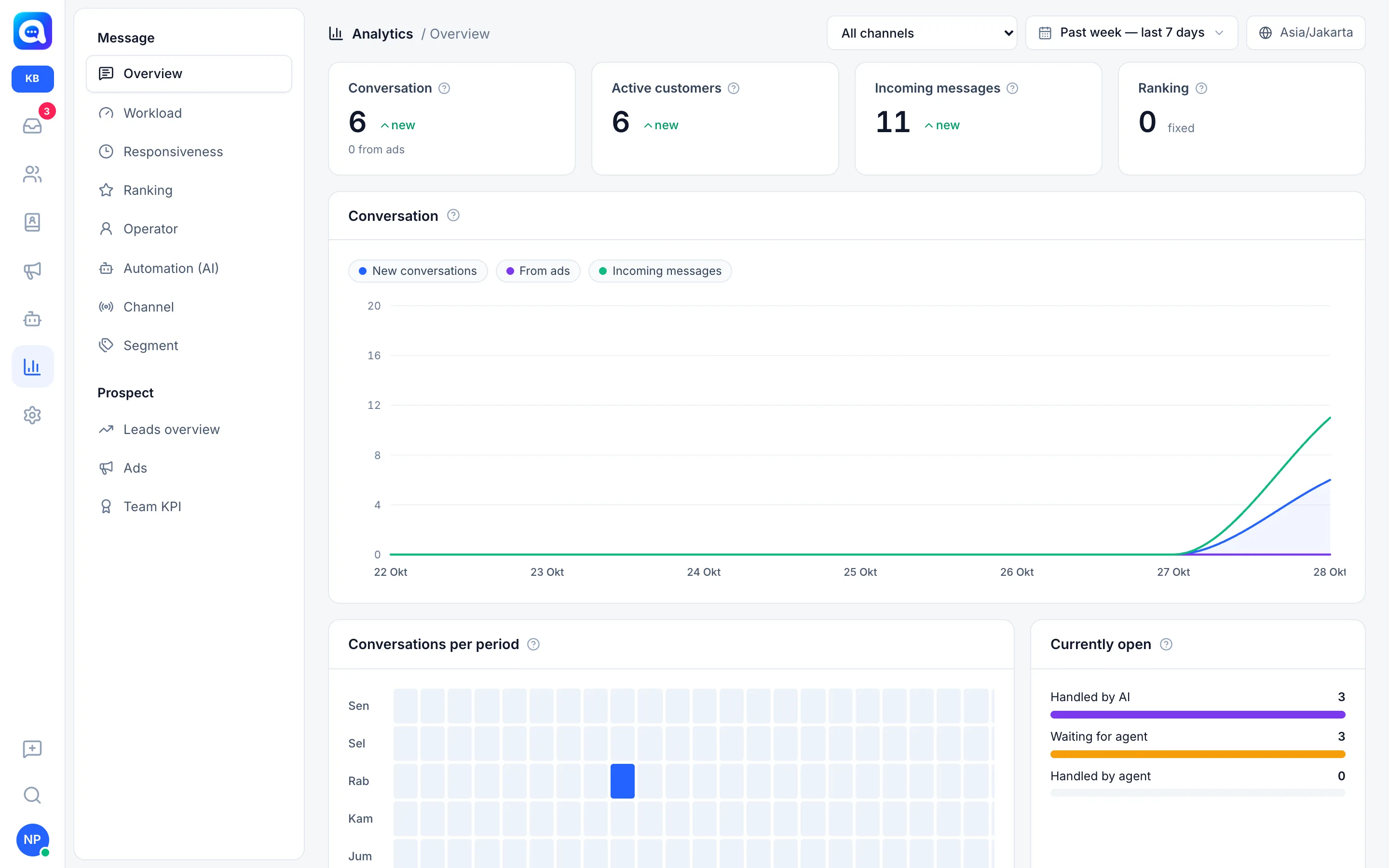
Monitor conversations, AI and agent performance, customer satisfaction, and lead progress on one page.
The Analytics page is used by owners and managers to see how well chat service is running: how many customers get in touch, how fast they are replied to, and how many become leads.
What it does
The menu on the left is split into two groups.
Message
- Overview: summary cards for Conversation, Active customers, Incoming messages, and Ranking, a chart of conversations per day, a busy-hours map (Conversations per period), and Currently open (handled by AI, waiting for agent, handled by agent).
- Workload: open conversations and load per agent or team inbox.
- Responsiveness: First response time, resolution time, and their distribution.
- Ranking: satisfaction survey (CSAT) results, rating distribution, and latest ratings.
- Operator: activity and messages sent by each agent.
- Automation (AI): conversations handled by AI, AI vs handoff per day, Reason for handoff to agent, and AI cost & tokens.
- Channel: summary per WhatsApp number and chat widget.
- Segment: summary per lead tag.
Prospect
- Leads overview: new leads per day, conversion to the Qualified stage, and current pipeline stages.
- Ads: leads from Click-to-WhatsApp ads and performance per ad.
- Team KPI: agent target achievement (see KPI and surveys).
Benefits
- Know the busiest hours to plan agent shifts.
- See how many chats are resolved by AI and when they need to be handed off to a human.
- Find out which lead sources produce the most.
- Monitor customer satisfaction and AI usage cost.
Steps
- Open Analytics. Click the chart icon in the main menu.
- Choose a date range. At the top right choose one of: Today, Yesterday, Past week — last 7 days, Past month — last 30 days, Last 90 days, This month, Last month, or Custom range (then Apply). Cards show the change compared with the previous period.
- Filter channels. Choose All channels, All WhatsApp, All widget chats, or one specific number. In the Company view, All workspaces is also available.
- Choose a report section. Click a menu on the left, e.g. Responsiveness to see Kirana Bakery's agent reply speed.
- Read the explanation. Hover over the question mark icon in a card title to see how it is calculated.
All times use the time zone set in Settings → Regional.
Tips
Tip
Compare AI vs handoff per day with Reason for handoff to agent. Reasons that appear often point to parts of the AI's knowledge that need to be completed.
Note
AI cost estimates are shown in the currency set in Settings → Regional. The AI daily limit is set in Settings → Billing.