
Team Inbox and Routing
Group conversations by team with Team inboxes and distribute them automatically to agents or inboxes with Routing rules.
If your team has several roles, for example sales, orders, and shipping, use Team inboxes and Routing so every chat reaches the right person.
What it does
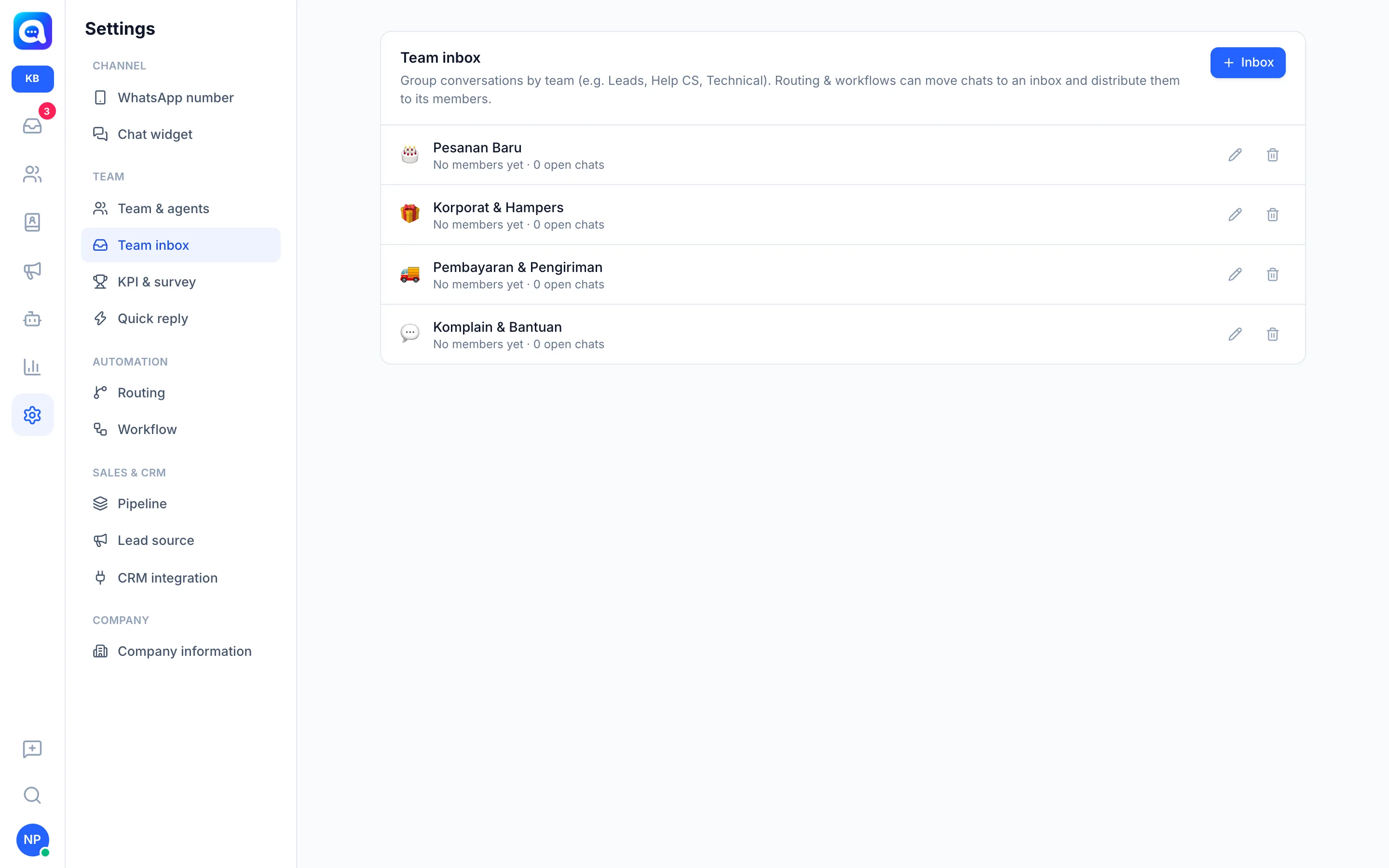
Team inboxes group conversations by team. Each inbox has a name, icon, and members. Agents only see the inboxes they belong to; admins see everything.
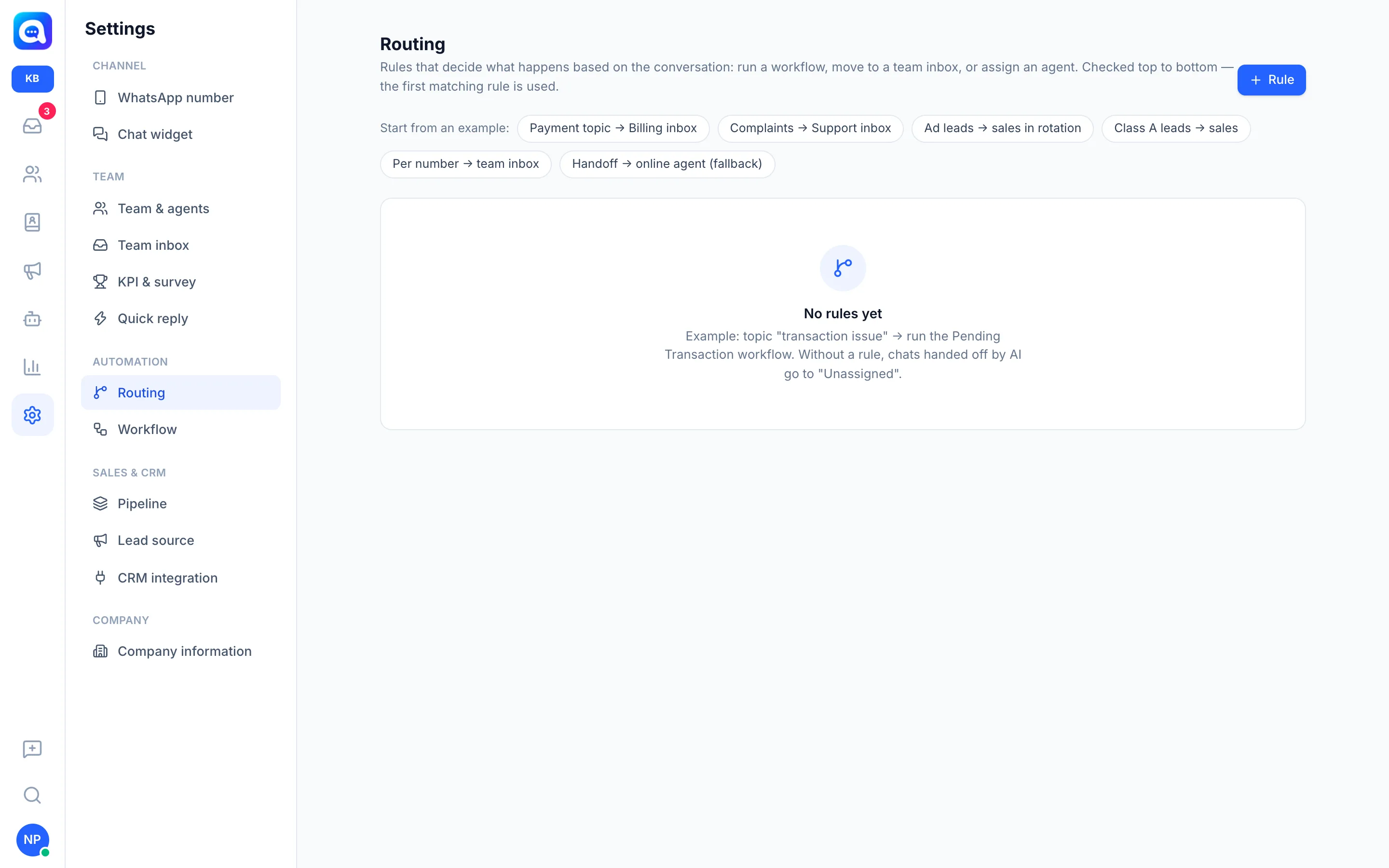
Routing consists of automatic rules checked from top to bottom; the first matching rule is used. A rule consists of:
- When it runs: Every incoming message (checked on each message until one matches, once per conversation) or When the AI hands off to a human.
- If all conditions or any condition are met. Example conditions: Customer message content, First message, Came from ads, Lead class (A/B/C), Pipeline status, Lead source, Channel, Tag, or a topic assessed by the AI. With no conditions, the rule applies to all conversations.
- Then: Run workflow, Move to team inbox, Assign agent in rotation (round-robin), Assign agent with the fewest chats, or Assign first available agent. There is an Only agents who are currently online option, and for inboxes you can distribute using Distribute to members in rotation or To the member with the fewest chats.
Benefits
- Chats don't pile up on one person.
- Customers are quickly served by the team that understands the topic.
- Fair distribution through round-robin or lightest workload.
- Without rules, chats handed off by the AI go to Unassigned, so routing reduces manual work.
Steps
- Create a team inbox. Open Settings → Team inbox, click Inbox, fill in Inbox name (e.g. "New Orders"), choose an Icon and Members, then Save.
- Open Routing. Choose Settings → Routing. You can start from an example such as "Complaint → Support inbox" or "Handoff → online agent (fallback)", or click Rule.
- Fill in the name and trigger. Give a Rule name (e.g. "Custom cake order → New Orders inbox") and choose When it runs.
- Add conditions. Click Condition, choose a field, an operator (contains, equals, and so on), then the value.
- Choose an action. In the Then section, choose an action and destination, then Save.
- Set the order. Use the up/down arrows beside the rule. Put general rules at the bottom.
- Check the result. Processed chats get a system note starting with Routing or Handed off to agent, containing the rule used.
Tips
Create one last rule without conditions, e.g. handoff to an online agent, as a safety net.
Routing and Team inbox depend on your subscription plan. If the menu is locked, check your plan in Settings → Billing.