
Blast Limit
Set the speed, daily quota, number warm-up, and automatic protection to keep your WhatsApp numbers safe during blasts.
Settings → Blast limit is where the company admin keeps WhatsApp numbers safe when Kirana Bakery sends blasts. The page is titled Safety & limits and applies to all sender numbers. To learn how to create a blast, see Blast.
What it does
It limits how fast and how many blast messages are sent, turns on warm-up for new numbers, and automatically stops sending when warning signs appear. This menu only appears in the Company dashboard view (Company level) for company admins. See Company and workspaces.
Benefits
- Lower risk of your number being restricted or banned by WhatsApp.
- Sending looks natural thanks to random delays, regular breaks, and limited sending hours.
- Customers who don't want promos can unsubscribe on their own.
- One setting applies to all workspaces.
Steps
- Open the page. From the Company dashboard, choose Settings → Blast limit.
- Set Speed & quota. Fill in the fields below.
- Set New number warm-up. Turn on the switch and set the starting quota.
- Set Automatic protection. Turn on typing simulation, number check, and the failure limit.
- Set Unsubscribe. Adjust the keywords and reply.
- Save. Click Save at the top right. The settings apply to your next blasts.
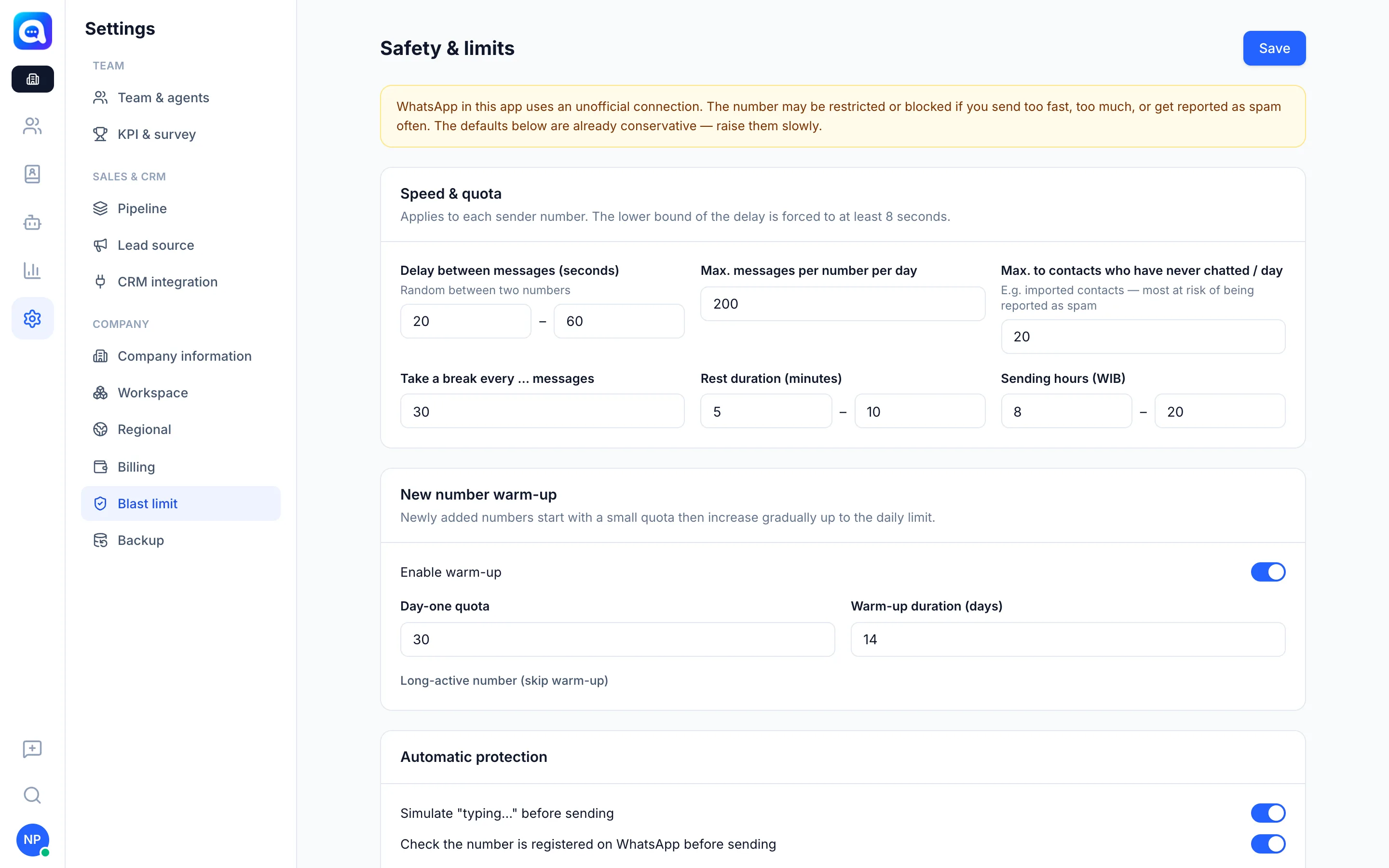
Speed & quota
| Field | Meaning | Default |
|---|---|---|
| Delay between messages (seconds) | Random delay between two values. The lower value is forced to at least 8 seconds. | 20 – 60 |
| Max. messages per number per day | Daily quota for each sender number (minimum 10). | 200 |
| Max. to contacts who have never chatted / day | Limit for contacts who have never replied, for example imported ones. They are the most likely to report spam. | 20 |
| Take a break every … messages | After this many messages, sending pauses. | 30 |
| Break length (minutes) | Random break between two values. | 5 – 10 |
| Sending hours | Sending hours range based on the time zone (e.g. WIB). Outside these hours the blast waits. | 8 – 20 |
When the daily quota runs out, the blast stops and resumes the next day.
New number warm-up
A newly added number starts with a small quota, then increases gradually up to the daily limit.
- Enable warm-up: the switch that turns the feature on (on by default).
- Day-one quota: the starting quota (default 30).
- Warm-up duration (days): how long until the quota reaches the daily limit (default 14).
- Long-active numbers (skip warm-up): a list of your numbers with their status and today's quota. Turn on the switch for older numbers so they use the full limit right away.
Automatic protection
- Simulate "typing..." before sending: customers see the typing status before the message arrives, like a real person.
- Check the number is registered on WhatsApp before sending: unregistered numbers are skipped, not counted as failures.
- Stop automatically if ≥ … % of the last 20 sends fail: the blast is paused when the failure ratio reaches this number (default 50, range 10 to 100). The blast is also paused if a number logs out and needs to be re-scanned by QR.
Unsubscribe (opt-out)
- Keywords: separate with commas. Contacts who reply with exactly one of these words after receiving a blast will not be sent blasts again (default: stop, berhenti, unsubscribe, unreg, jangan kirim lagi).
- Confirmation reply: the automatic message sent when a customer unsubscribes.
- Hint at the end of blast messages: a sentence added to the end of the message when the unsubscribe hint option is on in the blast.
Tips
WhatsApp in Kalea uses an unofficial connection. Numbers can be restricted or banned if they send too fast, too much, or are reported as spam often. The default values are already conservative, so raise them slowly.
Start with customers who have chatted with Kirana Bakery before, keep warm-up on for new numbers, and keep the limit for new contacts small.
This page is not shown inside a workspace. Only company admins can change it.