
Search Menu
Quickly find pages and settings with ⌘K or Ctrl K search, including AI help.
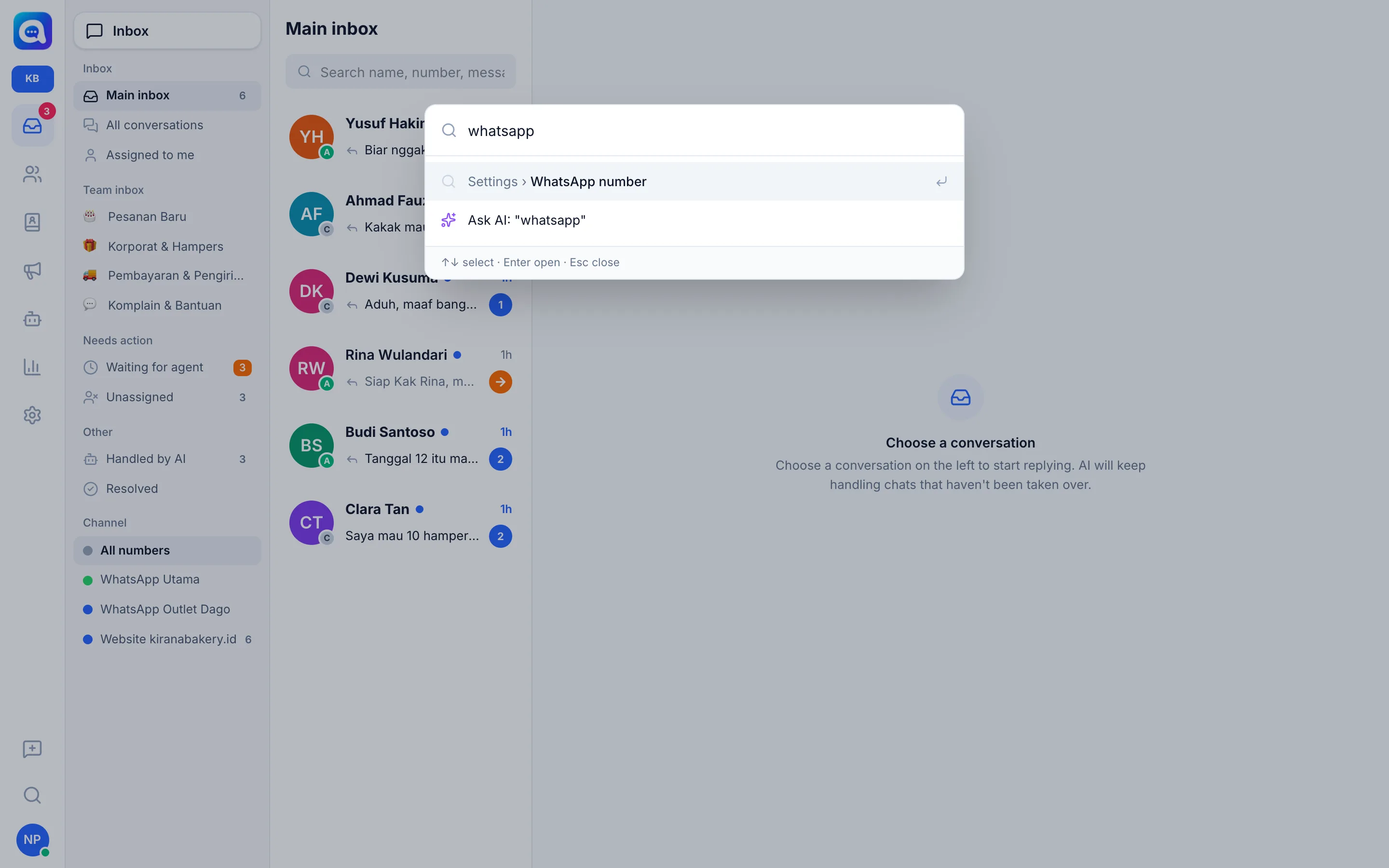
Search menu is a quick search box inside the app. It's handy when you forget where a setting is, for example when the Kirana Bakery admin wants to open WhatsApp number directly without browsing the menus.
What it does
It searches pages (Inbox, Prospect, Contact, Blast, Analytics), AI Agent tabs, and Settings tabs. Each result appears as "group › menu name", for example Settings › WhatsApp number. Search matches menu names and also related words, for example "qr" or "scan" for WhatsApp number. Results only include menus you are allowed to open based on your role and level (Company or workspace).
Benefits
- Jump to any setting without hunting through the sidebar.
- You can ask in everyday language, e.g. "change logo".
- Fully usable with the keyboard.
Steps
- Open search. Press Ctrl K (Windows/Linux) or ⌘ K (Mac), or click the magnifying glass icon at the bottom left. On mobile, open the avatar menu and choose Search menu.
- Type a keyword. The box shows the hint "Search menu or ask, e.g. "change logo"…". Before you type, an initial Menu list appears.
- Pick a result. Use ↑ ↓ to move, then Enter to open. You can also click the result.
- Ask AI if needed. After typing at least 3 letters, an Ask AI: "your words" row appears. Choose it to have the AI look for a matching menu. AI results are marked with a sparkle icon. If there are no regular results, the AI is called automatically a moment after you stop typing.
- Close. Press Esc or click outside the box.
About AI in search
The bottom of the box shows Found with AI or AI result from cache — no cost. The same question is answered from storage so the AI is not called again. If nothing matches, No matching menu appears.
Tips
Try words like "invoice", "time zone", "scan qr", or "auto distribute chats" to jump to Billing, Regional, WhatsApp number, or Routing.
Menus you don't have access to do not appear. Menus such as Blast limit and Billing are only found by company admins in the Company dashboard. See Company and workspaces.