
Company and Workspace
Understand which settings are managed by the Company, which are per workspace, who can change them, and how to switch.
Kalea has two levels: the Company (company level, opened through the Company dashboard) and workspaces. This page explains how settings are divided. How to create a workspace is covered in Workspace.
What it does
- The Company is held by company admins. It contains general settings that apply to all workspaces.
- A workspace is an operational workspace: its own WhatsApp numbers, contacts, conversations, team, and blasts. The Company has no Inbox or Blast.
- Settings owned by the Company can still be viewed from inside a workspace, but are locked (view-only).
Benefits
- Company rules such as pipeline and roles stay consistent across all branches.
- Branch admins focus on operations without being able to change sensitive things.
- Billing, blast safety, and backup stay centralized.
How settings are divided
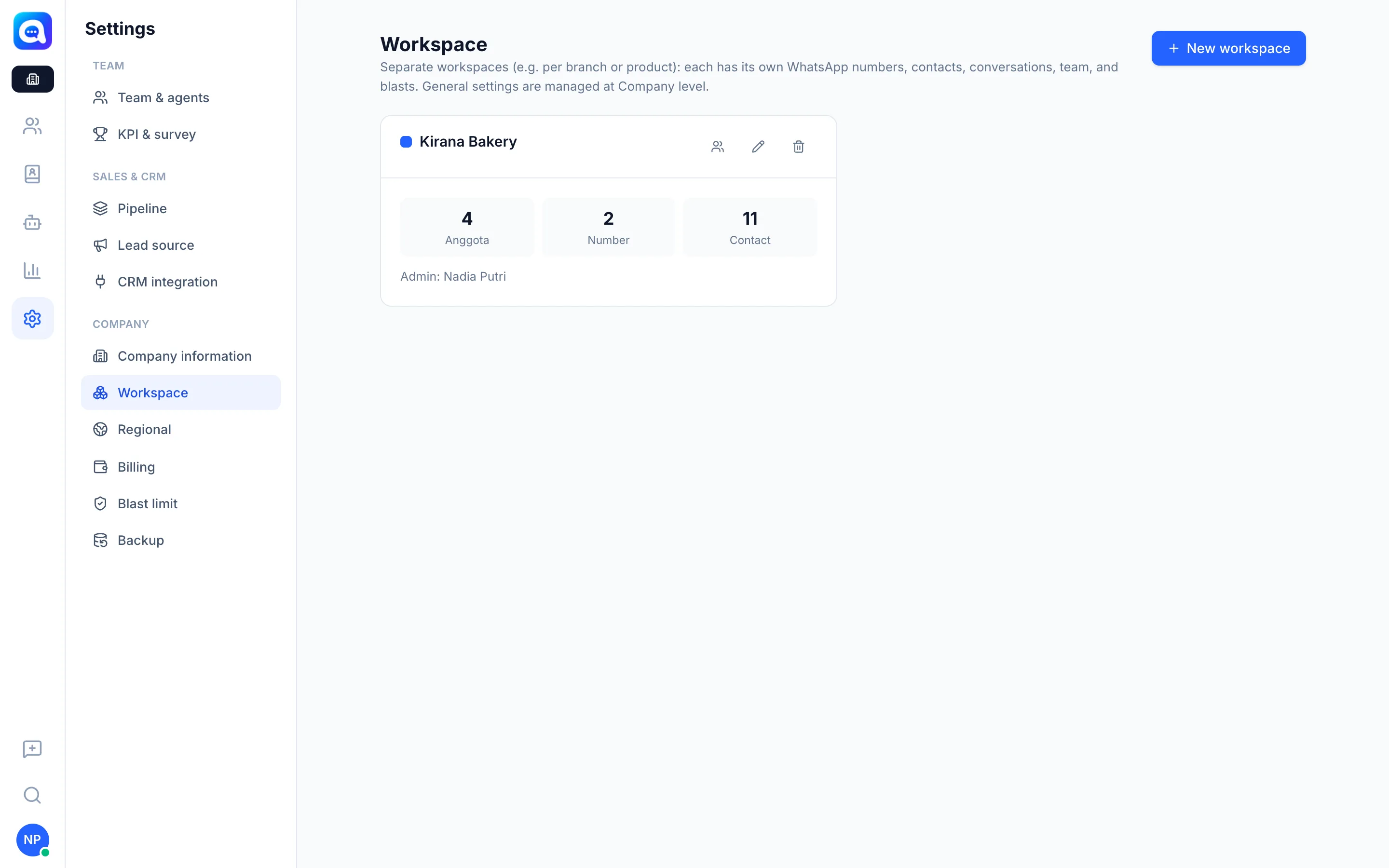
Only in the Company (do not appear in workspaces): Workspace, Regional, Billing, Blast limit, Backup.
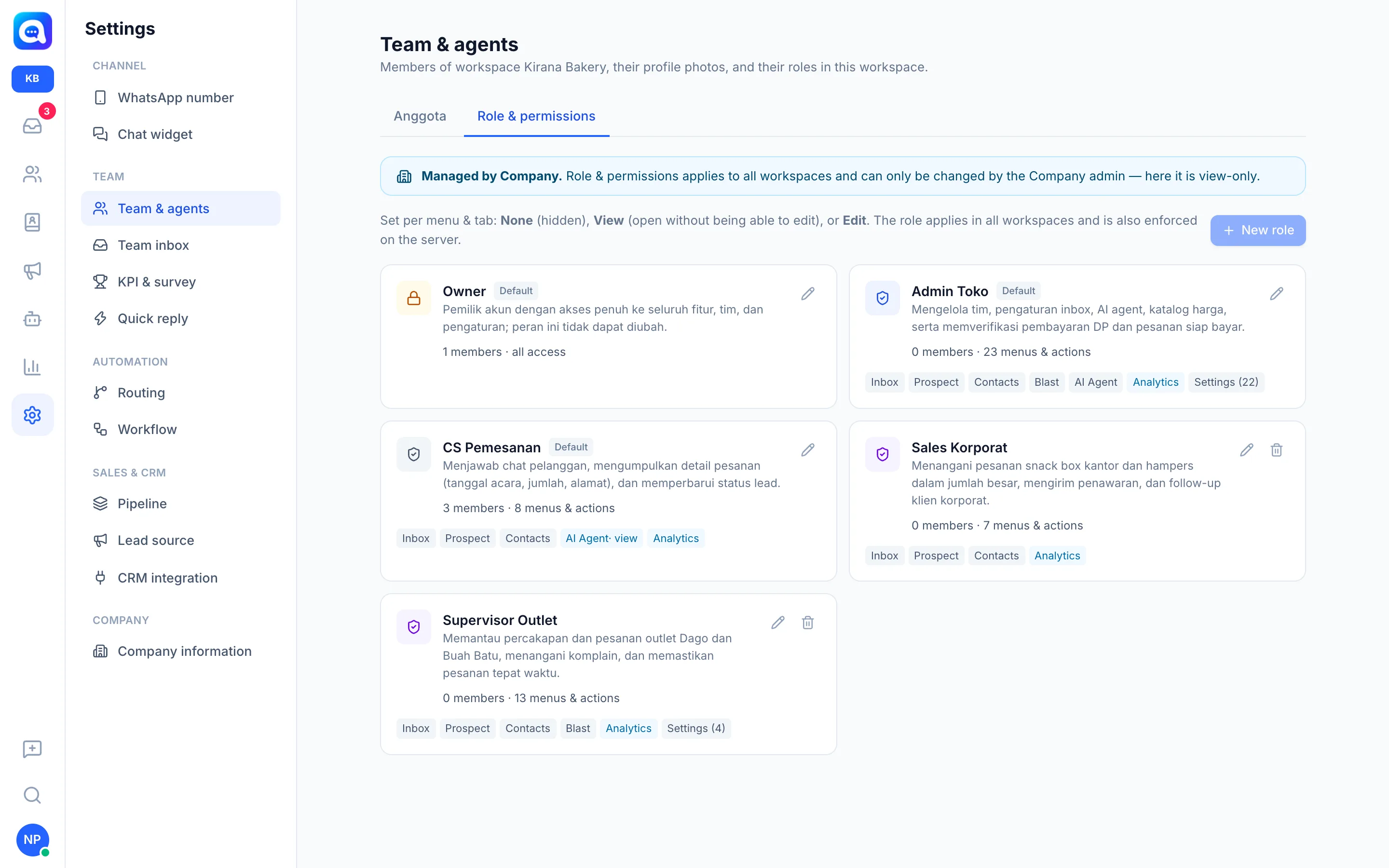
Managed by the Company, view-only in workspaces: Company information, Pipeline, Lead source, CRM integration, KPI & survey, and Role & permissions in Team & agents. In a workspace, these pages show a blue Managed by the Company banner, and all buttons and fields are disabled.
Managed per workspace: WhatsApp number, Chat widget, members in Team & agents, Team inbox, Quick reply, Routing, and Workflow (Workflow only exists inside a workspace).
Who can change what
- Company settings: only company admins, while in the Company dashboard.
- Workspace settings: members whose role has Edit permission for that menu. Roles with View permission only see a View only banner and read-only pages.
- If you click a locked button, a message appears explaining who can change it.
Steps
- Recognize the banner. Open Settings → Team & agents → Role & permissions from inside a workspace. The Managed by the Company banner means the page is view-only.
- Switch to the Company. Click your avatar at the bottom left, then choose Company dashboard (only shown to company admins).
- Change a setting. In the Company, open the relevant menu in Settings (e.g. Pipeline) and save. The change applies to all workspaces.
- Switch to a workspace. Click the avatar, then choose a workspace name in the Workspace section (for example Kirana Bakery). This section appears if you are a member of more than one workspace or a company admin.
- Manage the workspace list. In the Company, open Settings → Workspace to see the number of Members, Numbers, and Contacts for each workspace.
Tips
If the menu you're looking for isn't in a workspace, it probably only exists in the Company. Use Search menu to find it. Company-only menus only show up in search results for company admins.
A workspace that exceeds the plan limit is deactivated and can't be opened until the plan is upgraded.