
Connect WhatsApp
Connect your business WhatsApp number to Kalea by scanning a QR code through the Linked devices menu.
This guide is for admins who want customer WhatsApp chats to arrive in the shared Kalea inbox and be answered by the AI or the team.
What it does
In Settings → WhatsApp number, you add a number and then scan a QR code from the WhatsApp app on the business phone. All numbers go into one Inbox. Routing, knowledge, and lead qualification are shared, while the AI persona and instructions can differ per number.
Benefits
- Several numbers (e.g. Main CS, Sales, Finance) are managed on a single screen.
- The number owner can automatically see and reply to that number's chats.
- Each number has its own AI mode and purpose.
Steps
- Open the menu. Go to Settings → WhatsApp number.
- Add a number. Click Add number. Fill in WhatsApp account name (e.g. Main CS), choose a Label color, and set the Number owner (more than one person is allowed). Click Continue to QR scan.
- Scan the QR. On the phone with that number, open WhatsApp Business (or WhatsApp), tap ⋮ / Settings → Linked devices → Link device, then scan the QR on the number's card. The QR refreshes automatically.
- Wait for the Connected status. The status changes from Waiting for scan to Connected, and the phone number appears on the card.
- Set the number's behavior. Choose the AI mode: All chats, Blast replies only, or Off — all to agents. Choose the Purpose: Sales (new chats become leads) or Customer service (new chats become contacts only). The Persona button sets the bot name and instructions specific to that number.
- Add more numbers if needed. The number of numbers follows your plan limit. Numbers over the limit show Paused — over plan limit and become active again after an upgrade.
To end the connection, use Disconnect (you will need to scan the QR again later).
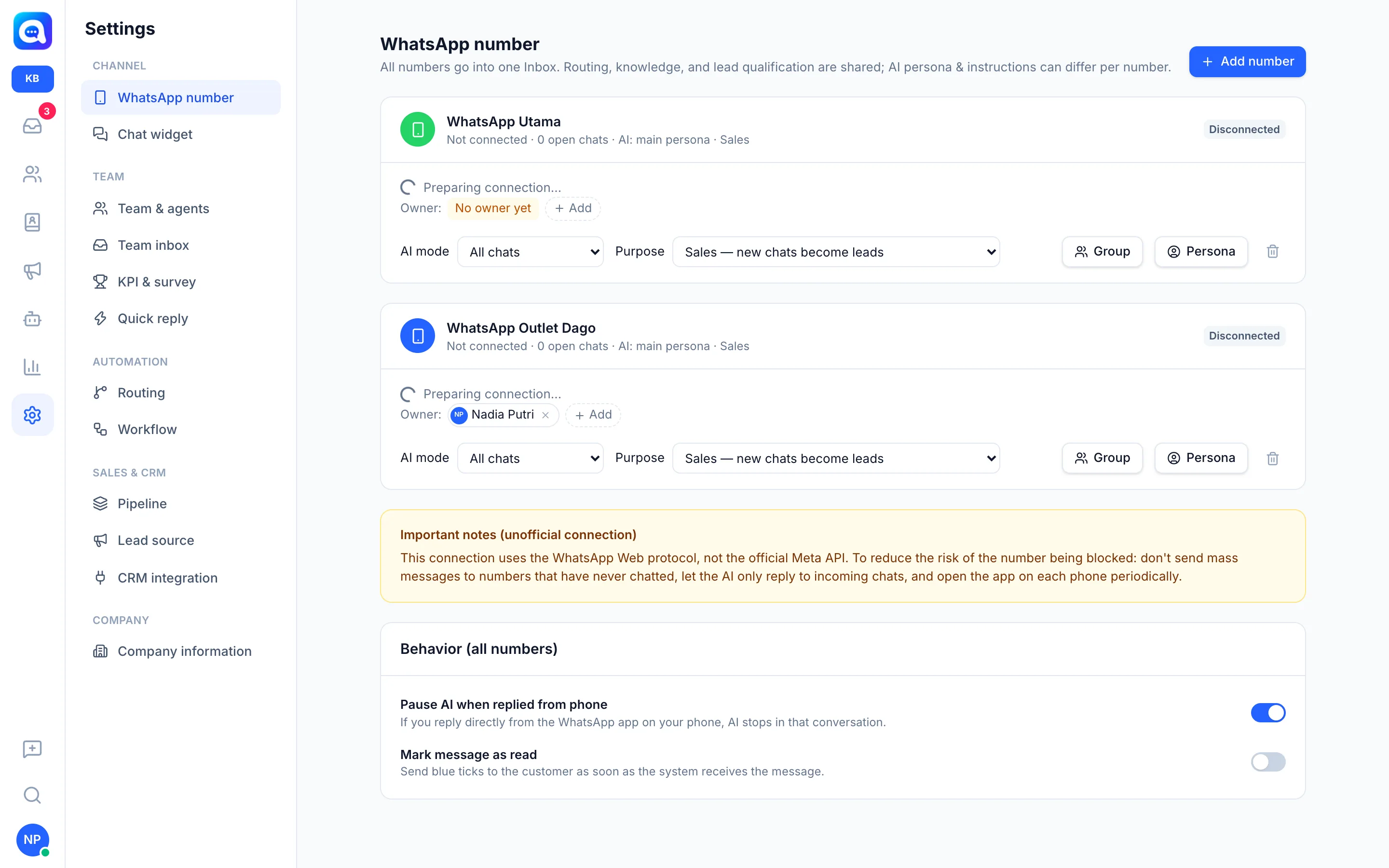
Important notes
A connection via QR scan uses the WhatsApp Web protocol and is not the official Meta API. Use it wisely in line with WhatsApp's policies: don't send bulk messages to numbers that have never chatted with you, let the AI only reply to incoming chats, and open the WhatsApp app on the phone regularly.
Tips
The Behavior (all numbers) section has the option Pause AI when replied from phone: if you reply directly from the WhatsApp app, the AI stops in that conversation.