
Getting started/Connect channels
Install the Website Widget
Create a chat widget, customize its look, copy the install code, and restrict which domains can use it.
For website owners or marketing teams who want visitors to chat directly and land in the same inbox as WhatsApp.
What it does
The chat widget is a chat button on your website (it can also be used via a direct chat link or a mobile app). Messages go into the Inbox, are answered by the AI and agents, and leads are recorded in Prospect.
Benefits
- Reach website visitors without making them switch to WhatsApp.
- One short code, installable on WordPress, Shopify, Google Tag Manager, or Next.js.
- The look follows your brand.
- Domain lock prevents the code from being used on other sites.
Steps
- Open the menu. Go to Settings → Chat widget (inside the workspace).
- Create a widget. Click Create widget (or New widget), give it a Widget name such as "Main website", then click Create.
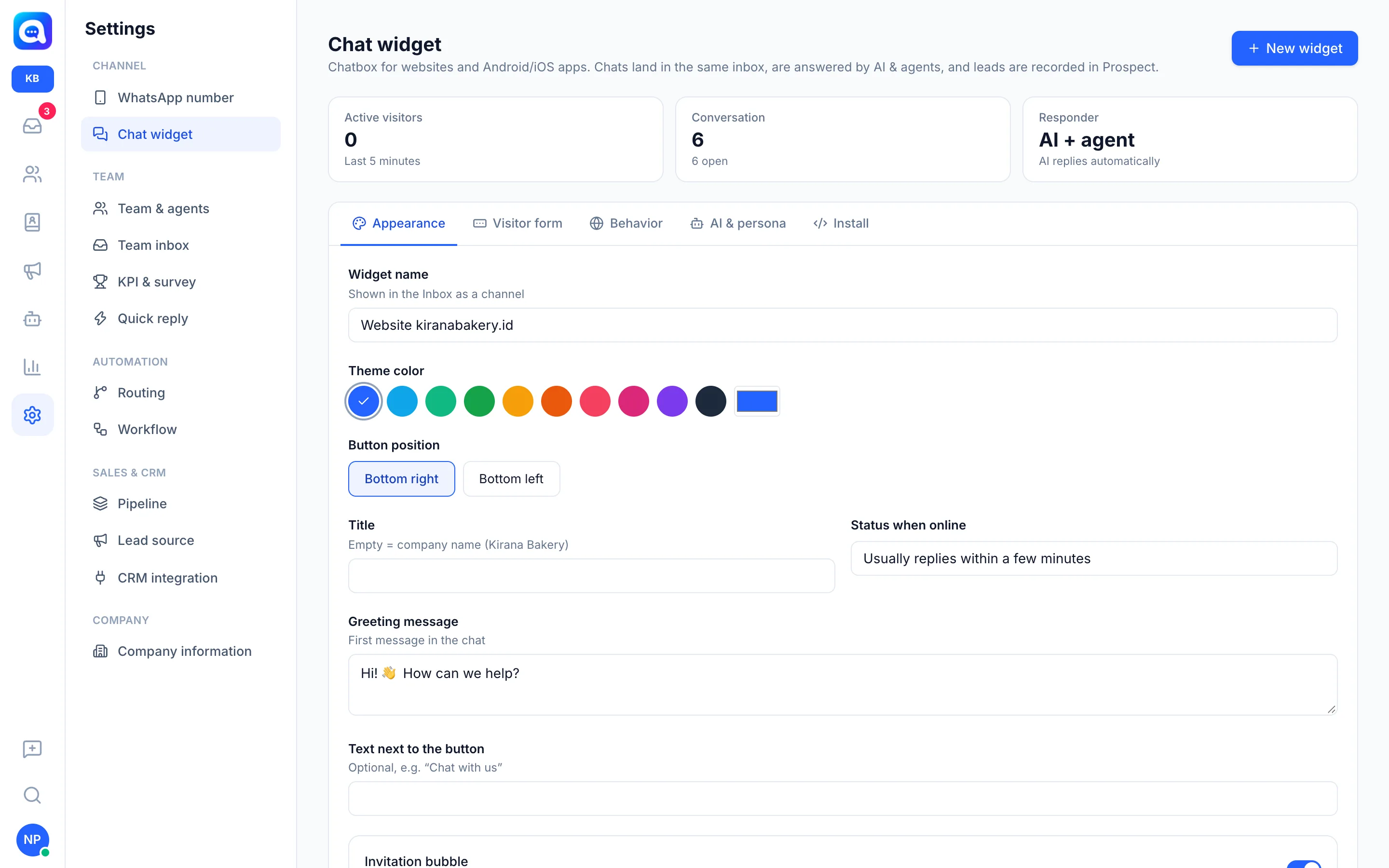
- Customize the look. On the Appearance tab: Theme color, Button position (Bottom right or Bottom left), Title, Greeting message, and Text next to the button.
- Set up the visitor form. The Visitor form tab determines the data requested before chatting (name, WhatsApp number, email), and whether each is required, optional, or hidden.
- Set behavior and domain lock. The Behavior tab contains Allow attachments, Hide on mobile, Offline text, and Lock to domain. Enter one domain per line, e.g.
kiranabakery.co.id; subdomains are allowed too. Empty means all domains. - Set up AI & persona. The AI & persona tab uses the AI Agent's main instructions unless you fill in widget-specific instructions.
- Copy the install code. On the Install tab, choose Website, click Copy, then paste it before the
</body>tag on every page. Instructions are available for WordPress, Google Tag Manager, Shopify, and Next.js / React. - Save and test. Click Save, open your website, and send a test message. The Install tab also has a Direct link for a full chat page (great for an Instagram bio or QR code).
Tips
Tip
Open the dashboard from your public domain when copying the code. If the dashboard is opened from a local address, Kalea shows a warning because the generated code points to that address.
Warning
Regenerate on the widget ID makes the old code on your website stop working. Do it only when necessary.