
Implementation/Help
Troubleshooting
Common causes and solutions when WhatsApp disconnects, the AI is silent, chats don't reach agents, or the widget doesn't show.
Use this page when something isn't working as expected. Find the symptom, then follow the checks in order.
What it does
Summarizes the most common problems along with the settings locations to check them.
Benefits
- Solve common problems yourself without waiting for help.
- Find out whether the cause is a setting, the plan, or the connection.
Steps
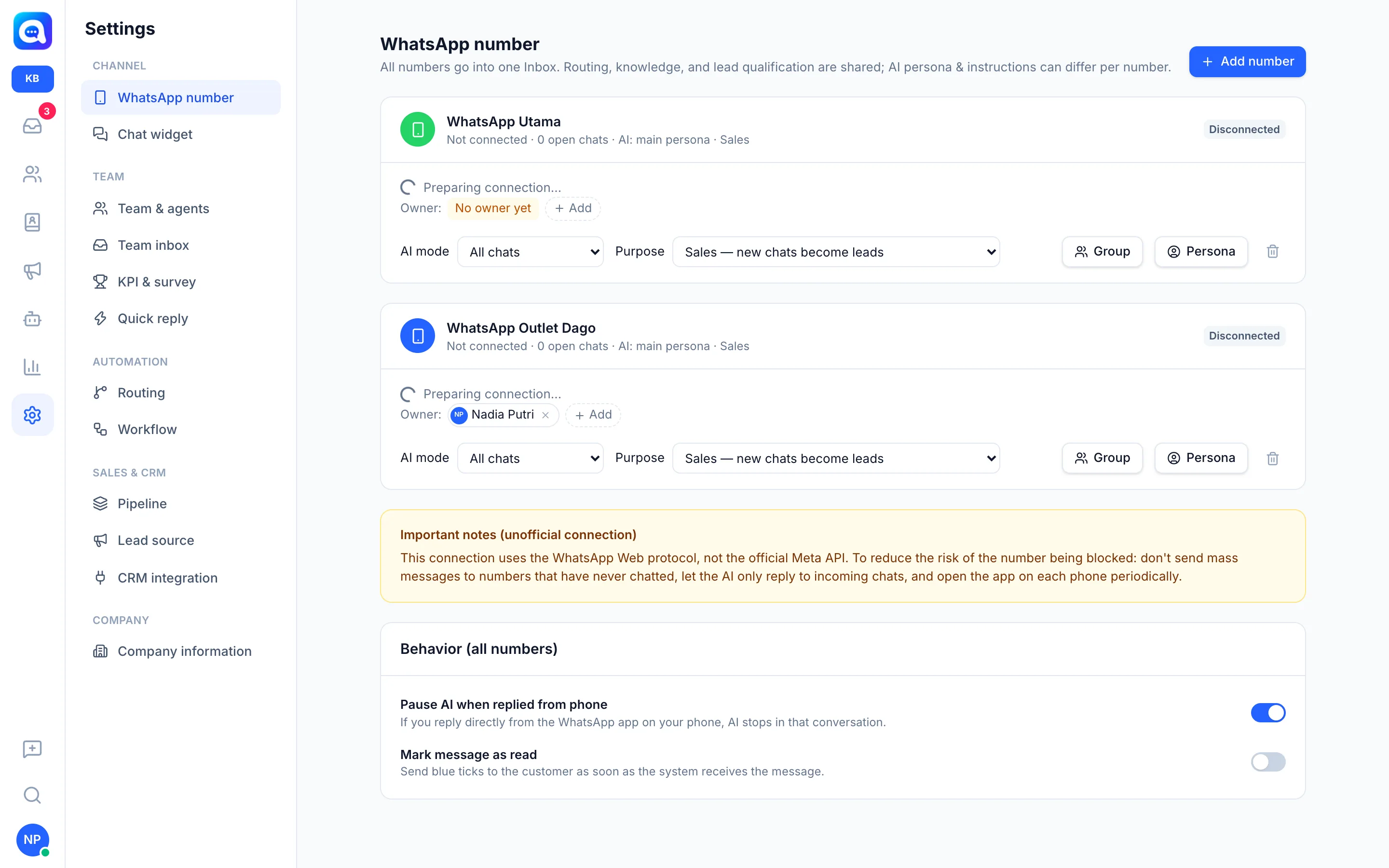
- WhatsApp disconnected. Open Settings → WhatsApp number and look at the number card's status. If Disconnected or Waiting for scan, scan the QR again via ⋮ / Settings → Linked devices → Link device. If Paused — over plan limit, the number of numbers exceeds your plan limit; upgrade your plan or remove other numbers. Open the WhatsApp app on the phone regularly to keep the session healthy.
- QR doesn't appear. Wait a few seconds until "Preparing connection" finishes, then reload the page (the wizard has a Not showing? Reload link). Make sure the number isn't Paused. If it stays blank, click Disconnect and try again.
- AI doesn't reply. Check in order:
- AI off. Check AI Agent → AI model (AI status), then the AI mode on the number card in Settings → WhatsApp number. The Off — all to agents mode sends all chats to agents, while Blast replies only makes the AI answer only replies to blasts.
- Credit or cost limit used up. The daily AI cost limit or monthly AI quota may have been reached, and the AI stops until the next period or until the limit is raised in Settings → Billing. During the trial there is a daily limit and trial credit.
- Invoice overdue or trial ended. The AI is locked and paid features are restricted until the invoice is paid or a plan is chosen in Settings → Billing. The Inbox can still be used manually.
- The conversation has already been taken over by an agent. If an agent replies, or you reply from the phone while Pause AI when replied from phone is on, the AI stops in that conversation. In AI Agent → Handoff to agent you can set Return to AI if agent is idle (minutes).
- Blocked contact. Messages from blocked contacts are ignored.
- Model not set. Make sure a provider and model are selected in AI Agent → AI model.
- Chats don't reach agents. Without routing rules, chats handed off by the AI go to "Unassigned". Create a rule in Settings → Routing (e.g. Handoff → online agent). Make sure the agent has the right number access in Settings → Team & agents, and is a member of the destination team inbox. Without the "View all conversations" permission, agents only see chats that are theirs.
- Widget doesn't show. Check Settings → Chat widget → Behavior → Lock to domain: the website domain must be listed (or leave it empty). Make sure Hide on mobile is off if you are testing on a phone, the code is pasted before
</body>, and the widget ID hasn't been regenerated (the old code stops working). - Forgot to choose a company or signed into the wrong one. Sign out, sign in again, then choose the right company on the Choose a company screen. See Sign in and choose a company.
- Email verification code doesn't arrive. Check spam, then click Resend code, or Change email if you made a typo.
- Menu not visible. If a Settings menu or tab doesn't appear, your role may not have access, or the feature isn't included in your plan. Contact your Admin to change the role in Team & agents.
Tips
Tip
When reporting to support, include the name of the number or widget, the time it happened, and a screenshot of the error message. This speeds up the investigation.