
Getting started/Team
Invite Your Team
Add members, define roles and permissions, and set which numbers they can serve.
For admins who want to distribute chats and leads to the sales or customer service team.
What it does
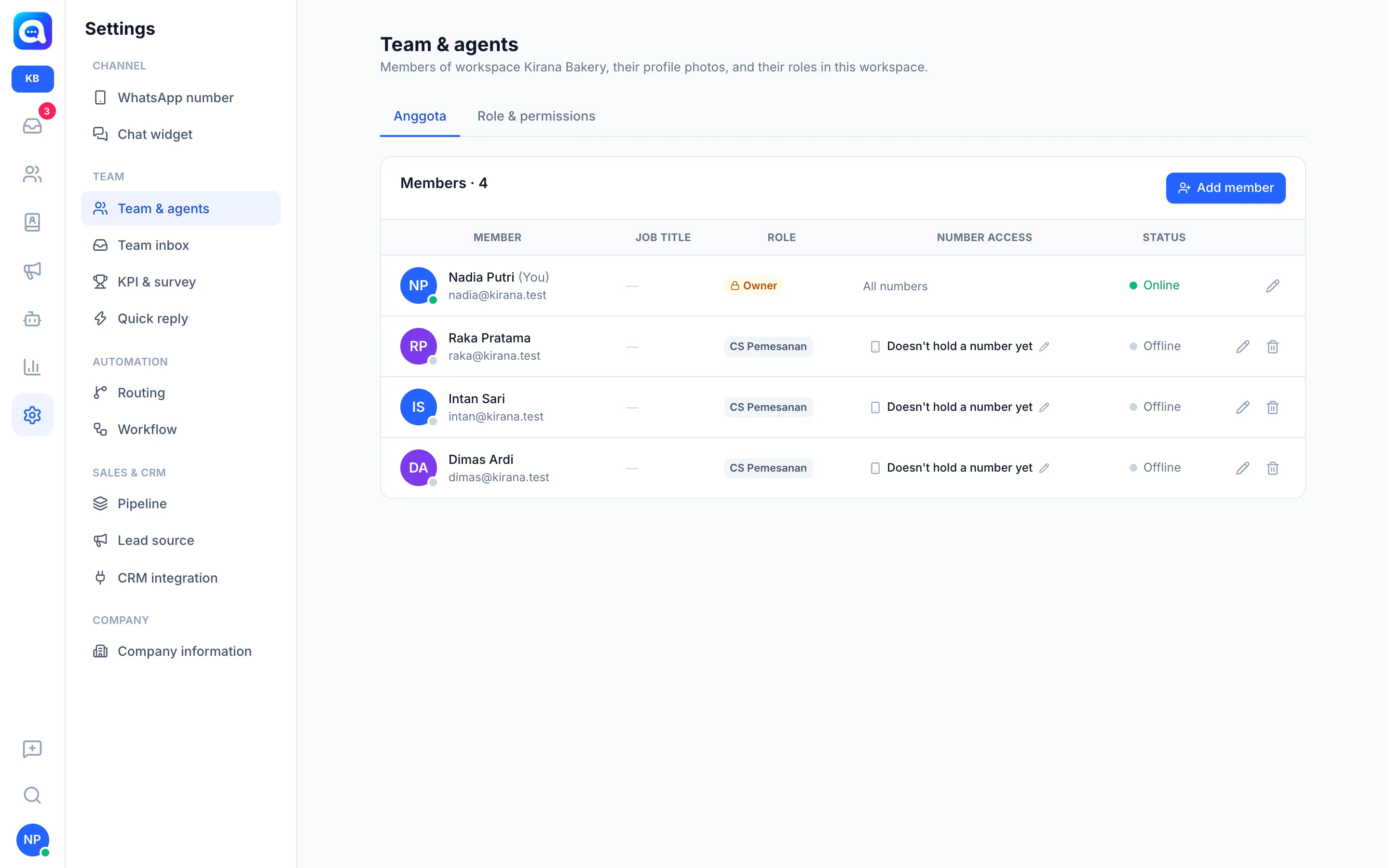
The Settings → Team & agents menu shows all members along with their job title, role, number access, and status (Online, Away, Offline). Here you add members and manage Role & permissions.
Benefits
- Chats are distributed to the right people instead of piling up on one person.
- Per-menu permissions keep sensitive data visible only to those authorized.
- Members can be restricted to certain WhatsApp numbers or widgets.
- One account can be a member of several workspaces.
Steps
- Open the menu. Go to Settings → Team & agents.
- Add a member. Click Add member. Fill in Name, Job title (e.g. Sales Executive), Email, Phone, and Password (at least 8 characters; give it to the member to log in). If the email is already registered, for example a member of another workspace, that person simply needs to be added to this workspace without filling in a name and password.
- Choose a role. Built-in roles: Owner (full access, cannot be changed), Admin (manages the team and all settings), and Agent (serves chats and leads). Click Role & permissions to create a new role, e.g. Supervisor, with the options None, View, or Edit for each sidebar menu and Settings tab.
- Set number access. For a member with the Agent role, click Set number access to restrict which WhatsApp numbers or widgets they can see. Owners and Admins can always access all numbers.
- Assign a workspace. In the add form, choose Add to workspace (optional). Per-workspace membership is also managed on the Workspace tab.
- Save. After the member is added, you can upload their profile photo.
Tips
Tip
Without the "View all conversations" permission, members only see the Main inbox, the team inboxes they belong to, and chats assigned to them. This is good for keeping privacy between teams.
Note
The number of members follows your plan limit. Members over the limit show Inactive — over plan limit.