
AI Agent/Basics
AI settings from Company
Which AI settings are managed by Company admins for all workspaces and which can differ per workspace, number, or widget.
If your company has several workspaces (e.g. several Kirana Bakery branches), some AI settings are set once at the company level (Company), while others are free per workspace.
What it does
Managed by Company
In a workspace, these tabs are view-only and show a Managed by Company banner. Only company admins at the Company level can change them, and they apply to all workspaces:
- AI model: AI status, AI reply language, AI source, provider, model, classification model, and image reader.
- Lead qualification: lead data fields and the A/B/C class rules.
- Contact data: contact data fields.
- Handoff to agent: handoff rules.
- AI billing: credits and daily limits are in the company's Settings → Billing.
Can differ per workspace
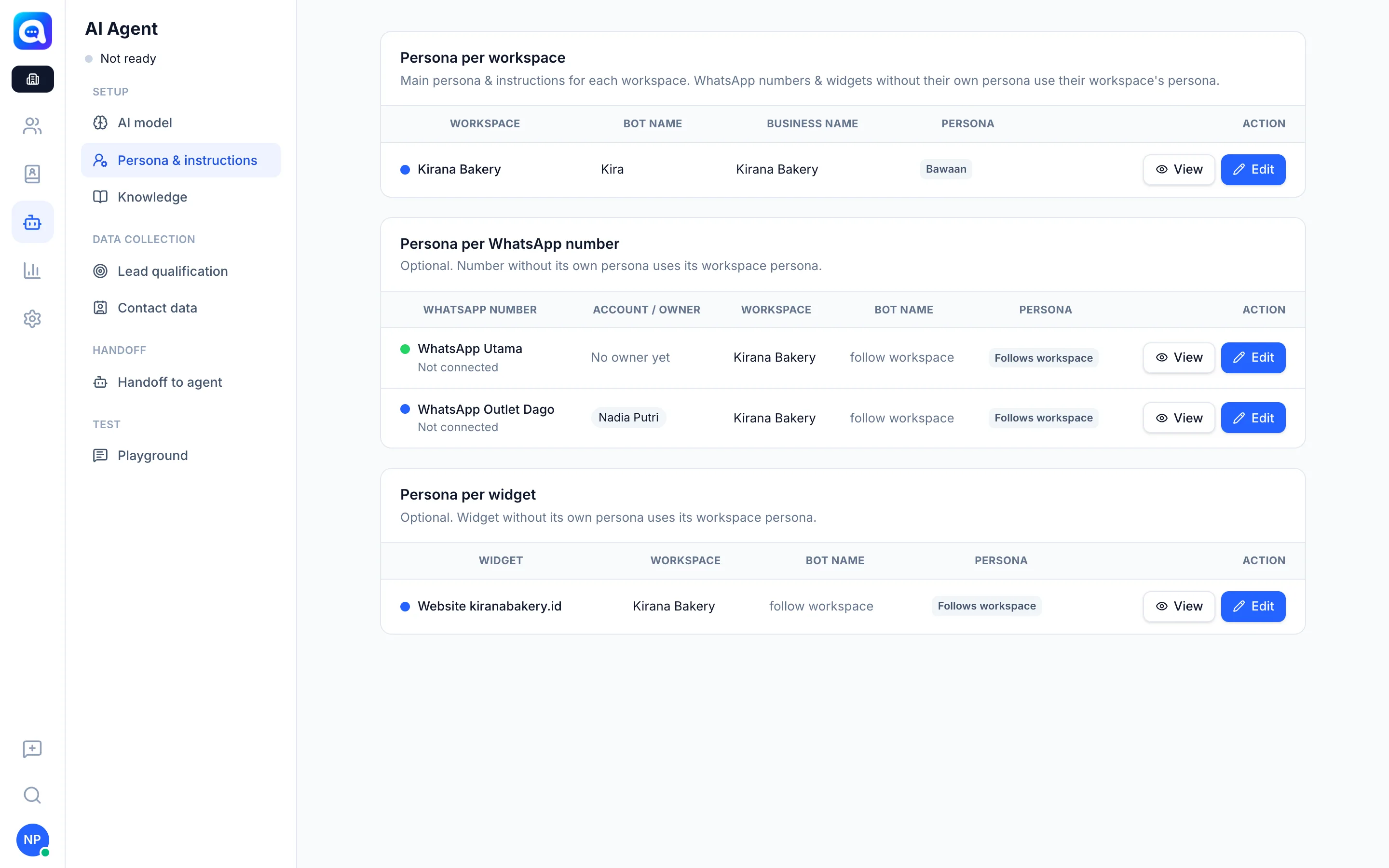
- Persona & instructions: per workspace, then optionally per WhatsApp number and per widget. Anything left empty uses the persona above it (Follows workspace). Company admins see a summary of all workspaces and can press Edit.
- Knowledge: Company knowledge can be used as is, Copy & edited, or Deactivated for a specific workspace. A workspace can also add its own knowledge, and can turn off Use Company knowledge.
- Product catalog, Workflow, and Playground belong to the workspace.
- AI mode and Purpose per WhatsApp number or widget (AI mode per channel).
Benefits
- AI quality and cost are consistent across all branches.
- Branches can still have their own bot name and style.
- Changes to the model or qualification only need to be made once.
Steps
- To change Company settings. Sign in as a company admin at the Company level, open AI Agent, choose the tab you want (e.g. AI model), make the change, then Save.
- To view from a workspace. Choose your workspace, open AI Agent. The Managed by Company banner shows which tabs are locked.
- For a branch persona. In the workspace, open Persona & instructions, fill in Bot name, Business name, Instructions, then Save.
- For branch knowledge. In Knowledge, add your own entries or use Copy & edit on a Company entry. Use Restore to go back to the Company version.
- Need a change in a locked tab? Ask your company admin.
Tips
Tip
Put rules that are the same for all branches (general prices, policies) in Company knowledge. Put local info (outlet address and hours) in workspace knowledge.