
AI model & credits
Choose Platform AI or your own API key, pick a model, and understand AI credits and when the AI stops.
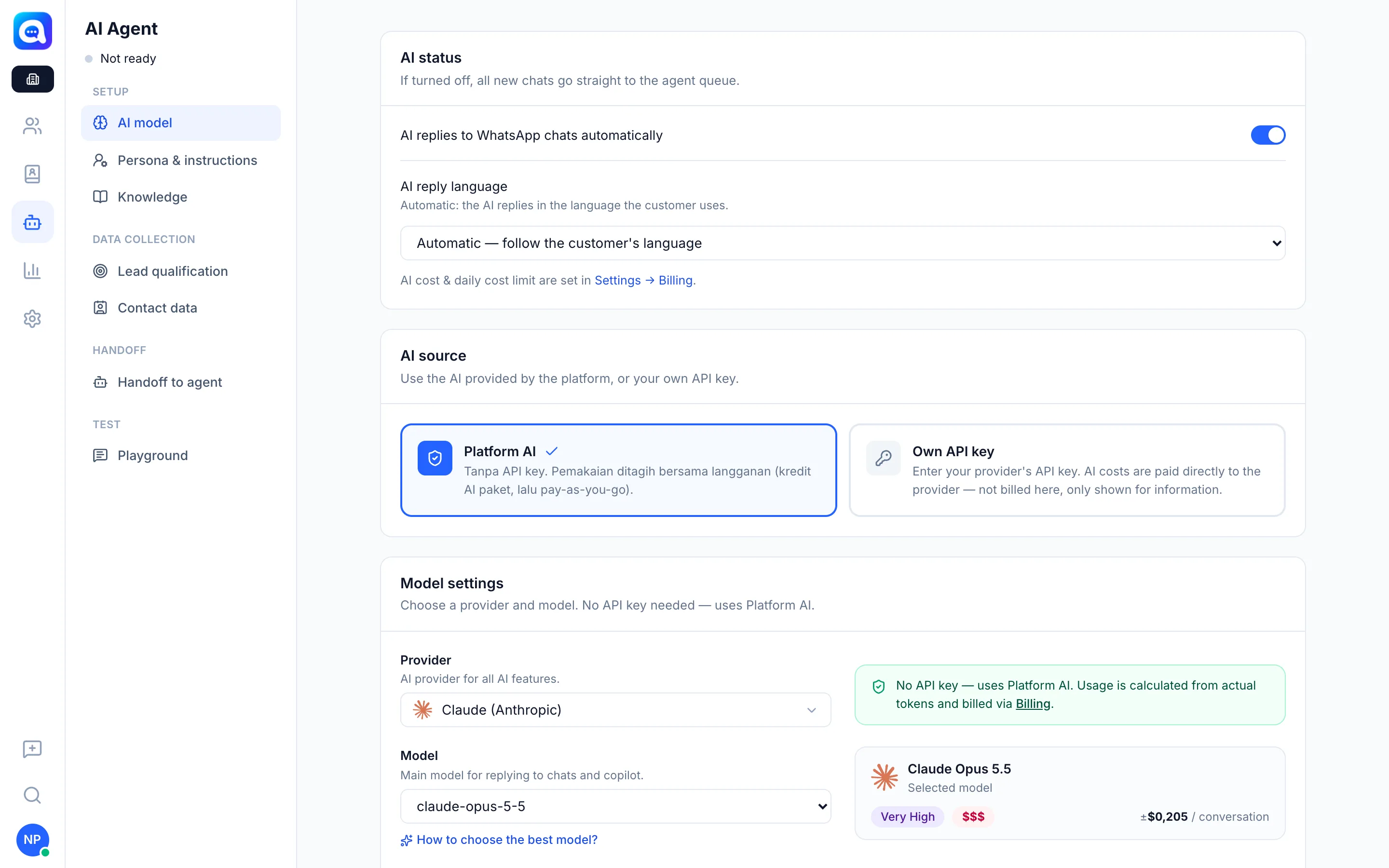
The AI model tab decides who provides your AI and which model replies to chats. These settings are managed by the company admin.
What it does
In the AI source section you choose:
- Platform AI: no API key needed. Usage is calculated from real tokens and billed through Billing (provider cost plus a platform margin). If this option is not yet available, the platform admin has not set up an AI provider.
- Own API key: enter an API key from your provider. The cost is paid directly to the provider, not billed by Kalea, and only shown for information.
In Model settings you choose the main Provider and Model (for replying to chats and copilot). You can also set:
- Classification model (intent & topic): a separate model for classification, which can be the same as the main model.
- Read images & PDFs from customers: receipts, transfer receipts, and invoices are read into text before the AI replies.
The Load button fetches the latest model list from the provider (for your own API key), and How to choose the best model? opens a model comparison catalog.
AI credits
With Platform AI, every subscription plan includes monthly AI credits. During the trial period, you get trial credits and a daily cost limit specific to the trial. Usage is counted per calendar month. After the plan credits run out, further usage becomes pay-as-you-go up to the limit you set (not available during the trial). Check the details in Settings → Billing, including the daily cost limit.
When does the AI stop?
The AI stops replying when any of these happens:
- The AI bill is overdue or the subscription is inactive (the AI is locked until the bill is paid).
- The daily AI cost limit is reached (it continues the next day, or raise the limit in Billing).
- This month's AI quota (plan credits plus pay-as-you-go) is used up. During the trial, the AI stops when the trial credits run out.
With your own API key, the platform quota does not apply.
Benefits
- Start quickly without managing an AI provider account.
- Flexible: you can use the provider and model of your choice.
- Controlled costs through credits and daily limits.
Steps
- Open the AI model tab. Choose AI Agent → AI model.
- Choose the AI source. Choose Platform AI or Own API key.
- Enter the API key (if needed). For your own API key, choose a provider, paste the API key, then click Load to see the model list.
- Choose a model. Choose the main model from the list, or open the comparison through How to choose the best model?.
- Turn on the image reader (optional). Switch on Read images & PDFs from customers if customers often send transfer receipts.
- Save. Click Save at the top of the page.
Tips
Start with a model that balances quality and price, then test in the Playground before switching to a more expensive model.
If the AI suddenly stops, check Settings → Billing: there may be an unpaid bill or the credits may have run out.