
Product catalog
Register products with prices and photos so the AI can send them to customers without making up prices.
The product catalog lets the AI answer "what do you have?" and "how much is it?" with correct data, then send product photos straight into the chat.
What it does
The AI searches the catalog for products, prices, and stock (the product search tool). If a customer wants to see a product, the AI sends the photo, name, price, and description (the kirim_produk tool), up to 3 products per reply. Prices are only taken from the catalog; the AI does not make up prices, discounts, or products that do not exist. If the price is left empty, the AI hands it off to the team.
Data per product:
- Product name, Price, Currency, and Strikethrough price (optional) for the price before discount.
- Category, SKU / code, and Description (size, variants, strengths).
- Photo (up to 5 per product, JPG/PNG/WEBP, up to 5 MB per photo).
- Link (optional) and the status In stock or Out of stock. If out of stock, the AI says the stock is currently empty.
You can add them one by one, or use Import Excel/CSV with the Excel template. The SKU column is used to update products through import.
Inside a workspace, Company products can be used, Copy & edited, or Deactivated for that workspace only. This feature follows your subscription plan.
Benefits
- Customers see photos and prices right away without waiting for an admin.
- Prices are always consistent with the catalog.
- Excel import saves time for large product lists.
Steps
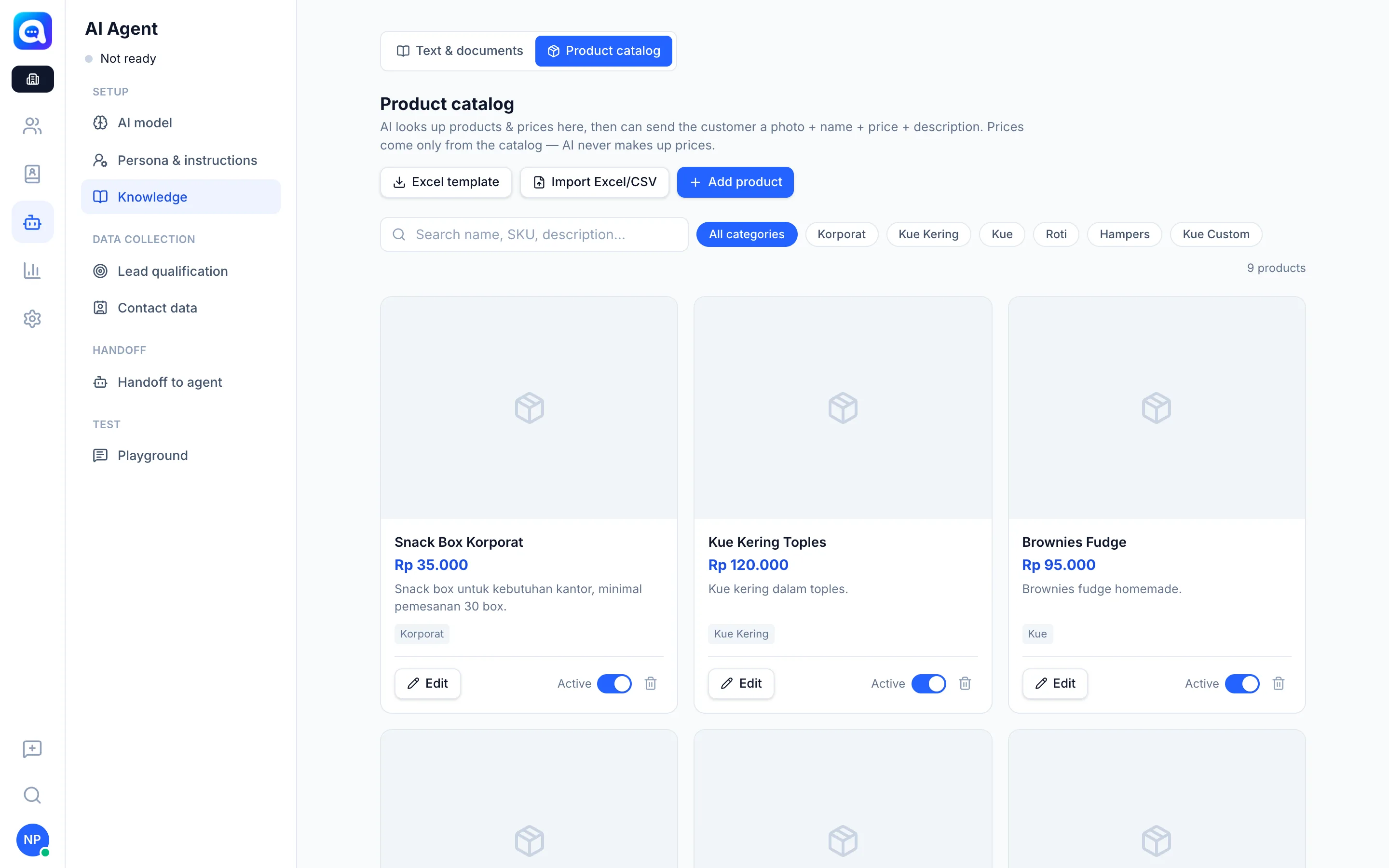
- Open the Product catalog. Choose AI Agent → Knowledge, then the Product catalog sub-tab.
- Add a product. Click Add product. Example: "Brownies Panggang", Rp85,000, category Kue Kering, SKU BRW-01.
- Complete the details. Fill in the description, upload photos (the first photo becomes the Main photo the AI sends), and set the stock.
- Save. Click Save.
- Import many products (optional). Download the Excel template, fill it in, then Import Excel/CSV. The result shows the number of products added and updated.
- Search and filter. Use the search box or All categories to find products.
Tips
Use bright photos and the same product names customers use, so the AI can find them easily.