
Adding knowledge
Step by step guide to adding, editing, and deactivating knowledge, and how its size affects the AI's search.
This page covers the practical way to fill in knowledge. For an overview, see Knowledge. The examples here use Kirana Bakery customer questions.
What it does
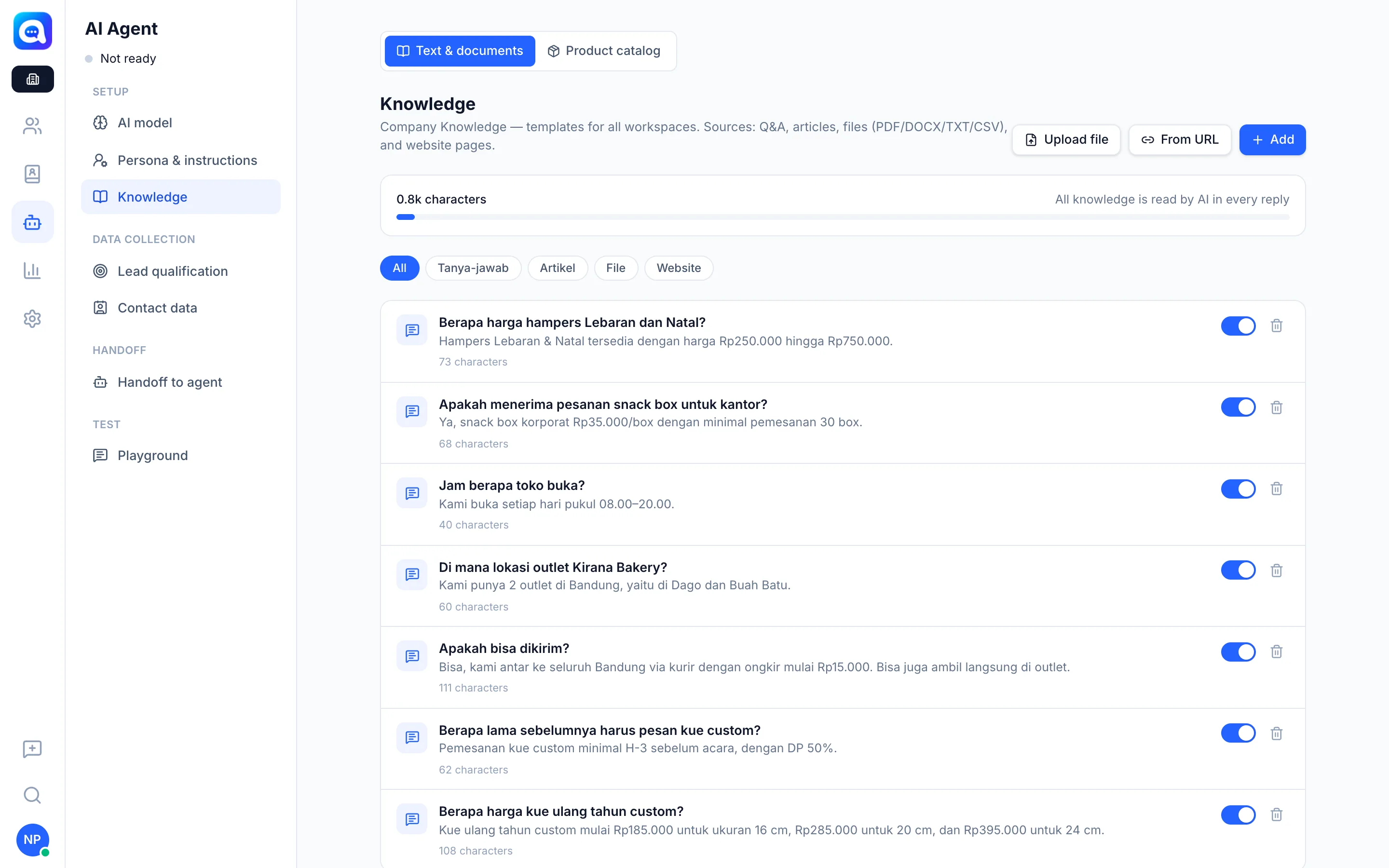
There are four ways to add entries in AI Agent → Knowledge (Text & documents sub-tab):
| Method | Button | Good for |
|---|---|---|
| Q&A | Add, then Q&A | Frequently asked questions, e.g. "What time does the store open?" |
| Article / text | Add, then Article / text | Policies or long explanations |
| File | Upload file | PDF, DOCX, TXT, CSV, e.g. catalogs or SOPs |
| Website page | From URL | The content of your business web pages |
The list can be filtered with the chips All, Q&A, Article, File, and Website. Every entry shows its character count, and has a switch to deactivate it and a trash icon to delete it.
Size and search
The bar above the list shows the total characters. When the total is still small (up to about 40,000 characters), all knowledge is read by the AI in every reply. When it is larger, the AI uses search mode: files and articles are split into small parts, then the AI takes the parts that best match the keywords of the question. Q&A is searched as a whole unit. That is why clear titles and keywords help.
Benefits
- The AI answers according to your business facts, not guesses.
- Wrong entries are easy to correct or switch off temporarily.
- A controlled size makes replies faster and cheaper.
Steps
- Open Knowledge. Choose AI Agent → Knowledge, Text & documents tab.
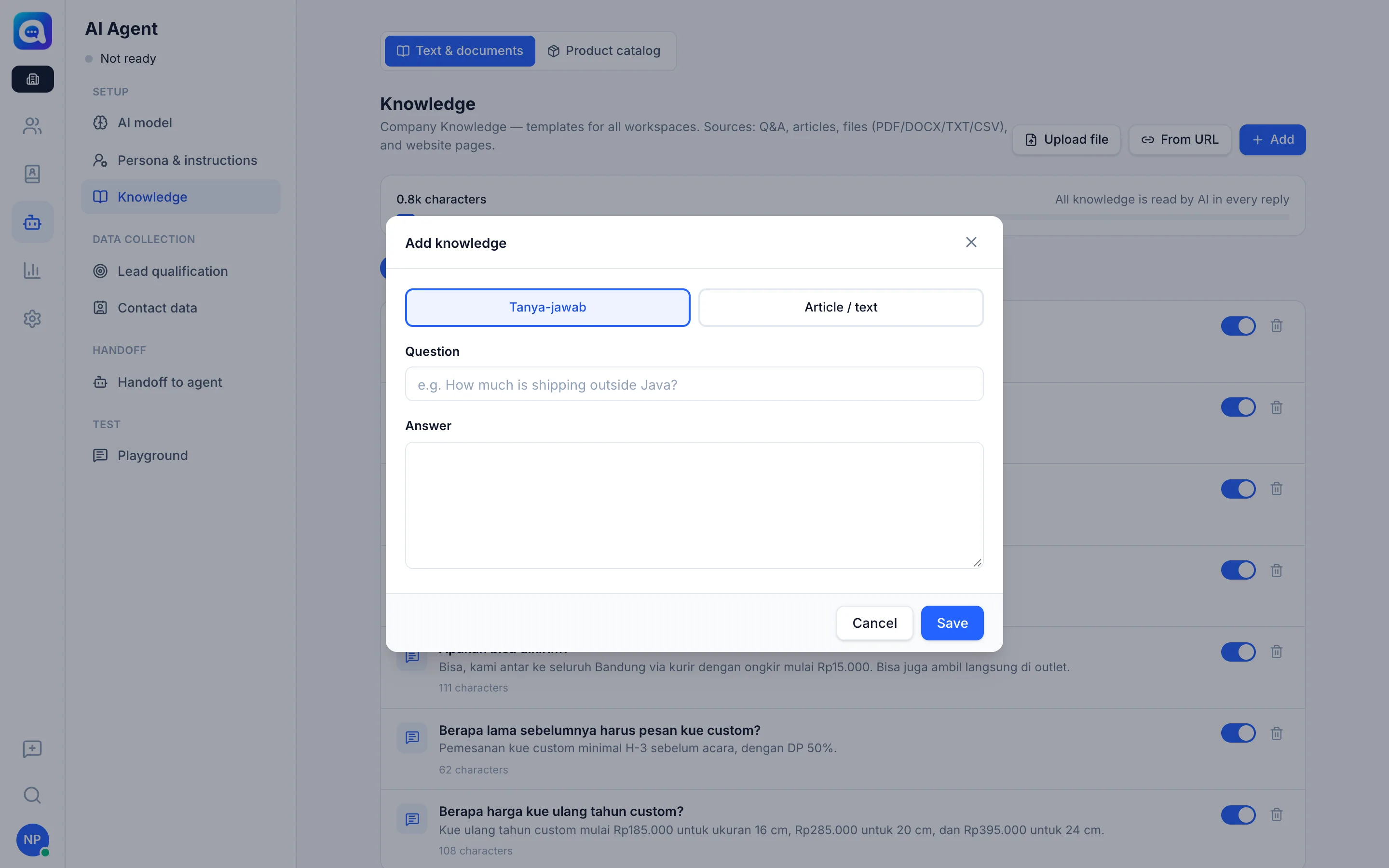
- Click Add. In the Add knowledge window, choose Q&A or Article / text.
- Fill in the fields. For Q&A, fill in Question (e.g. "What is the shipping cost outside Java?") and Answer. For an article, fill in Title and Content.
- Save. Click Save.
- Or upload a file / URL. Click Upload file for documents. Or click From URL, paste the page address, then Fetch page content.
- Edit an entry. Click an entry to open and edit it, then Save.
- Deactivate or delete. Turn off the switch on the right to deactivate without deleting. The trash icon deletes permanently (with a Delete this knowledge? confirmation).
- Test. Ask in the Playground to make sure the AI answers correctly.
Tips
One question, one entry. A short Q&A is easier to find than one long article containing everything.
Entries from Company cannot be edited directly in a workspace. Use Copy & edit or Deactivate. See AI settings from Company.