
Conversation Summary
Understand the cards, charts, busy-hours map, and open conversation status in the Analytics → Overview report.
The Analytics → Overview report is the first page you see when you open Analytics. It suits owners and managers who want to know how busy incoming chats are and when the busiest times are. An overview of all menus is in the Analytics Dashboard.
What it does
This report has four parts.
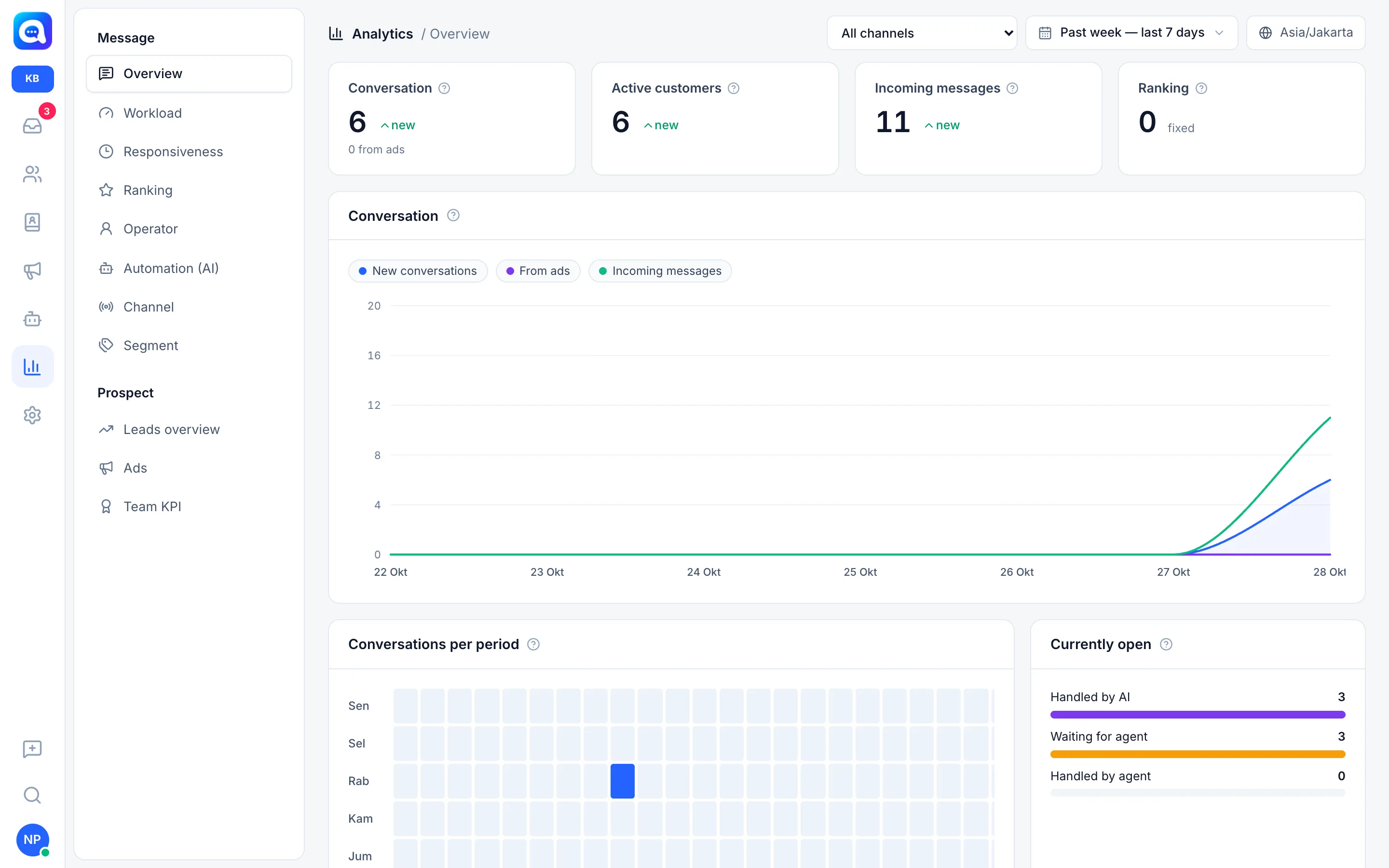
Four cards at the top
- Conversation: the number of new conversations started in the selected period. Below it is how many came from ads (e.g. "0 from ads"). WhatsApp groups are not counted.
- Active customers: the number of distinct contacts who sent messages in that period. One customer who chats ten times is still counted as one.
- Incoming messages: the number of messages sent by customers.
- Ranking: the number of satisfaction survey answers received (the ratings are covered in Customer ratings).
Each card shows the change compared with the previous period of the same length. For example, if you choose the last 7 days, the comparison is the 7 days before that.
Conversation chart. Three lines per day: New conversations, From ads, and Incoming messages. Click a line name above the chart to hide or show it.
Conversations per period. A heat map of day (Mon to Sun) and hour. The darker a square, the more conversations received incoming messages at that hour. Hours follow the time zone in Settings → Regional.
Currently open. The current condition, not affected by the date range: Handled by AI, Waiting for agent (already handed off by the AI, not yet replied to by a human), and Handled by agent.
Benefits
- Know whether chat volume is going up or down compared with the previous period.
- Build agent shift schedules around the actual busy hours.
- See how much ads contribute to incoming chats.
- Detect queues piling up in Waiting for agent.
Steps
- Open Overview. Click the chart icon in the main menu, then choose Overview in the Message group.
- Choose the period and channel. Use the date range option and channel filter at the top right.
- Read the cards. Compare the numbers with the change notes. Hover over the question mark icon to see the definition.
- Look for patterns in the chart. Note the days that spike. Match them with Kirana Bakery's promotions or ads on that day.
- Read the busy-hours map. Find the darkest square, e.g. Wednesday noon, then make sure an agent is on duty at that hour.
- Check Currently open. If Waiting for agent is large, open the Workload and Responsiveness report.
Example
Kirana Bakery sees the busy-hours map is dark on Saturday from 09:00 to 11:00, when customers order birthday cakes. The manager then adds one agent to the Saturday morning shift.
Tips
If Incoming messages goes up but Conversation stays the same, existing customers are asking more questions. Make sure the AI's knowledge answers repeated questions.
The From ads line only records Click-to-WhatsApp conversations that carry ad data. Details per ad are in Leads and ads.