
Channels and Segments
Compare the performance of each WhatsApp number and chat widget, and see the size of each lead segment (tag).
These two reports answer "where do customers come from" and "who are they". They suit owners who have more than one WhatsApp number or website widget. An overview of Analytics is in the Analytics Dashboard.
What it does
Channels
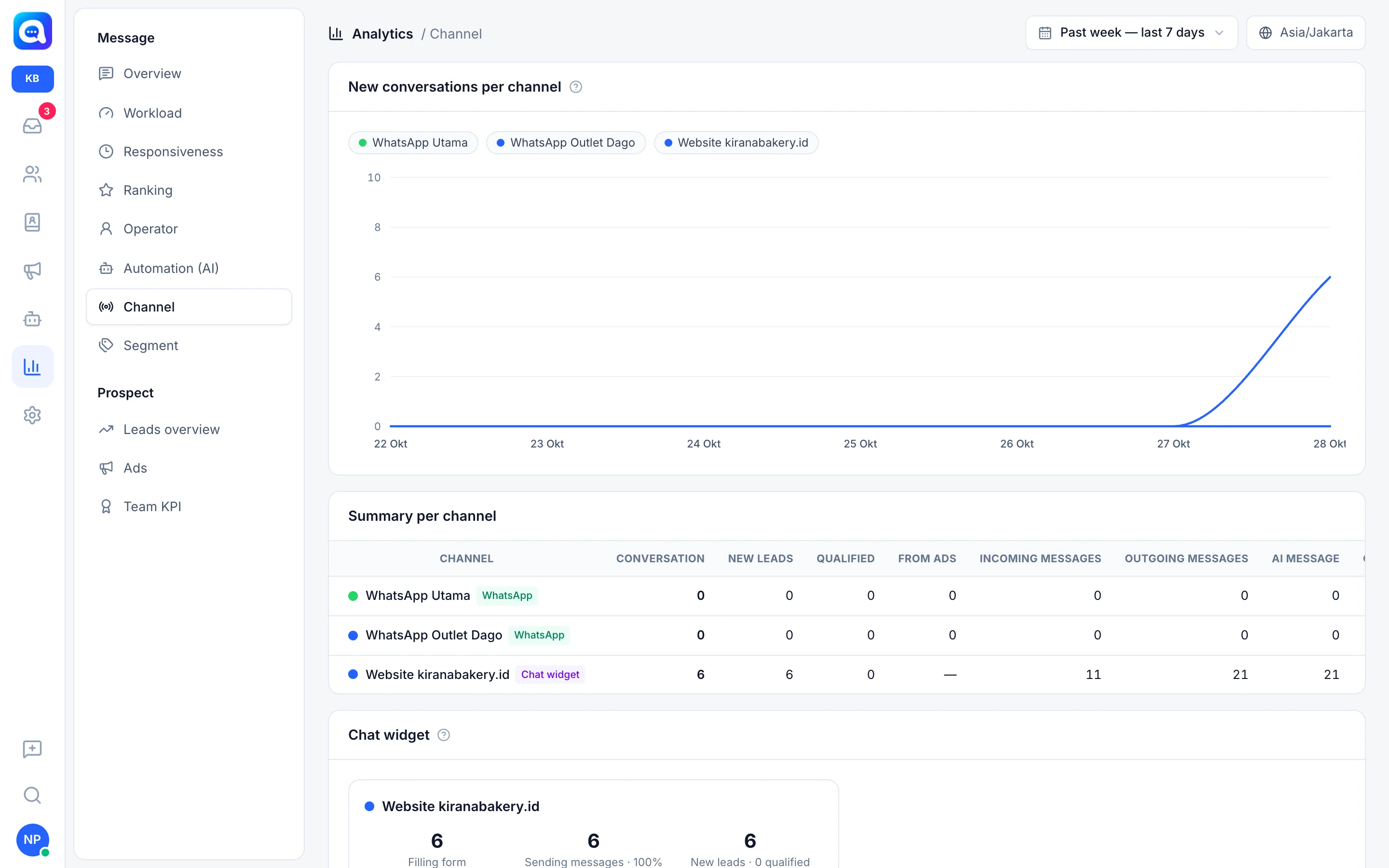
- New conversations per channel: one line per WhatsApp number or chat widget. Click a name to hide its line.
- Summary per channel: a table with columns Conversation, New leads, Qualified, From ads, Incoming messages, Outgoing messages, AI message, and Open. New leads are counted per new contact whose first conversation is on that channel. Qualified are those that have reached the Qualified stage or beyond. Open is the current condition. The From ads column is marked "—" for chat widgets.
- Chat widget: for each widget, Filling form (visitors who fill in the form), Sending messages (how many actually chat, plus the percentage), and New leads along with the qualified count. There is also a Platform distribution: Website, Direct link, Android, iOS, Flutter, React Native.
The Channels report always shows all channels, so the channel filter is not displayed on this page.
Segments
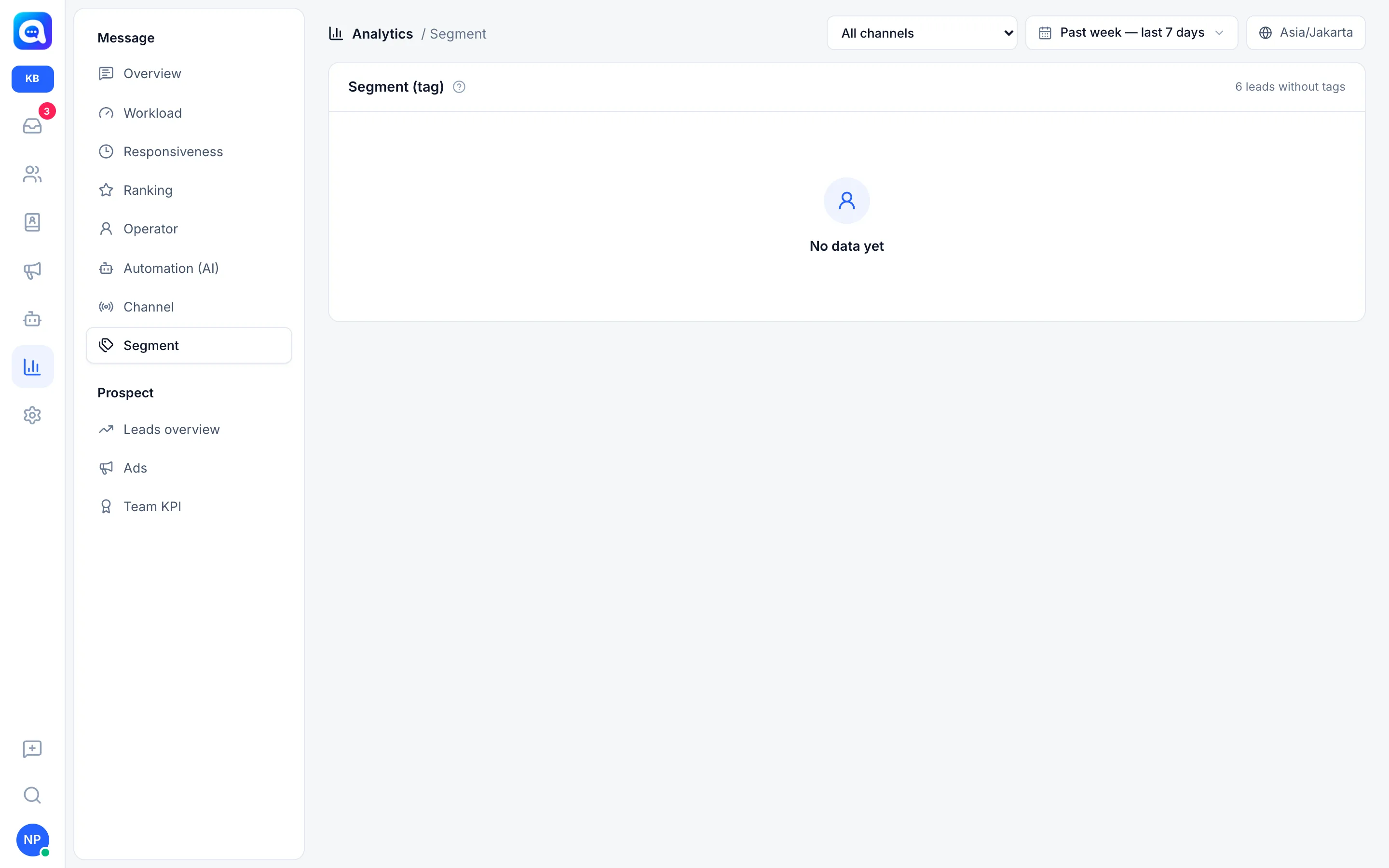
A table per lead tag: Total leads, New (period) (leads with that tag created in the period), and Active (period) (those who sent messages in the period). On the right of the title is the number of leads without a tag. A lead with two tags is counted in both rows.
Benefits
- Know which number or widget brings in the most chats and leads.
- Measure how many website visitors actually end up chatting.
- See which customer segments are active or growing.
- Know how tidy tagging is on leads.
Steps
- Open Channels. Choose Channel in the Message group, then set the date range.
- Compare the lines and table. For example WhatsApp Utama, WhatsApp Outlet Dago, and the kiranabakery.id Website.
- Check widget conversion. If Filling form is high but Sending messages is low, the form or first greeting needs to be simplified.
- Open Segments. Choose Segment, then direct your attention to the tags with the largest Total leads.
- Check leads without tags. A large number means tagging is not yet consistent.
- Take action. Shift promotion to the effective channels, or create a campaign for the active tags.
Example
At Kirana Bakery, the website widget records 6 visitors filling in the form and 6 sending messages (100%), while the two WhatsApp numbers had no conversations in that period. This means promotion is better directed to WhatsApp, or the WhatsApp button on the website should be made clearer.
Tips
Give tags such as "Hampers customer" or "Office order" when a lead comes in. The Segments report only becomes useful if tags are used consistently.
If your account only has access to certain numbers, only those channels are shown.