
Workload and Responsiveness
Read the Workload and Responsiveness reports to organize chat distribution and keep replies fast.
These two reports are used by chat team managers. Workload answers "who handles how much", while Responsiveness answers "how fast are customers replied to". An overview of Analytics is in the Analytics Dashboard.
What it does
Workload
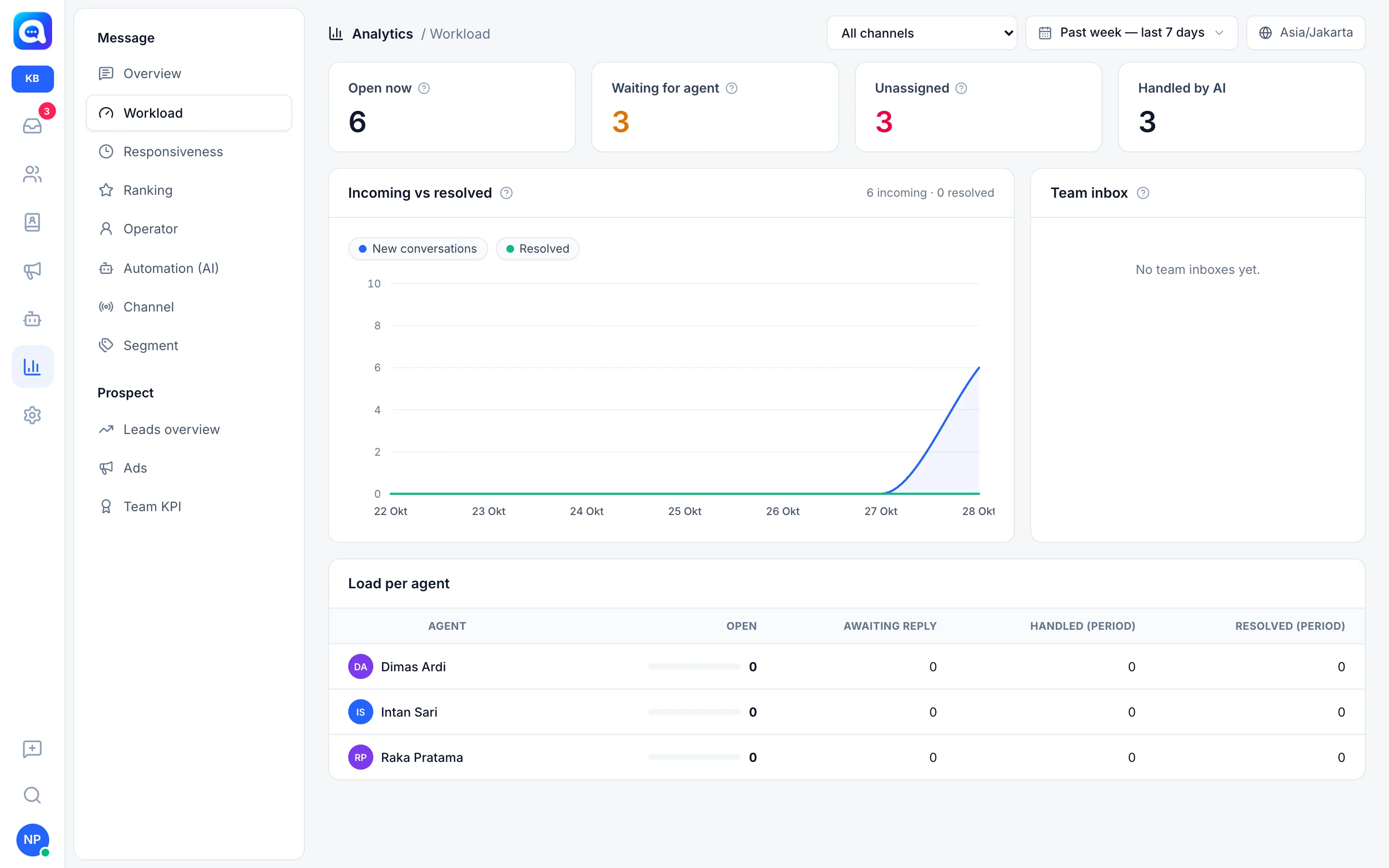
The cards at the top show the current condition, not by date range:
- Open now: all conversations with open status.
- Waiting for agent: handed off by the AI and not yet replied to by an agent.
- Unassigned: open, not in AI mode, and without an agent yet. This number turns red if it is above zero.
- Handled by AI: open conversations still held by the AI.
Then there are:
- Incoming vs resolved: lines for New conversations and Resolved per day. On the right of the title, the total incoming and resolved are shown. Resolved is counted from conversation closing activity.
- Team inbox: the number of open conversations per team inbox.
- Load per agent: columns Open, Awaiting reply, Handled (period) (conversations replied to by the agent in the period), and Resolved (period).
Responsiveness
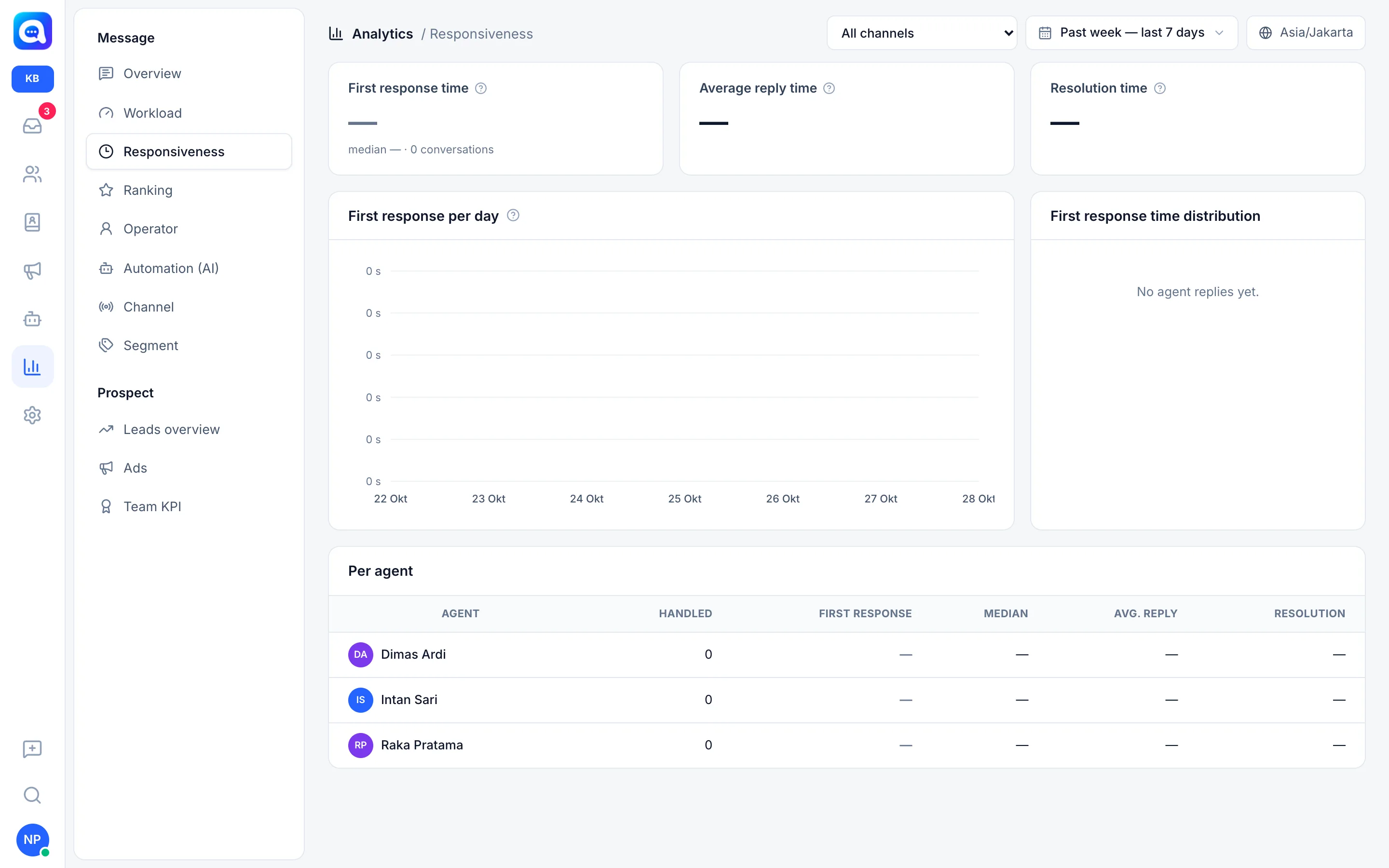
- First response time: counted from when the customer starts waiting (an incoming message after the last reply, or when the AI hands off to an agent) until the agent's first reply in that conversation. The card shows the average, median, and number of conversations counted. Green if 5 minutes or less, yellow up to 15 minutes, red above that.
- Average reply time: the average time for agents to reply each time a customer is waiting, not just the first reply.
- Resolution time: from the conversation being opened until it is marked Resolved.
- First response per day: the daily average. Days without agent replies are blank, not zero.
- First response time distribution: number of conversations per range: < 1 min, 1–5 min, 5–15 min, 15–60 min, 1–4 h, > 4 h.
- Per agent: Handled, First response, Median, Avg. reply, Resolution.
AI replies are not counted as a first response. Only agent replies are counted (from the dashboard or from a connected phone).
Benefits
- Find agents who are overwhelmed and those who still have room.
- Know about waiting queues before customers complain.
- Keep your promise of fast responses to customers.
- Decide when to add agents or change chat distribution rules.
Steps
- Open Workload. In Analytics, choose Workload in the Message group.
- Check the red and yellow cards. A high Unassigned or Waiting for agent means there are customers without someone responsible.
- Compare Incoming vs resolved. If the incoming line stays above the resolved line, the queue will pile up.
- Look at Load per agent. If one agent has a much larger Open count than the others, redistribute their conversations.
- Switch to Responsiveness. Look at First response time and its distribution. Compare the average with the median: an average far above the median means a few conversations were left too long.
- Decide on action. See the Tips section below.
Example
Kirana Bakery sees a First response time of 22 minutes (red) and a distribution with many in 15–60 min. In Load per agent, Dimas has 14 open conversations while Raka has 2. The manager reconfigures routing so new chats are distributed evenly, and the response time drops to 6 minutes.
Tips
If response time is high, check Unassigned first. If it is high, adjust routing or add agents during busy hours (see Conversation summary). If only one agent is slow, see Agent performance.
A high Waiting for agent can also mean the AI hands off chats too often. Check the reasons in Automation and AI cost.