
Automatic AI Setup
The Welcome wizard that drafts the persona, FAQ, catalog, and sales structure from your business profile in seconds.
This wizard appears automatically after you sign up (the /welcome page). It is ideal if you want the AI ready without typing everything from scratch.
What it does
You describe your business, and the AI drafts a complete setup. You review it and tick the parts you want to use; the result can be changed at any time in the AI Agent and Settings menus.
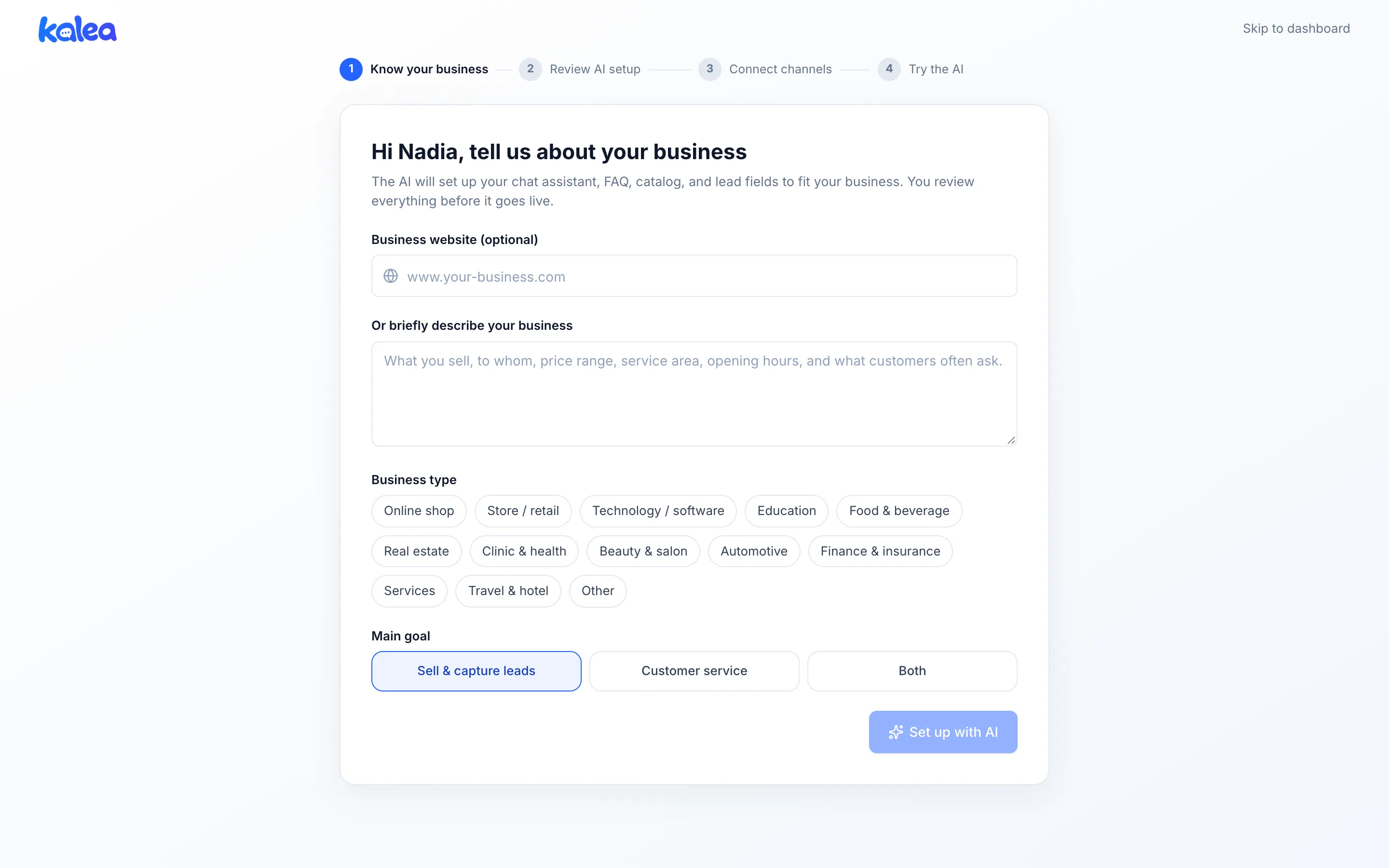
The wizard has four steps: Know your business, Review AI setup, Connect channels, and Try the AI.
Benefits
- The AI is ready to answer customers in minutes, not days.
- Qualification fields, the pipeline, and the team inbox already match your type of business.
- Nothing is applied before you approve it.
Steps
- Know your business. Fill in Business website (optional) or Or briefly describe your business (what you sell, to whom, price range, service area, opening hours, common questions). Choose a Business type (e.g. Online shop, Education, Food & beverage, Real estate, Clinic & health, Beauty & salon) and a Main goal: Sell & capture leads, Customer service, or Both. Click Set up with AI; it usually takes 15 to 30 seconds.
- Review AI setup. Tick what you want to use. The parts prepared include:
- AI assistant (bot name and instructions; viewable and editable via View & edit AI instructions), Company information (only fills fields that are still empty).
- FAQ for the AI and Product catalog.
- Lead details the AI asks for: fields marked required determine the A/B/C lead class, while booster fields add extra points.
- Contact details the AI collects (besides name and phone number) and Quick replies for the team.
- Team & sales setup: Pipeline stage, Lead sources, Team inbox, Team roles & permissions, Team KPI, and Customer satisfaction survey (sent after a chat is resolved).
- Save website content as AI knowledge if you filled in a website. Click Apply & continue, or Retry to generate a new draft.
- Connect channels. Connect WhatsApp (QR scan) or create a chat widget. You can skip this and do it later. See Connect WhatsApp and Install the website widget.
- Try the AI. Send a message as if you were a customer, or pick a sample question. This is only a simulation and is not sent to anyone. Click Done, open dashboard.
Tips
The more detail in your business description (prices, opening hours, service area), the more accurate the FAQ and catalog the AI drafts. Check the prices before applying.
The Skip to dashboard link in the top corner lets you fill everything in manually. The wizard can be reopened from the Quick start box.