
Prospects & Contacts/Prospects
Pipeline and Stages
Set up the stages of a lead's journey from the first chat to closing, including stage types and automatic moves.
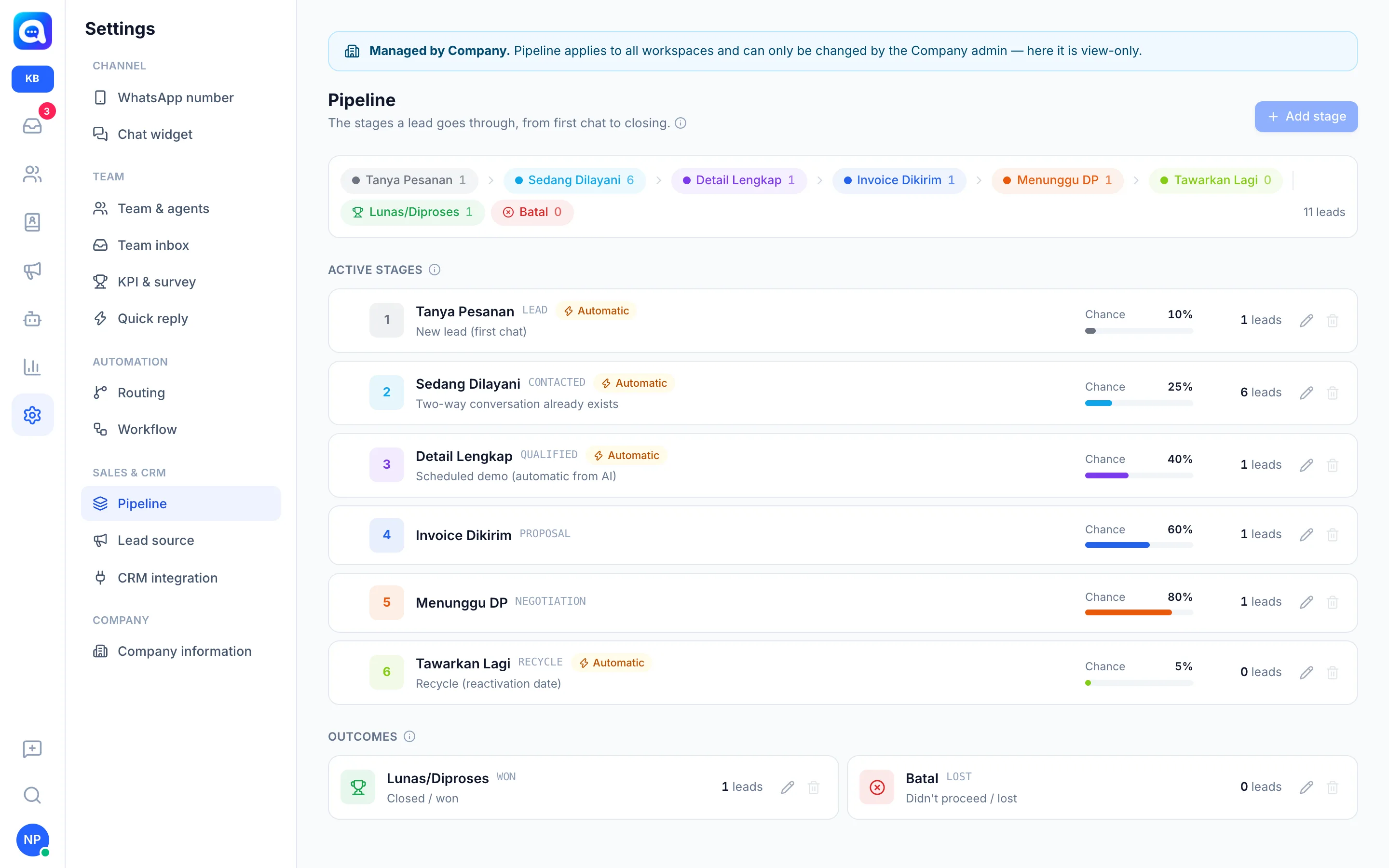
The pipeline is the sequence of stages a lead goes through, from the first chat to a paid or canceled order.
What it does
In Settings → Pipeline you manage:
- Active stages: stages currently in progress, with a closing Chance (percent) for revenue forecasting.
- Outcomes: the Won (closed) and Failed (didn't happen) stages.
- Stage type: active, won, or failed.
- Automatic assignment (roles) so Kalea moves leads by itself. One role can only belong to one stage:
- New lead (first chat)
- Two-way conversation already exists
- Scheduled demo (automatic from AI)
- Recycle (reactivation date)
Stages with an automatic role are marked with the Automatic label. Stage codes (e.g. LEAD, QUALIFIED) are used when syncing to the CRM.
Kirana Bakery example: Order Inquiry, Being Served, Details Complete, Invoice Sent, Awaiting DP, Re-offer, then the outcomes Paid/Processed and Canceled.
A lead that moves to the Won stage automatically has its status changed to Customer on the Contact page.
Benefits
- A clear picture of each lead's progress.
- Estimated closing chance per stage.
- Early moves are automatic, so agents focus on selling.
- Customers who close are recorded as customers right away.
Steps
- Open Pipeline. Choose Settings → Pipeline. This setting is managed by the central admin; other workspaces can only view it.
- Add a stage. Click Add stage, fill in Stage name, Code, color, and Chance. Use Add won stage or Add lost stage for outcomes.
- Define automatic roles if needed under Automatic assignment.
- Set the order. Use the up / down arrow buttons beside a stage. This order becomes the order of choices throughout the app.
- Save. Click Save. If you delete a stage that is still in use, choose another stage under Move leads to.
- Move leads. From the Prospect table, tick leads and then Change stage, or change the stage in the profile panel. Moving to a failed stage asks for a reason; certain reasons automatically fill in the reactivation (recycle) date.
Tips
Tip
Match stage names and codes with your CRM if you use the CRM integration.