
CRM Integration
Send leads from Kalea to your CRM and receive stage changes from the CRM via webhook.
If your sales team already uses its own CRM system, Kalea can sync leads in both directions.
What it does
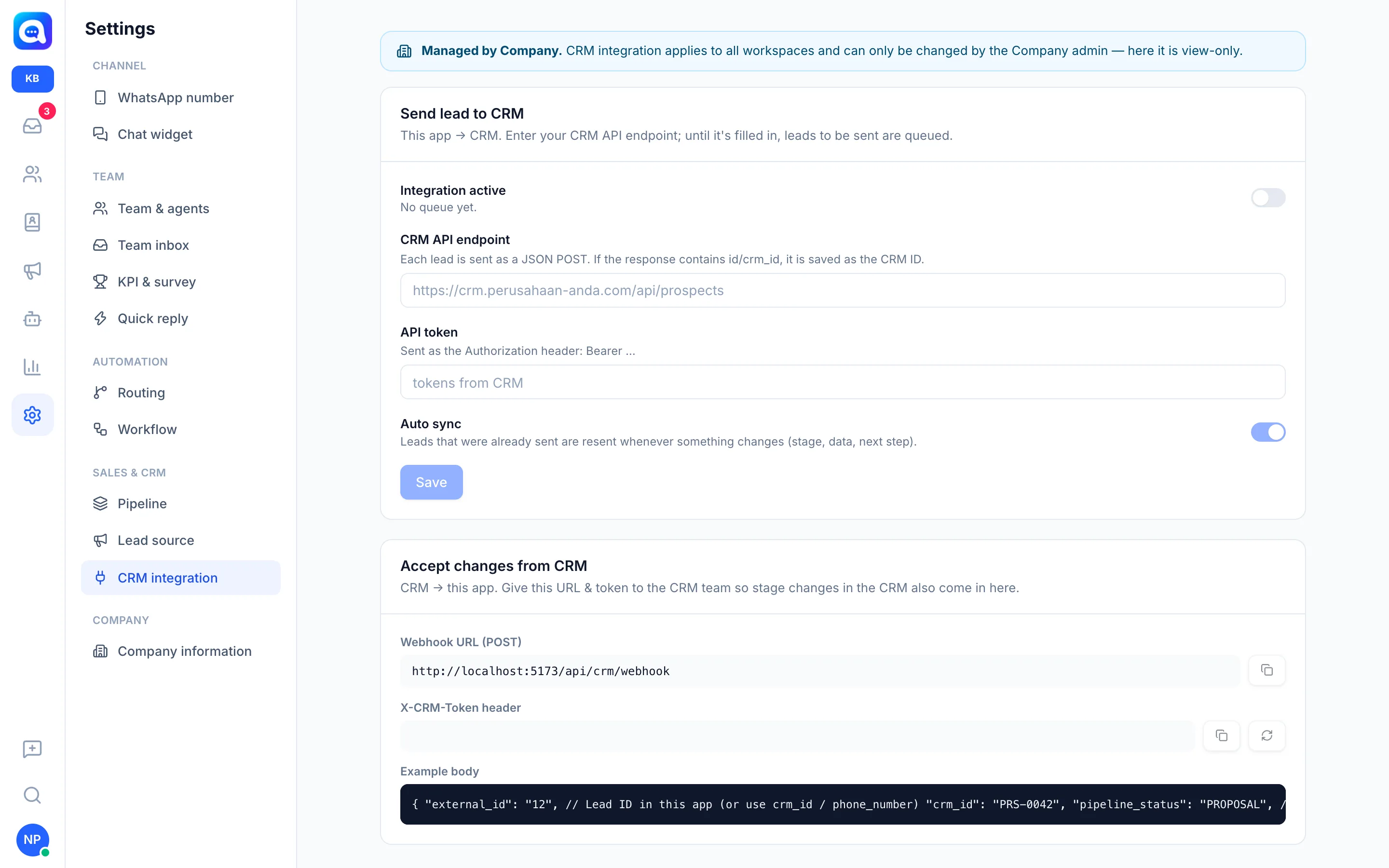
Send leads to CRM (Kalea to CRM). Fill in the CRM API endpoint; each lead is sent as a JSON POST. If the response contains an id or crm_id, it is saved as the CRM ID. The API token is sent as the header Authorization: Bearer .... While the integration is not active, leads are queued and sent automatically once it is enabled. Auto sync resends already-sent leads when something changes (stage, data, next step).
Receive changes from CRM (CRM to Kalea). Give the Webhook URL (POST) and X-CRM-Token header to your CRM team. Leads are looked up by external_id, crm_id, or phone number. Recognized fields include pipeline_status (the stage code from Settings → Pipeline), crm_id, next_action, next_action_date, gugur_reason, recycle_until, and demo_at.
Benefits
- Sales data doesn't need to be typed twice.
- Stages in the CRM and Kalea always match.
- Leads from chat go straight into the sales team's system.
Steps
- Open settings. Choose Settings → CRM integration.
- Enter the endpoint and token. Fill in the CRM API endpoint and API token from your CRM.
- Enable. Turn on Integration active, set Auto sync, then Save. Queued leads will be sent.
- Send manually. On the Prospect page, tick leads and click Send to CRM. The sync status appears in the CRM column.
- Connect the other direction. Copy the Webhook URL (POST) and token to your CRM team. Use the generate-new-token button if needed; the old token stops working immediately.
- Match the stages. Make sure the stage codes in the CRM match the codes in Settings → Pipeline.
Tips
Keep the token confidential. If the token leaks, generate a new one and update it in your CRM system.