
Contacts and Import
Manage everyone who has chatted or been imported, change statuses, add contacts, and import from Excel or CSV.
The Contact page stores everyone who has ever chatted with your business or whom you imported, including those who are not yet leads.
What it does
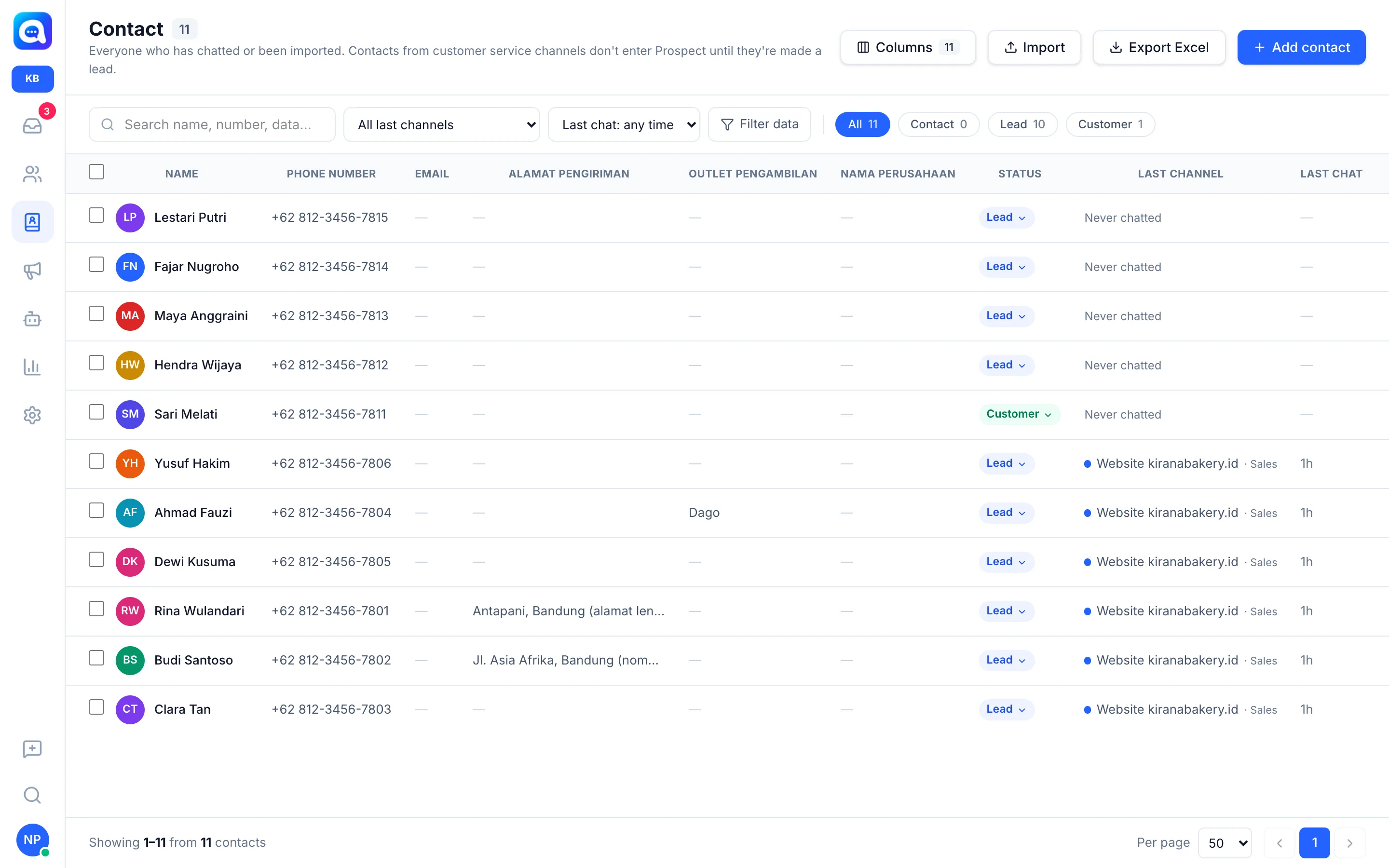
Each contact has a status:
- Contact: for example customer service customers. Not in Prospect until made a lead.
- Lead: shown on the Prospect page.
- Customer: already closed. A lead that reaches the won stage automatically becomes a customer.
The table shows name, phone number, status, last channel, and contact data fields. You can search and filter by channel, last chat time, Filter data, or the All / Contact / Lead / Customer chips. The Columns button manages columns and Export Excel downloads the data.
Contact data fields (e.g. Delivery Address, Pickup Outlet) are set in AI Agent → Contact data. Name and phone number are built in.
Benefits
- One customer database as the basis for blasts and follow-ups.
- Import hundreds of contacts at once without typing.
- Contact data is filled in automatically from chats by the AI.
Steps
- Add contacts one by one. Click Add contact, fill in Name, Phone number (WhatsApp), status, tags, then Save.
- Start an import. Click Import. Choose or drag an Excel (.xlsx) or CSV file (max. 10 MB / 20,000 rows).
- Match columns. In Match columns for import, assign each file column to Name, Phone number, Status, Tag, a contact data field, or Skipped. Set First row is a header and the column separator for CSV. The phone number must be mapped.
- Handle duplicates. Under If the phone number already exists, choose Update that contact data or Skip (don't change).
- Set the status. Choose New contact status: Contact, Lead (goes into Prospect), or Customer.
- Import. Click Import. The Import complete summary shows skipped rows along with the reasons.
- Change the status. Click the status in the table or use the contact menu to Make lead / Make contact only.
Tips
Prepare the file with neat Name and Phone number columns (e.g. 0812... or 62812...). Imported contacts who have never chatted appear as "Never chatted".
The import feature depends on your plan.