
Take Over from the AI
Understand when the AI hands a chat to a human, the Waiting for agent status, and how to take over or return a chat to the AI.
The AI Agent replies to customers 24 hours a day, but there are times when a human needs to step in. This page explains the handoff between the AI and your team.
What it does
When the AI hands off to a human (handoff):
- The customer's message contains a handoff keyword.
- The lead score reaches the threshold you set.
- The AI is unsure about its answer, or the customer asks to speak to a person.
The rules are in AI Agent → Handoff to agent.
When a handoff happens:
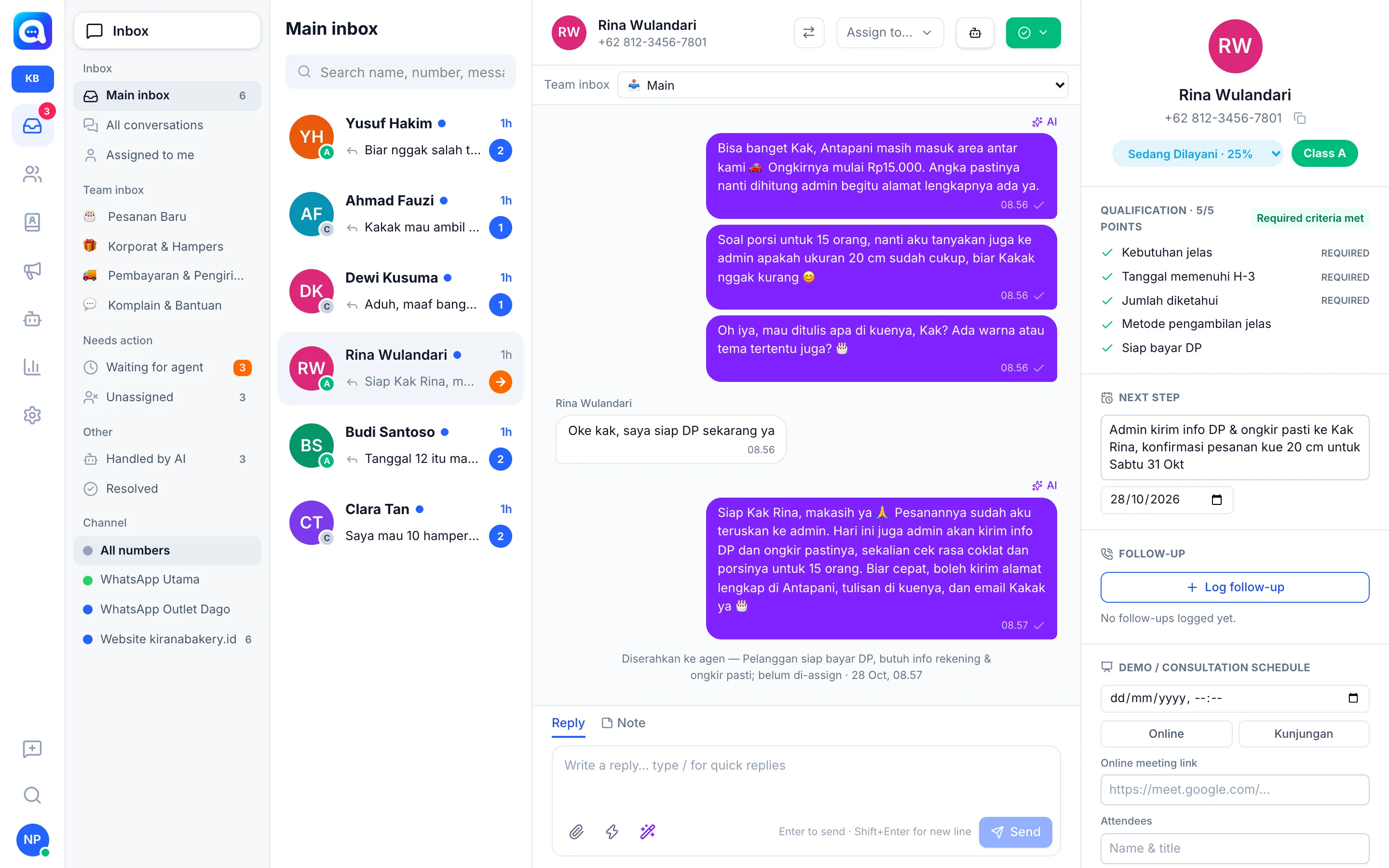
- The conversation status becomes Waiting for agent and appears in the Waiting for agent folder (orange arrow icon).
- Kalea adds a system message in the conversation starting with "Handed off to agent", containing the handoff reason and the assigned agent (or "not yet assigned").
- If there is a routing rule with the On handoff trigger, the chat is automatically assigned or moved to a team inbox.
- The customer receives a handoff message if you fill in Message when handing off.
Status in the conversation header: AI on, Waiting for agent, or Handled by agent.
Benefits
- Customers are still served by the AI, and the team only handles what needs a human touch.
- The handoff reason is recorded, so agents understand the context right away.
- You can return the chat to the AI once the human matter is done.
Steps
- Open the Waiting for agent folder. In the Inbox, choose Waiting for agent in the Needs action group.
- Read the context. Open the conversation and read the "Handed off to agent" system message and the chat history.
- Take over. Click the Take over button (hand icon) above the conversation. Kalea records "took over the conversation" and assigns the chat to you if there is no owner yet. Replying directly from the message box also takes over from the AI.
- Reply to the customer. Handle the matter as usual.
- Return to the AI (optional). Click Hand off to AI. If the last message came from the customer, the AI replies to it right away.
Tips
If you reply from your phone, the WhatsApp settings can automatically pause the AI for that conversation. Kalea records it as "Replied from phone".
In WhatsApp groups, the AI does not reply.