
Replying and Notes
How to reply to customers, send files, use quick replies, write internal notes, assign agents, and resolve chats.
After opening a conversation, you can reply to the customer, discuss with colleagues through internal notes, assign the chat, and then mark it resolved.
What it does
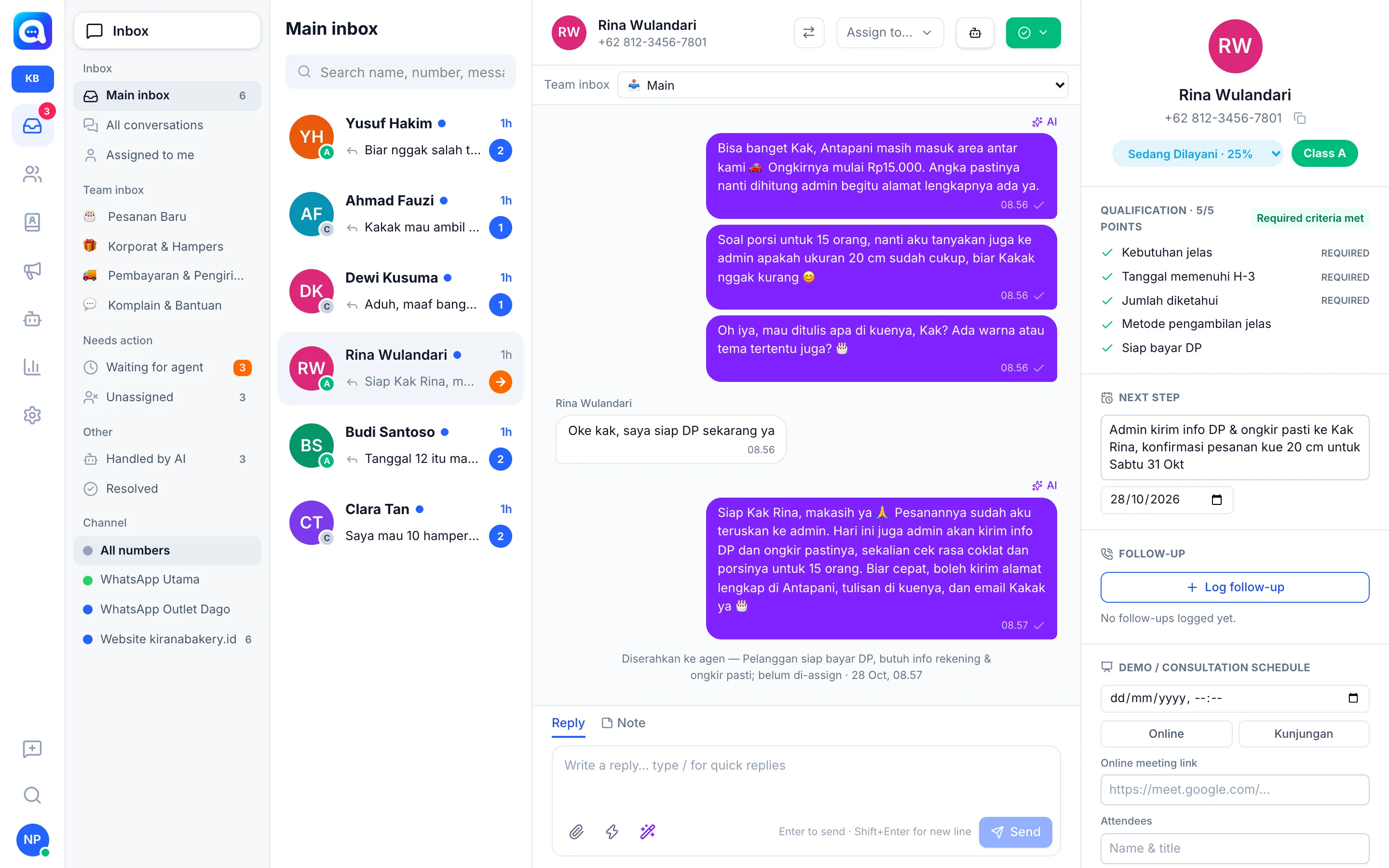
The message box at the bottom of the conversation has two tabs:
- Reply: messages sent to the customer.
- Note: internal notes that are not sent to the customer. Type @ followed by a name to mention a team member.
Below the message box are the Send file button (paperclip icon), Quick reply (lightning icon), and AI Copilot (magic wand icon) with the options Suggest reply, Fix sentence, and Summarize conversation. At the top there is Assign to…, the Team inbox picker, the Take over / Hand off to AI button, and the Resolved button.
Benefits
- Reply faster with quick replies and AI suggestions.
- Mentioned colleagues get a notification and can open and reply to that chat.
- Clear division of work: every chat has an owner.
- Optional satisfaction survey when a chat is resolved.
Steps
- Reply to the customer. On the Reply tab, write the message and press Enter or click Send. Shift+Enter creates a new line.
- Send an attachment. Click the paperclip icon (Send file) and choose a file.
- Use a quick reply. Type / in the message box, then pick a code with the arrow keys or by clicking. See Quick replies.
- Write an internal note. Switch to the Note tab, type the note (e.g. "Customer wants a 20 cm cake"), then click Save note. Type @ to choose the team member you want to notify.
- Assign to an agent. Click Assign to… above the conversation and choose an agent. Choose Remove assignment to unassign.
- Move to a team inbox. If your company uses team inboxes, choose an inbox in the Team inbox picker above the conversation. The Main option returns it to the Main inbox.
- Resolve the conversation. Click Resolved, then choose Resolve + send satisfaction survey (the customer is asked to rate 1-5) or Resolved without survey. To open it again, click Reopen.
Tips
Mentions only work on the Note tab. If you type @ on the Reply tab, Kalea offers Move to Notes.
If the AI is handling the conversation, sending a manual reply takes over from the AI.